Terminal
Volyx Terminal gives you persistent command-line sessions directly inside your server workspace. It is intended for development, administration, dependency management, builds, debugging, and other shell-based tasks.
What is Volyx Terminal?
Terminal gives you an interactive shell connected to your server environment. Instead of only viewing the output of the running application, you can enter normal shell commands and work directly with project files and development tools available inside the server.
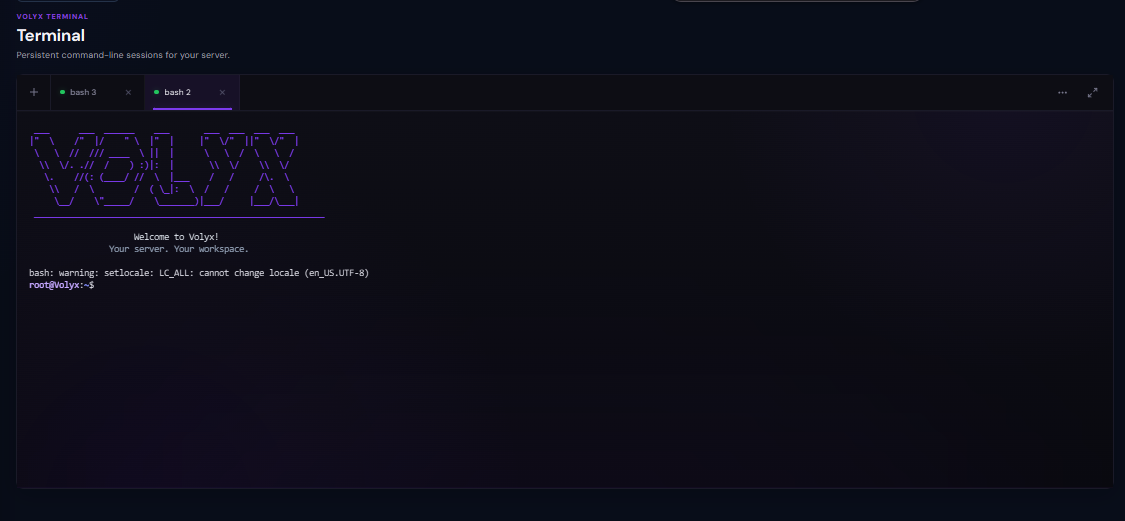
Console is mainly connected to the running application process. Terminal gives you a shell where you can work with files, dependencies, builds, Git, diagnostics, and other command-line tools.
Persistent command-line sessions
Terminal supports multiple sessions. Each tab represents its own shell
session, such as bash 2 or bash 3.
Separate sessions are useful when, for example, one tab is watching logs while another is installing dependencies or inspecting files.
Running commands
You can run normal shell commands that are available and permitted inside your server environment.
The exact commands available depend on the runtime, installed tools, container environment, and permissions of your server.
pwd
ls
cd folder
Check your current directory, list files, and move through the project.
cat file.txt
head file.txt
tail file.txt
Read files or inspect the beginning and end of logs and text output.
mkdir folder
cp source target
mv old new
Create directories and copy or move files from the command line.
find . -name "*.ts"
grep -R "text" .
Find files or search for text across the project.
Installing dependencies
One of the most common uses for Terminal is installing project dependencies.
npm install
npm install package-name
Install dependencies defined by your Node.js or TypeScript project.
pip install -r requirements.txt
Install packages listed by a supported Python project.
./gradlew build
mvn package
Run the build workflow used by the project when its build tool is available.
Do not randomly run package-install commands. Check the project
files first, such as package.json,
requirements.txt, pom.xml, or Gradle
files.
Build and development commands
Projects that require compilation or generation steps can be prepared directly from Terminal.
Common examples include:
npm run build
npm run dev
npx tsc
python script.py
./gradlew build
These are examples only. Use the scripts and commands defined by your own project.
Build tools normally explain why they failed. Read the first useful error rather than immediately repeating the same command.
Git and repository workflows
When Git is available in the server environment, Terminal can be used for repository-related workflows.
git status
git branch
git pull
git log --oneline
These commands let you inspect repository state and work with updates from the command line.
Commands that reset, overwrite, or clean working files can destroy local changes. Understand the command before running it on an important server.
Inspecting logs and project output
Terminal is useful when you need to inspect log files or generated output without opening each file manually.
ls -lah
du -sh *
tail -n 100 application.log
tail -f application.logConsole vs Terminal
- Application output
- Startup logs
- Runtime errors
- Application console commands
- Start / Stop / Restart / Kill
- Shell commands
- Dependency installation
- Build commands
- File operations
- Git commands
- Project diagnostics
A simple rule is: use Console to observe the running application, and use Terminal to work on the project and its environment.
Permissions and environment limits
Terminal runs inside the server environment provided by Volyx. It is not the same as receiving unrestricted root access to the physical host.
Some commands may be unavailable because:
- The required program is not installed.
- The server runtime does not include that tool.
- The current user does not have permission.
- The container or hosting environment restricts the operation.
If a command returns command not found or
permission denied, read the error before trying to bypass
it.
Use Terminal safely
Terminal gives you more control than the normal file interface, which also means a wrong command can change or remove a large amount of data quickly.
Commands such as recursive deletion, mass file replacement, or destructive Git operations can permanently change project data. Create a backup before major changes.
- Check your current directory before deleting or moving files.
- Read a command before pasting it from another source.
- Do not expose tokens, API keys, passwords, or webhook URLs.
- Create backups before large dependency or file changes.
- Run one major change at a time and test afterward.
Using Terminal for troubleshooting
Use pwd and ls to confirm you
are working in the expected project location.
Verify that entry files, package manifests, and required configuration exist.
Confirm the required packages are installed.
When appropriate, reproduce a build or package command and read its actual error output.
After fixing the project, restart the server and verify the application output in Console.
Next step
Continue with AI Chat to learn how Volyx can help analyze project and server problems using AI-assisted troubleshooting.