Server Settings
Server Settings controls how you interact with the server, how parts of the workspace look and behave, your hosting plan options, support features, and destructive server actions.
Console Interface
Console Interface controls which command interface is available for this server.

Console focuses on the running application process. Terminal is intended for shell and development tasks.
Appearance
Appearance settings customize how the server workspace feels and how you navigate and edit files.
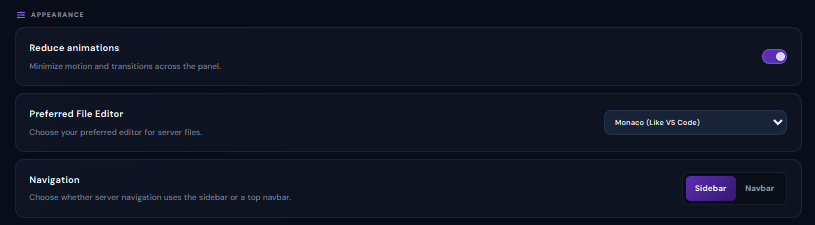
If you use Volyx Code, its own editor settings also let you change the editor theme, formatting behavior, line numbers, minimap, auto save, cursor style, and other workspace preferences.
Current Plan
The Plan section shows the hosting plan currently assigned to the server together with its included resources and renewal information.

Plan resources, prices, and your Coins balance can change. Always use the current values shown in your panel.
Upgrade Plan
If a higher plan is available, the Upgrade Plan section lets you select an available upgrade and review it before applying the change.

The upgrade control can remain unavailable until a valid higher plan is selected.
Auto Renew

Auto Renew automatically renews the hosting plan from your Volyx Coins balance when the current hosting period ends.
Enabling Auto Renew does not create Coins. Your available balance still needs to cover the plan cost when renewal occurs.
The interface can mark this feature as available only to specific or premium plans.
Developer Support

Developer Support provides a way to request help directly from the Volyx development team when the feature is available for your plan.
The panel can mark this feature as premium-only, meaning availability depends on the current server plan.
Developer Support is separate from normal documentation, AI Support, and support ticket workflows.
Danger Zone
Danger Zone contains actions that can significantly change or permanently remove the server.

Reinstall Server
Reinstall Server resets the server and runs the installation process again.
Reinstallation can affect the current server files and environment. Create a backup of anything important before reinstalling whenever possible.
Reinstall is useful when you intentionally want to rebuild the server environment rather than troubleshoot the existing installation.
Delete Server
Delete Server permanently removes the server together with its associated files, configuration, and server data.
Only delete a server when you are certain the service and its data are no longer required.
If you only need to stop the application temporarily, use Stop instead. Deleting and stopping are completely different actions.
Before using Danger Zone
- Confirm you selected the correct server.
- Download or back up important files.
- Save important environment values and configuration.
- Check whether databases contain data you need.
- Make sure you understand whether you need Reinstall or Delete.
Next step
You have now covered the core Server pages. Continue with Metrics to learn how Volyx reports resource activity and server performance.