Files
Volyx provides two ways to work with your server files: the Default File Manager and Volyx Code. You can choose the editor that best matches the way you work.
Choose your file editor
You can switch the preferred file editor from the panel settings. Open Settings → Appearance and use Preferred File Editor.
This lets you choose between the standard CodeMirror-based editor and the more advanced Volyx Code workspace.
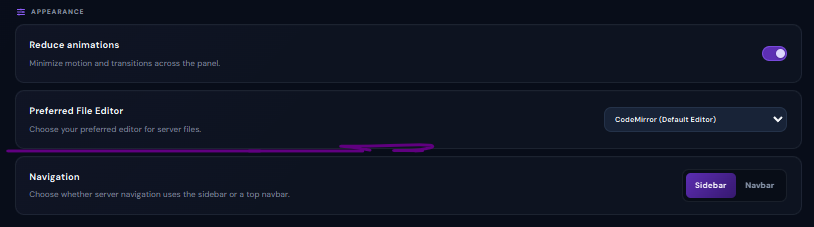
Minimizes panel motion and transitions for a simpler or more responsive experience.
Select which editor opens when working with server files.
Choose whether server navigation uses the Sidebar or Navbar layout.
Default File Manager
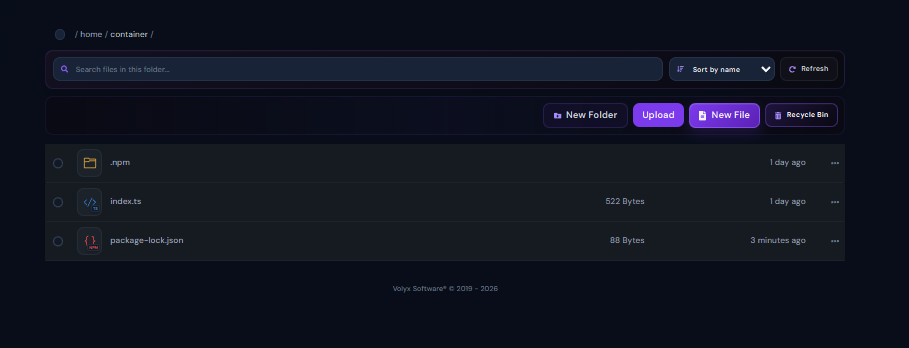
The Default File Manager is the simpler option. It is designed for common file operations without opening a full development workspace.
Browsing files
The current folder path appears at the top of the page. You can open folders and files directly from the file list.
Search
Use the search field to find files inside the current folder.
Sort and refresh
The file list can be sorted, and the Refresh button reloads the latest folder contents.
File actions
Create a new directory inside the current path.
Upload project files from your device.
Create a new empty file inside the current directory.
Access supported deleted-file recovery features when available.
Each file or folder can also expose additional actions from its menu.
Use the Default File Manager when you only need to upload, download, rename, create, or make a small edit to a file.
Volyx Code
Volyx Code is the advanced workspace for users who want an editing experience closer to a desktop development editor.
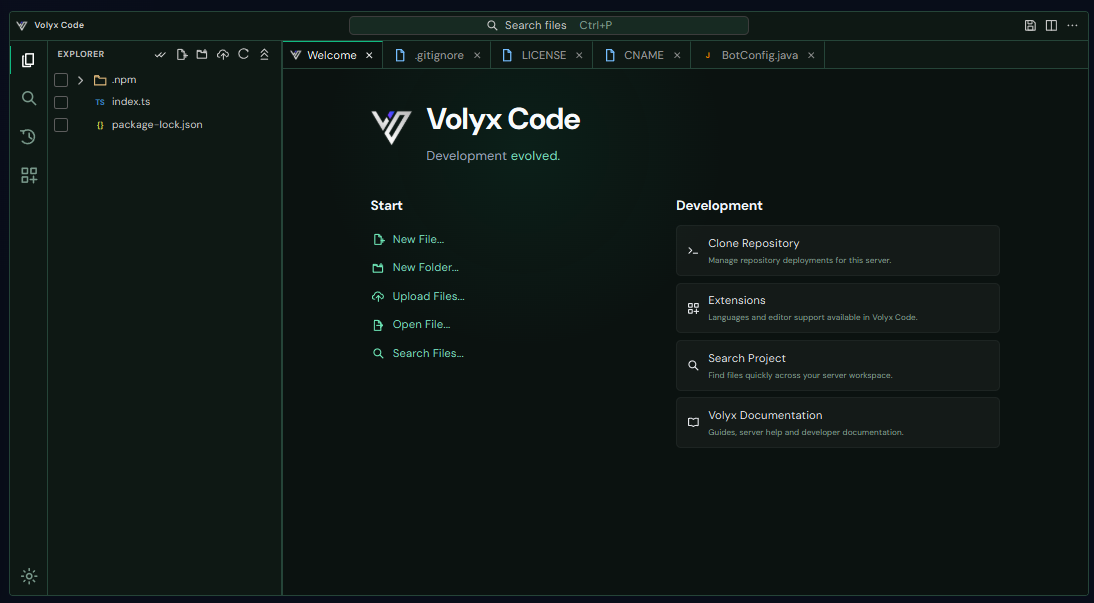
It combines a file explorer, editor tabs, project search, configurable editor behavior, and additional development tools in one workspace.
Start actions
The Volyx Code welcome page provides shortcuts for common operations.
- New File — create a new file.
- New Folder — create a directory.
- Upload Files — upload files from your device.
- Open File — open an existing file.
- Search Files — find a file in the workspace.
Development tools
Volyx Code also includes shortcuts for development-related features.
Access supported repository deployment or cloning workflows.
Access supported language and editor extensions. Some extension functionality can depend on the server or available feature level.
Search across the current workspace.
Open the Volyx documentation directly from the development workspace.
Editing files in Volyx Code
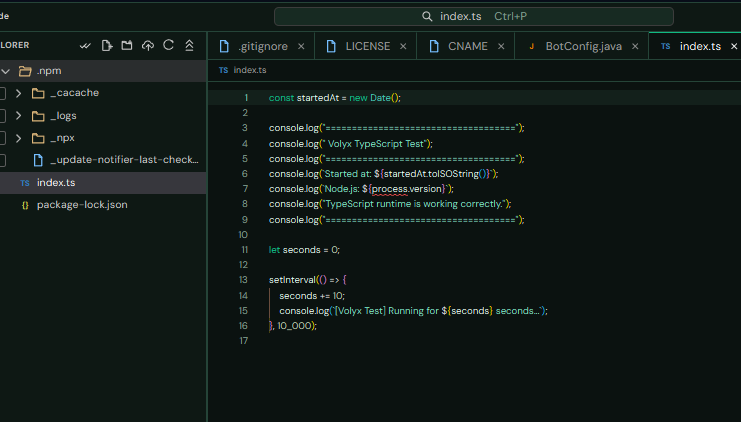
When a file is opened, it appears inside an editor tab. The editor is designed for source code and includes features such as line numbers, syntax highlighting, indentation support, and configurable editor behavior.
Make sure your work has been saved before restarting the server, replacing files, or making major project changes.
Volyx Code settings
Volyx Code includes its own editor settings so you can customize both appearance and editing behavior.
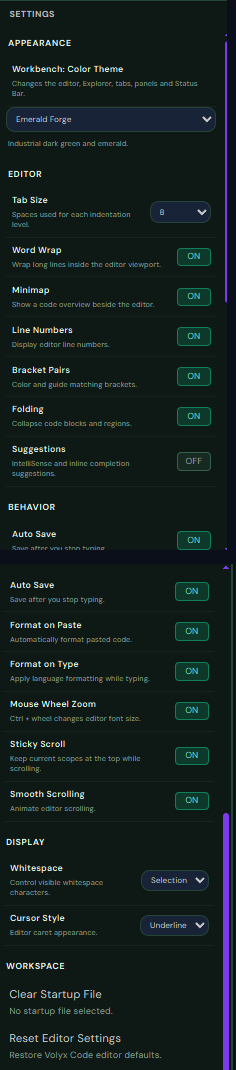
Appearance and theme
Workbench Color Theme
You can change the Volyx Code color theme from Settings. This changes the appearance of the editor, explorer, tabs, panels, and status interface.
Choose the theme that gives you the best readability for your workspace.
The Workbench Color Theme controls the editor workspace appearance and can be changed without affecting your project files.
Editor options
Controls the number of spaces used for each indentation level.
Wraps long lines inside the editor instead of forcing horizontal scrolling.
Shows a compact overview of the file beside the editor.
Shows numbered lines beside the source code.
Helps identify matching brackets while editing code.
Allows supported code sections to be collapsed and expanded.
Controls IntelliSense-style suggestions and inline completion assistance.
Editor behavior
Saves your work automatically after you stop typing.
Automatically formats supported code when content is pasted.
Applies supported formatting while you type.
Allows Ctrl + mouse wheel to change the editor font size.
Keeps useful scope information visible while scrolling through longer files.
Enables smoother animated movement when scrolling through code.
Display options
Controls how whitespace characters are displayed inside the editor.
Changes the appearance of the editor cursor.
Workspace options
Clears the file currently selected to open when Volyx Code starts.
Restores Volyx Code editor preferences to their default values.
Which editor should you use?
- Simple file browsing
- Uploads and file creation
- Fast small edits
- Minimal workspace
- Multiple editor tabs
- Project explorer
- Advanced editor settings
- Search and development tools
- Custom editor themes
You can switch between the two later from Settings → Appearance → Preferred File Editor.
Next step
Continue with Config to learn how runtime and startup configuration are managed for your server.