
Minecraft Server Lag in 2026: Diagnose TPS, MSPT, CPU and RAM
A practical, evidence-first guide to fixing Minecraft Java server lag: read TPS and MSPT, profile with spark, tune chunks, and diagnose CPU, memory and plugins.
Read article ↗Learn how to control who joins a Minecraft server, use Java whitelists and Bedrock allowlists, create LuckPerms ranks, avoid dangerous OP access, and manage players safely on Volyx.

A Minecraft server is easy to share and surprisingly easy to misconfigure. A friend passes the address to someone else, a new moderator needs one command, or a permissions plugin grants considerably more access than intended. Good player management is not one switch. It combines admission control (who may join), command authorization (what each person may do), operational access (who can use your hosting panel), and recovery (what you can restore if an account is compromised).
This guide shows how to build that separation on a private survival server or a growing community in 2026. It explains Java Edition’s whitelist, Bedrock Dedicated Server’s allowlist, the difference between operator privileges and plugin ranks, and a practical LuckPerms setup. It uses Volyx’s Pterodactyl-style Console, Files and Backups workflow as an example, but every important step has a purpose beyond one hosting provider.
By Volyx Editorial · Updated October 2026 · Approximately 23-minute read.
Important: Save a verified backup before editing server configuration or permissions. Commands in this guide should be run only on servers you own or administer. LuckPerms examples apply to a compatible Java plugin/mod environment—not every Vanilla, Bedrock, or modded server. Keep
online-mode=trueon a directly exposed Java server unless you have a carefully configured, authenticated proxy architecture.
Jump to: Quick decision table · Java whitelist · Bedrock allowlist · LuckPerms groups · Volyx workflow · Troubleshooting · FAQ
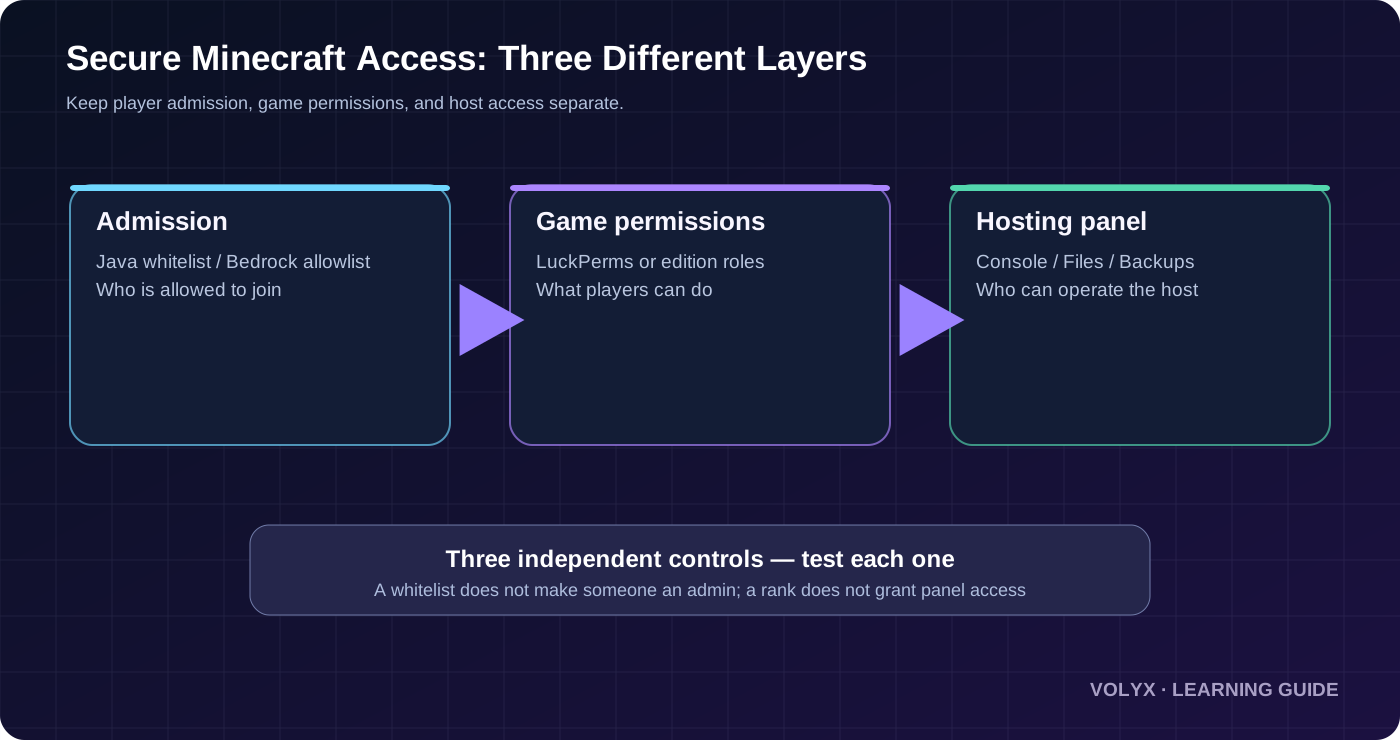
A whitelist, or allowlist, decides which player accounts may connect to a private server. On a properly authenticated Java Edition server, only identities listed in whitelist.json can join when whitelisting is enabled. Bedrock Dedicated Server calls the equivalent feature an allowlist, managed through allowlist.json and Xbox gamertags. A list is an entry gate, not a way to assign moderators or grant safe command permissions.
Imagine three friends, one builder, and one moderator. All five may be admitted through the list; only the builder might receive a build-related plugin permission, and the moderator might receive permission to mute or kick. Nobody other than the owner necessarily needs OP. If you grant all five operator access just because they are trusted friends, you have replaced a careful permission design with an unnecessarily powerful shared account boundary.
The admission list also does not replace backups, anti-griefing plugins, anti-DDoS protection or authenticated account sign-in. If someone enters using a compromised whitelisted account, a whitelist alone will not stop them. Build defenses in layers.
| Goal | Java Edition | Bedrock Dedicated Server | Practical recommendation |
|---|---|---|---|
| Admit named players only | whitelist on | allowlist + allow-list=true | Confirm account names before adding |
| Manage fine-grained plugin commands | LuckPerms on supported Java platform | Bedrock roles or a Bedrock-specific permissions system | Do not copy LuckPerms commands into Bedrock |
| Give a trusted moderator limited privileges | Plugin permissions | Bedrock permission levels and supported add-ons | Avoid universal operator by default |
| Change files remotely | Host file manager / SFTP | Host file manager / SFTP | Make a backup and check format before restart |
| Recover from an unsafe change | Restore tested backup | Restore tested backup | Test restoration separately, not on the only copy |
| Let staff manage files or console | Hosting-panel user permissions | Hosting-panel user permissions | Give panel access only if actually necessary |
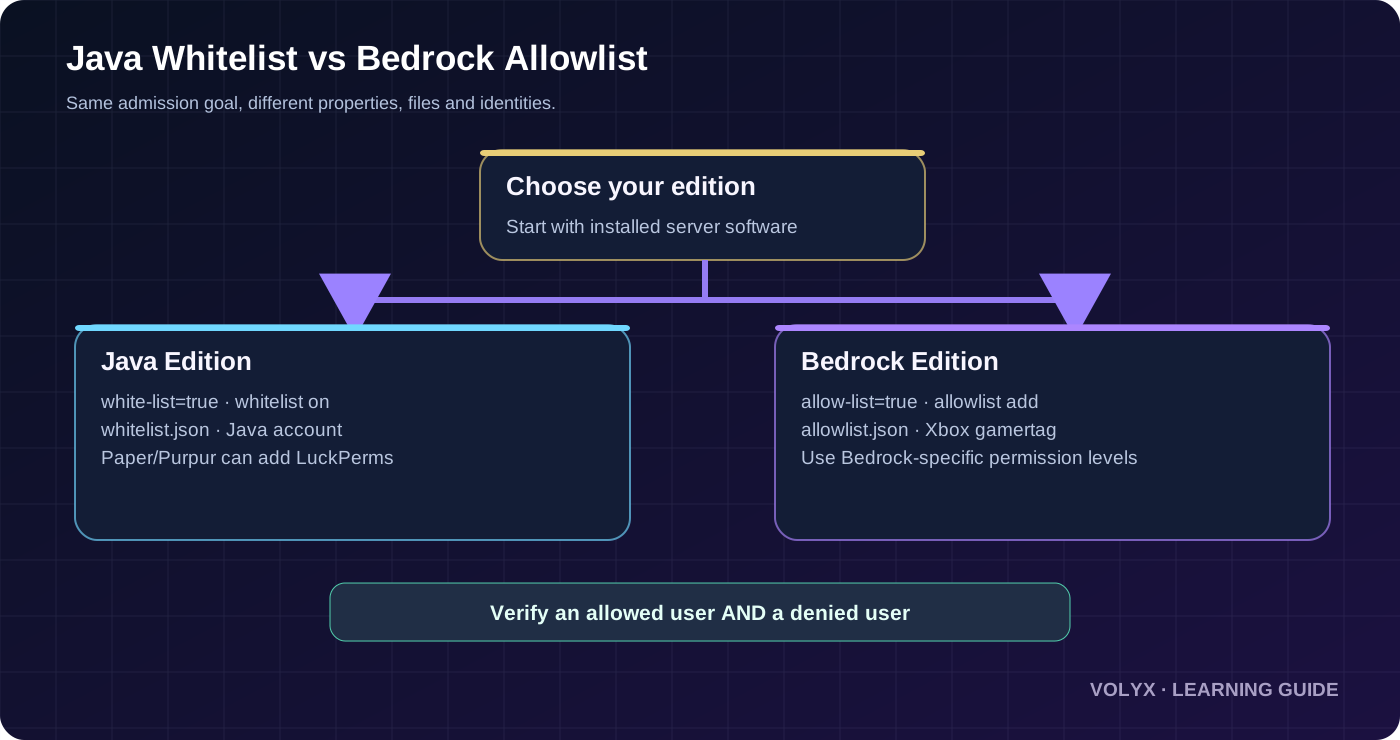
Start by asking a few concrete questions. Is the server running Java or Bedrock? Is it Vanilla, Paper, Purpur, Fabric, Forge or a proxy-connected setup? Which player accounts need access? Which commands should moderators actually run? Does the host offer Backups, and have you downloaded or tested at least one copy of the world?
For a Java Paper or Purpur server used by a small community, a sensible baseline is an authenticated login, a whitelist if the community is private, a permissions manager for supported plugins, and minimal operator membership. For a small vanilla server with no plugin architecture, using the whitelist and very few operators may be enough. A Bedrock Dedicated Server should instead use its native allowlist and permission levels; do not assume a Spigot/Paper plugin can be installed.
Write down one recovery owner—the person who can use the host console if a permissions mistake blocks every in-game admin command. Hosting console access should remain separate from a Minecraft rank. Record current versions and plugin files, and make a backup before major changes. Volyx’s panel may expose a Backups page depending on server allocations and limits, but availability and retention can differ from one plan to another.
server.properties and applicable permissions files.On a Java server, use its console or an authorized operator account. Commands entered in the server console usually omit the leading slash; in-game commands include /. Your software version may print slightly different status messages.
whitelist on
whitelist add ExamplePlayer
whitelist list
Ask ExamplePlayer to join, then test a different, unlisted account. The listed account should be admitted, while the unlisted account should receive a whitelist-related rejection. Use real Minecraft account names in place of these placeholders.
For a persistent configuration, examine your Java server.properties:
online-mode=true
white-list=true
enforce-whitelist=true
white-list=true enables the entry list. enforce-whitelist=true, where supported, requires non-listed players to be removed when the whitelist is enforced; see your server implementation’s documentation for its exact behavior. Do not toggle online-mode=false as a fix for someone being rejected by the whitelist. That changes the security model and risks account impersonation if the network isn’t built correctly.
Remove somebody who no longer needs access:
whitelist remove ExamplePlayer
whitelist list
If you edit whitelist.json manually, do it only with correct JSON and appropriate UUID data, then use whitelist reload or restart as required. Running the supported command is normally safer than hand-editing identity files. Keep the server address private if you can, but do not treat secrecy of the address as the security control.
| Console command | Purpose | Common caution |
|---|---|---|
whitelist on | Enable admission list | Check current members first |
whitelist off | Disable admission list | Opens server access to otherwise eligible accounts |
whitelist add Name | Admit named player | Double-check spelling and identity |
whitelist remove Name | Revoke membership | Also review any panel or OP access |
whitelist list | Review the list | Audit it periodically |
whitelist reload | Reload file | Only needed after file edits or relevant changes |
Bedrock Dedicated Server uses a different property name. Set allow-list=true in the Bedrock server.properties file rather than copying the Java white-list setting. Microsoft’s Bedrock server documentation identifies the player file as allowlist.json.
online-mode=true
allow-list=true
default-player-permission-level=member
After a safe restart or reload according to your server version, add an authorized Xbox gamertag. Use quotes for a gamertag containing spaces:
allowlist add "Example Gamer"
allowlist list
allowlist remove "Example Gamer"
allowlist reload
The command may appear as /allowlist ... in-game and without the slash in the dedicated-server console. Bedrock’s command documentation also lists whitelist as an alias on supported versions; using allowlist keeps the edition distinction clear.
The default-player-permission-level option controls the starting permission level, not the list of who may join. The values include visitor, member, and operator. Do not set the default to operator just to make one trusted staff member a moderator. Give elevated privileges only to specific identities through the supported Bedrock mechanism.
A manually edited allowlist.json must remain valid JSON. The name corresponds to the player gamertag, optional xuid identifies the Xbox account, and ignoresPlayerLimit has its own behavior; do not blindly set that flag for all users. Microsoft’s documentation specifically notes that an externally edited allowlist needs a reload before changes take effect.
Edition trap: A Bedrock player failing to connect to a Java-only server is not fixed by switching a property name. Cross-play requires appropriate supported software or bridging, and admission/identity behavior must be tested in that setup separately.
The op command is designed for high-privilege server administration; it isn’t a convenient substitute for a rank system. An operator can access many commands that ordinary users cannot. Giving OP to a helper who only needs to kick spam accounts may also grant permission to change gameplay or administration settings depending on software and operator level.
op ActualOwner
op TrustedAdmin

deop FormerAdmin
Run these only after checking the correct username; avoid copying sample operator commands into production. For most communities, the owner retains the host panel and minimal OP access, while moderators receive targeted permissions from a compatible plugin. After staff leave, remove operator status and relevant hosting-panel user access. Those are separate revocation steps.
| Role | Join private server? | Game moderation | Host panel files/console? |
|---|---|---|---|
| Member | When allowlisted | Normal game permissions | No |
| Builder | When allowlisted | Only approved build features | No |
| Moderator | When allowlisted | Chosen moderation nodes | Normally no |
| Administrator | When allowlisted | Broader in-game tasks | Only if required |
| Owner | When allowlisted | Highest necessary game access | Yes, secured separately |
Least privilege means each person gets just enough access for their job. A rank name is cosmetic until a permissions system actually assigns the required nodes, so don’t assume calling a group moderator makes it safe by itself.
LuckPerms is a widely used permissions manager across supported Java server ecosystems. On Paper or Purpur, install the correct compatible plugin jar from its official distribution source, stop the server first, place the file in the plugins directory, and restart while watching the console. On Fabric or Forge, use an appropriate compatible version/mod and consult that loader’s documentation; plugin jars are not generally drop-in replacements across loaders. LuckPerms is not a Bedrock Dedicated Server permission plugin.
The LuckPerms documentation explains three concepts that matter here: groups hold permission nodes, users inherit group nodes, and groups can inherit other groups. A permission such as exampleplugin.command.kick is only an illustration until confirmed in that particular plugin’s documentation. Never copy made-up permission nodes expecting them to control a real command.
Use the server console with the supported LuckPerms command:
lp creategroup builder
lp creategroup moderator
lp creategroup adminlp group builder parent add default
lp group moderator parent add default
lp group admin parent add moderatorThis model keeps the normal player permissions in default, while the admin group inherits moderation settings. Do not create circular inheritance. Some groups may not require explicit default inheritance depending on your deployment; verify the resulting effective permissions rather than assuming.
Paper documents some Vanilla command nodes, including minecraft.command.kick and minecraft.command.ban, and LuckPerms can store permission assignments. Whether a command checks a particular node also depends on the software and installed plugins, so verify against your exact server version and test. For example, a moderator who needs to remove disruptive users might get:
lp group moderator permission set minecraft.command.kick trueIf you use a moderation plugin, get its exact permission nodes from that plugin’s documentation and grant only the ones you want. Avoid *, luckperms.*, or unrestricted operator privileges for routine moderators. Some Vanilla functionality is governed by operator checks that differ among versions; a LuckPerms node isn’t a guarantee of bypassing Vanilla OP requirements. Test your actual command behavior.
lp user ExampleBuilder parent add builder
lp user ExampleMod parent add moderator
lp user ExampleMod parent info
These add group membership; they don’t need to make the player OP. Test both users with a non-admin account before opening the server. If a moderator loses responsibilities, remove their staff parent group rather than only changing a chat prefix.
lp editor
lp verbose on
The editor creates a temporary editor link to review group assignments; treat it as a sensitive admin workflow, and do not publish links/screenshots exposing tokens or private settings. Verbose mode can help identify which permission a particular plugin or command checks. Turn verbose diagnostics off after testing so logs do not grow unnecessarily. Depending on LuckPerms version, the verbose subcommand syntax and filtering options can vary.
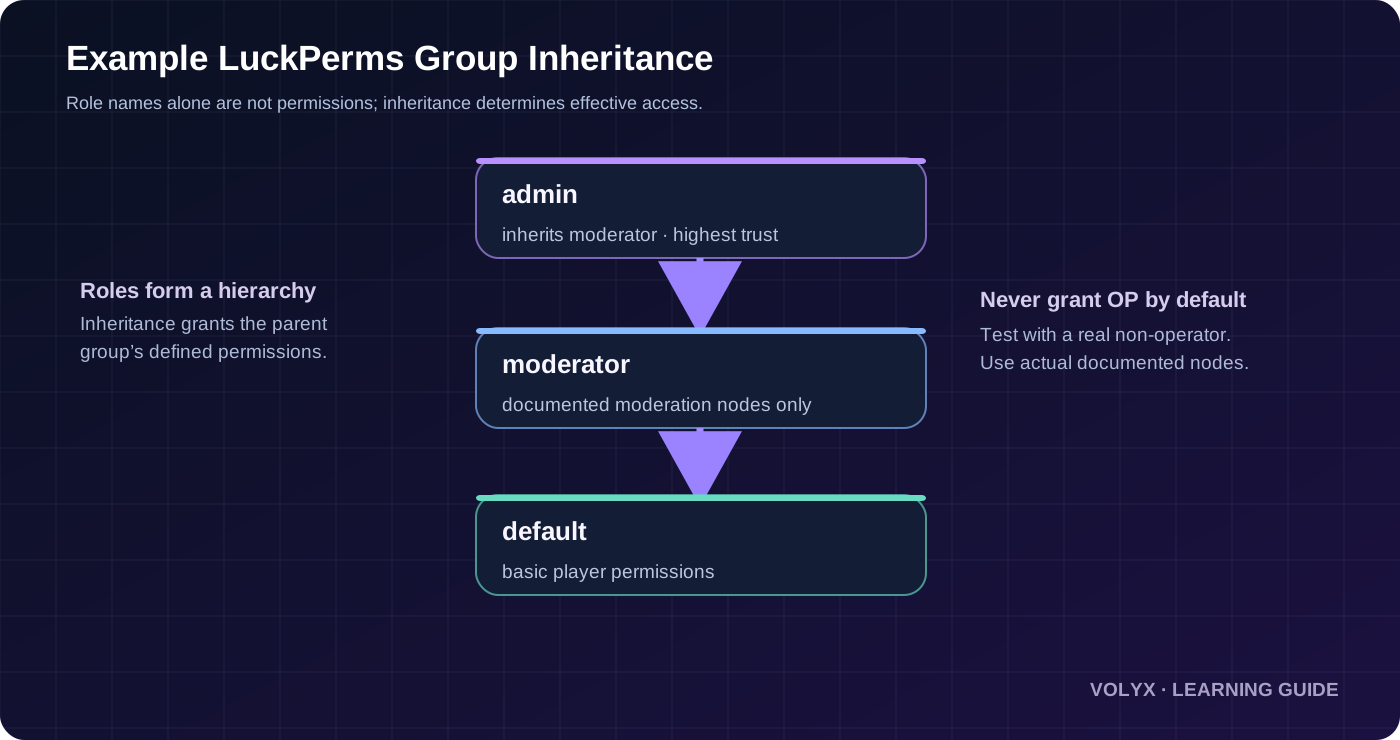
A public /rank display may show colored names, prefixes or badges. Those are usually presentation features supplied by a chat or tab-list plugin. They don’t enforce permissions by themselves. Conversely, permission assignments work even if a player sees no colorful tag. Keep cosmetic systems separate from the access-control model.
A hosting panel user may be able to view or edit files, start/stop processes, or read backups without being an in-game operator. This is a much more sensitive kind of access. When using a Pterodactyl-style panel on Volyx, review user access independently and assign the minimum supported permissions. Avoid handing panel console access to every in-game moderator.
For larger communities, keep an access register with the username, Minecraft identity, assigned groups, panel membership, approving owner and review date. This doesn’t need to be a complicated database: a private spreadsheet or restricted notes document is enough. Check it whenever a helper departs, changes roles or reports a compromised account.
Whitelists help keep uninvited players from connecting, but they cannot prevent mistakes made by allowed users. A trusted player can still accidentally blow up a build, share access to their computer or have their Minecraft account stolen. For survival communities, consider a land-protection or rollback plugin if supported by your software, and review its documentation before applying it.
Not every Minecraft platform supports the same protection plugins. Some plugins require specific Java server APIs; others are designed for modded ecosystems. Pick software before searching for extensions. Keep a rollback-capable backup strategy even when a protection plugin is installed: a plugin’s audit database can itself fail or become unavailable.
| Control | Stops or limits | Does not guarantee |
|---|---|---|
| Whitelist / allowlist | Unlisted accounts joining | Protection from compromised listed identities |
| Authenticated login | Player-name impersonation in supported direct setups | Freedom from account compromise |
| Permissions groups | Unauthorized supported commands | Safety from all bugs/plugins or data loss |
| Off-server backup | Permanent loss after some incidents | Immediate restoration without downtime |
When an incident occurs, preserve logs, remove affected elevated access, stop the server if necessary, and make a copy before attempting rollback. Recovery is an operational process, not just a command.
On Volyx, an authorized server administrator can use the Pterodactyl-style interface to inspect the running server. Names and exact page availability can depend on the deployed UI and server type, so follow the live panel labels rather than assuming every account has identical options.
server.properties, and determine whether the server is Java or Bedrock. On Bedrock, you may also see allowlist.json; on Java, whitelist.json is the expected identity list.Do not change server allocation/port settings merely to fix a whitelist message. A correct denial proves the client reached the server; that is different from a timeout or firewall issue. For network errors, browse the Volyx Minecraft guides for separate connection troubleshooting rather than changing permission settings.
You have one owner and four ordinary members. Keep online-mode=true, enable the whitelist, add the five authenticated usernames, and leave ordinary members as non-operators. If one person later becomes a helper, create a limited role using an appropriate permissions plugin instead of granting them all console-level powers.
Write down the expected test outcomes: named players can join, unknown players cannot, regular members cannot use restricted moderation commands, and the owner can recover settings from the host console. If any expectation fails, revert the last change and investigate before adding more plugins.
A single direct Paper server has fewer trust boundaries than a Velocity proxy plus multiple backend servers. With a proxy, player authentication and forwarding must be configured correctly; simply turning off online-mode on backend servers without restricting and authenticating the proxy path can expose identity spoofing risk. Review the proxy’s official forwarding and firewall guidance and test with the exact server versions.
Fabric, Forge and NeoForge operate in mod ecosystems where permissions support depends on the chosen permissions mod and installed modules. A Paper plugins/ jar is not automatically compatible. Use the mod’s own configuration syntax for ranks, and check whether permission nodes are honored by the target mod. Some client-side mods change gameplay or presentation without giving the server any command permission system.
If you support Bedrock clients joining a Java server through a bridge, test how the bridge represents identities. Bedrock gamertags, prefixes and UUID mappings may differ from ordinary Java identities. Decide which identity your whitelist and permissions plugin should trust, and test with a new account before opening access. No universal command set can replace that integration-specific testing.
Treat any change to player permissions like a small software release. Capture the current permission group state, choose one expected outcome, apply the smallest change, test, and record the result. Don’t batch 25 unexplained permission nodes and then wonder which one granted /ban.
For a plugin permission change, test one account that should have the permission and one that should not. For a whitelist change, test one permitted account and one denied account. For a panel permission change, check what a staff account can actually read or modify. A successful test should include the negative case, not only whether the owner can still execute commands.
If something breaks, use the server console to undo the most recent group membership or permission assignment. Don’t restore a full world backup merely to repair a single permission node unless the plugin’s data store was damaged. If you really need a server backup restore, remember that Pterodactyl restores can overwrite files; preserve current files and test on an isolated environment before restoring production.
| Symptom | Likely explanation | First safe check |
|---|---|---|
| “Not whitelisted” for a friend | Wrong account name or stale list | whitelist list, verify exact Java identity |
| Bedrock allowlist not working | allow-list is off or stale | Inspect Bedrock server.properties; reload |
| Java property ignored | Used allow-list instead of white-list | Verify software edition and restart requirement |
| Everyone can still connect | Whitelist/allowlist disabled | Check configuration and console state |
| Allowed account cannot join | Wrong identity or authentication problem | Review logs and correct account mapping |
| Whitelist changed but player stays online | Enforcement/version behavior | Check enforce-whitelist support and test again |
| LuckPerms command unknown | Plugin not loaded or wrong loader | Review startup logs; confirm plugin compatibility |
| Group exists but command still denied | Wrong node, OP-only command, or context | Use plugin documentation and LuckPerms verbose |
| Moderator can change too much | Granted OP or wildcard | Audit effective nodes and revoke excessive rights |
| Colored rank not showing | No compatible chat/tab formatting | Check display plugin separately from permissions |
| Changes vanish after restart | Edited wrong server, storage error, or overwritten file | Check active directory and plugin storage logs |
| All admins locked out in-game | Faulty role changes | Recover using authorized hosting Console access |
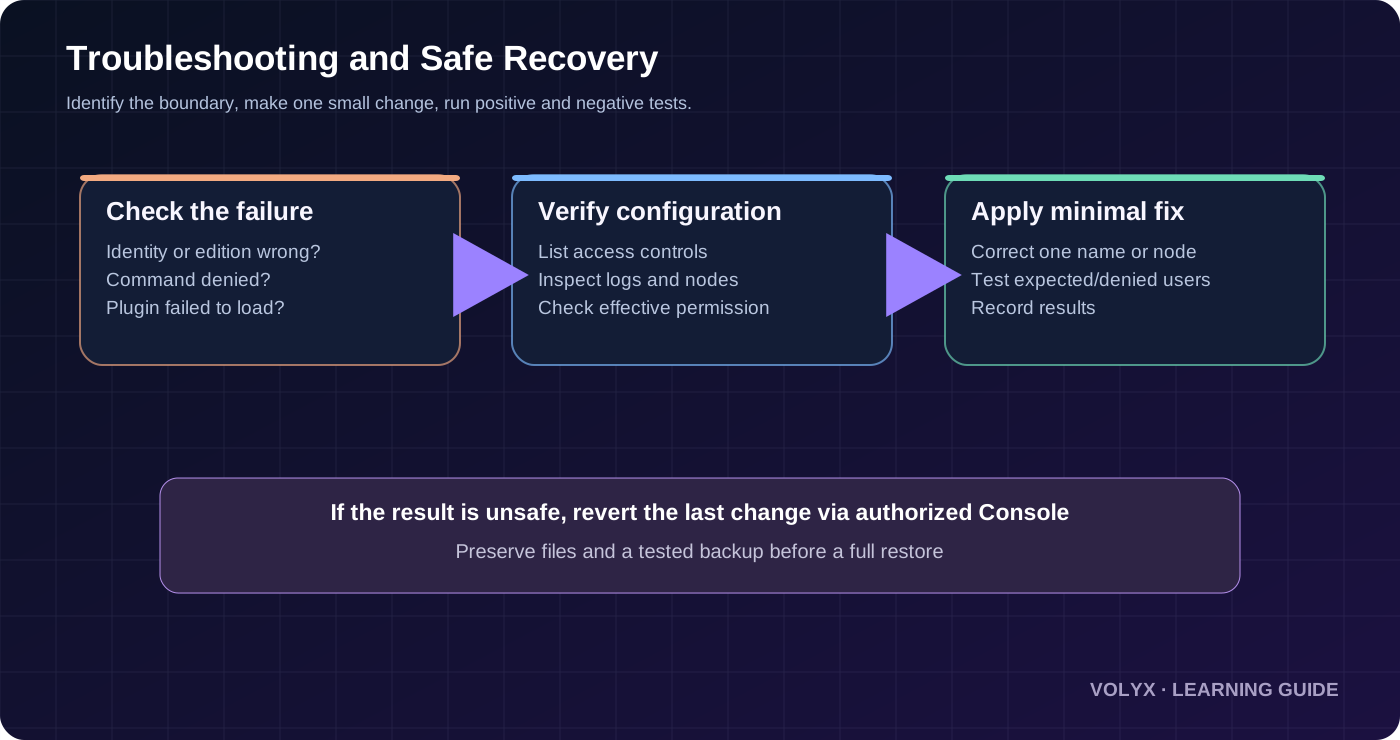
First, don’t give the moderator * or OP to make the error disappear. Check the exact command owner: is it Vanilla, Paper, or a moderation plugin? Find that command’s required node in current documentation, then inspect effective permissions using LuckPerms. Add only the documented node and test both a permitted and an unpermitted account. If the node is already present but the command still fails, look for world contexts, plugin dependencies, command conflicts or a required operator level.
A world migration might preserve terrain but not every server configuration file, plugin database or identity mapping. Compare the original whitelist/allowlist files with the new server’s software and version. Verify online-mode, server edition and proxy identity handling before re-adding users. Restore or rebuild the list carefully; do not overwrite the new world with an entire old archive just to recover a short permission file.
A written access policy can be short. Decide who approves new members, how long temporary helpers keep privileges, how to report compromised accounts, who can run dangerous commands, how permissions are audited, and where backups are stored. Start with one owner, one backup-capable operator, and the smallest number of staff roles your player count justifies.
If the server grows, review group memberships monthly and after any staff departure. Measure the operational outcome: are unwanted players denied, can moderators perform their narrow duties, and can the owner reverse mistakes? More roles and plugins do not necessarily make a server more secure. Simplicity, documentation and recovery practice matter more.
Use the authorized console command whitelist add PlayerName after enabling whitelist on, and confirm with whitelist list. In-game, authorized operators normally prefix the command with /. Test with the actual player account, not merely the visible nickname.
The goal is similar—control admission—but the file names, properties and account identities differ. Bedrock uses allow-list=true and allowlist.json, whereas Java uses white-list=true and whitelist.json. See Microsoft’s Bedrock Dedicated Server documentation for its current implementation.
No. A whitelist checks which accounts may join; it is not upstream network filtering. Protection against volumetric network attacks requires appropriate network-level defenses from a provider or supported proxy service. It also cannot block an attacker with a compromised approved account.
No. Being allowlisted grants an opportunity to connect, not operator or permission-plugin powers. Configure those separately and test with a regular player account.
Usually not. Operator access tends to be broader than routine moderation duties. Use a compatible permissions manager and documented, narrow permission nodes where supported; reserve OP and hosting console privileges for the smallest possible trusted group.
A strictly vanilla server does not load Paper/Spigot plugin jars. Use a compatible plugin-capable implementation or an appropriately supported modded environment. Verify software and version compatibility before switching, and back up the world first.
Not as a drop-in Java plugin. Bedrock has its own permission levels and add-on ecosystem. Choose tools explicitly built for your Bedrock server implementation.
A rank is commonly a group name or visual label. A permission is an enforced rule granting or denying a specific action. A rank becomes useful for access control when the server’s permissions engine maps it to the right nodes; a decorative prefix by itself doesn’t stop commands.
Behavior depends on the software and its enforcement configuration. Check whether your server supports and uses enforce-whitelist, and verify the result with a reconnect test. Do not assume removing a player from a list always immediately disconnects an existing session.
whitelist.json?Prefer console commands. If you must edit it, first create a backup, preserve valid JSON and exact account identifiers, and reload the list using the supported command. A malformed file or wrong identity can lock out legitimate players.
Create a group with lp creategroup moderator, add the exact supported moderation permission nodes, and assign a user with lp user Username parent add moderator. Verify both granted and denied commands using test accounts.
Not automatically. Cross-play tools map player identities differently, and their permissions integration is specific to the proxy or bridge. Follow the documentation for that exact setup and test both account types.
No: Coins or hosting expiration affect whether the server is available to run, not the meaning of a game-level whitelist. If the server is suspended or offline, fix that operational issue before expecting any player to join.
Someone with relevant panel file or console rights may have powerful administrative options independently of Minecraft operator status. Review the panel’s own access controls and give only the permissions needed for their task.
Use authorized server console access to inspect and restore your permission settings. Keep a known owner recovery path and a backup taken before the change. Avoid granting every account OP in frustration; that widens the problem rather than fixing it.
They may include files stored inside the server directory, but a LuckPerms installation using an external database may require a separate database backup. Check the configured storage backend and verify a test restore rather than assuming a world backup contains every permission record.
Begin with the edition-specific admission list, keep authentication enabled, create only the player groups your community actually needs, and verify who has hosting-panel access. Then run both positive and negative tests and practice restoring the configuration. The result is not a magically invulnerable server; it’s one you can operate and recover with less risk.
Continue learning: Browse Volyx Minecraft guides · Understand Minecraft lag and server performance · Read Minecraft backup and restoration advice · Explore Volyx documentation.
Want to create your own server? Explore Volyx hosting and review your available software, resources, and Coins requirements before choosing a plan.
This article is an independent original tutorial by Volyx Editorial. Command behavior and platform support can change with game and plugin versions. Examples use placeholder player names; confirm current documentation and test on your own server before applying permission changes.
Explore more in-depth articles with code, visuals, and practical walkthroughs.
Browse all articles ↗
A practical, evidence-first guide to fixing Minecraft Java server lag: read TPS and MSPT, profile with spark, tune chunks, and diagnose CPU, memory and plugins.
Read article ↗
Learn the difference between DDoS floods and Minecraft bot raids, secure a Paper or Velocity server, compare TCPShield and Cloudflare, and respond safely using Volyx.
Read article ↗
Compare five real MIT-licensed JavaScript, TypeScript, and Python Discord bot starters, then learn how to deploy one safely on Volyx.
Read article ↗