
Minecraft Server Lag in 2026: Diagnose TPS, MSPT, CPU and RAM
A practical, evidence-first guide to fixing Minecraft Java server lag: read TPS and MSPT, profile with spark, tune chunks, and diagnose CPU, memory and plugins.
Read article ↗A practical Java and Bedrock server backup guide: locate world folders, capture consistent archives in Volyx/Pterodactyl, verify copies, restore safely, and diagnose missing player data.
A Minecraft world is not just a landscape. It is months of builds, inventories, maps, player histories, plugins, and memories that may exist only on one server. A single bad update, mistaken file replacement, storage failure, or corrupt world save can turn that progress into an empty spawn. The solution is not simply clicking “Backup” once. It is having a copy you can identify, download, inspect, and successfully restore.
In this guide, you will learn how to back up and restore a Minecraft server safely in 2026, including Minecraft: Java Edition (Vanilla, Paper, Purpur, Fabric, and Forge) and Bedrock Dedicated Server. We will use the workflow you can follow from a Volyx server panel when its backup and file-management features are available, while explaining what to do if you manage the files by SFTP or another Pterodactyl-based host.
Quick answer: announce maintenance, stop the server cleanly, create a complete backup of the actual world directory and its associated player data, verify the backup completed, download a separate copy, test recovery on a disposable server, and only then replace a damaged production world. Never delete the only remaining good copy to make room for a restore.
Important: An archive created while the game is actively writing chunks may contain inconsistent files. Stopping the server before a manual file copy is the simplest dependable approach. PaperMC’s troubleshooting documentation expressly recommends a full shutdown before modifying server files. A panel-created backup may use its own process, but do not assume that every backup operation automatically produces a consistent snapshot of an active world. See PaperMC’s troubleshooting guidance.
You can follow this guide without server-root access. You need access to your Minecraft server’s Console, Files, and, if enabled, Backups sections; enough available storage for an archive; and permission to start or stop the game server. To test a recovery properly, you also need a separate empty test instance or a secure local copy of the server.
Before doing anything, write down the Minecraft edition, exact version, server software, installed mods/plugins, configured level-name, and time of the most recent known-good save. If the server belongs to a group, designate one person to perform the backup so two administrators do not overwrite each other’s files.
A good recovery plan protects five different things:
| Asset | Why it matters | Typical location |
|---|---|---|
| World terrain and builds | Chunks, generated structures, entities, block changes | Java: folder named by level-name; Bedrock: worlds/<level-name>/ |
| Player progression | Inventories, positions, advancements and statistics | Java: playerdata/, advancements/, stats/; Bedrock data lives inside its world database |
| Alternate dimensions | Nether and End progress | Vanilla Java may keep DIM-1 and DIM1 under the main world; Paper-family layouts often have separate world folders |
| Game configuration | Difficulty, properties, permissions, allowlist, operator list | server.properties, ops.json, allowlist files, relevant settings |
| Mod and plugin state | Gameplay compatibility, economy, claims, custom items | mods/, config/, plugins/, datapacks and external databases, where applicable |
The folder names in this table are examples, not a universal map. Different editions, forks, and plugins store files differently. Check the actual configured paths, and remember that an external MySQL/PostgreSQL database is not included merely because you archived the game files.
Imagine copying a notebook while somebody is still rewriting its pages. Your ZIP can open without any errors, yet the copied chunk files may reflect different moments in time. A player inventory might belong to one moment while a region file belongs to another. That is the difference between a valid archive and a consistent backup.
Three more traps are common. First, a world folder might be excluded by a backup ignore rule. Second, a panel may report that a backup job was created even though it later failed or exceeded a quota. Third, the file may only exist on the same machine that loses its storage. None of those protects you from a disk failure.
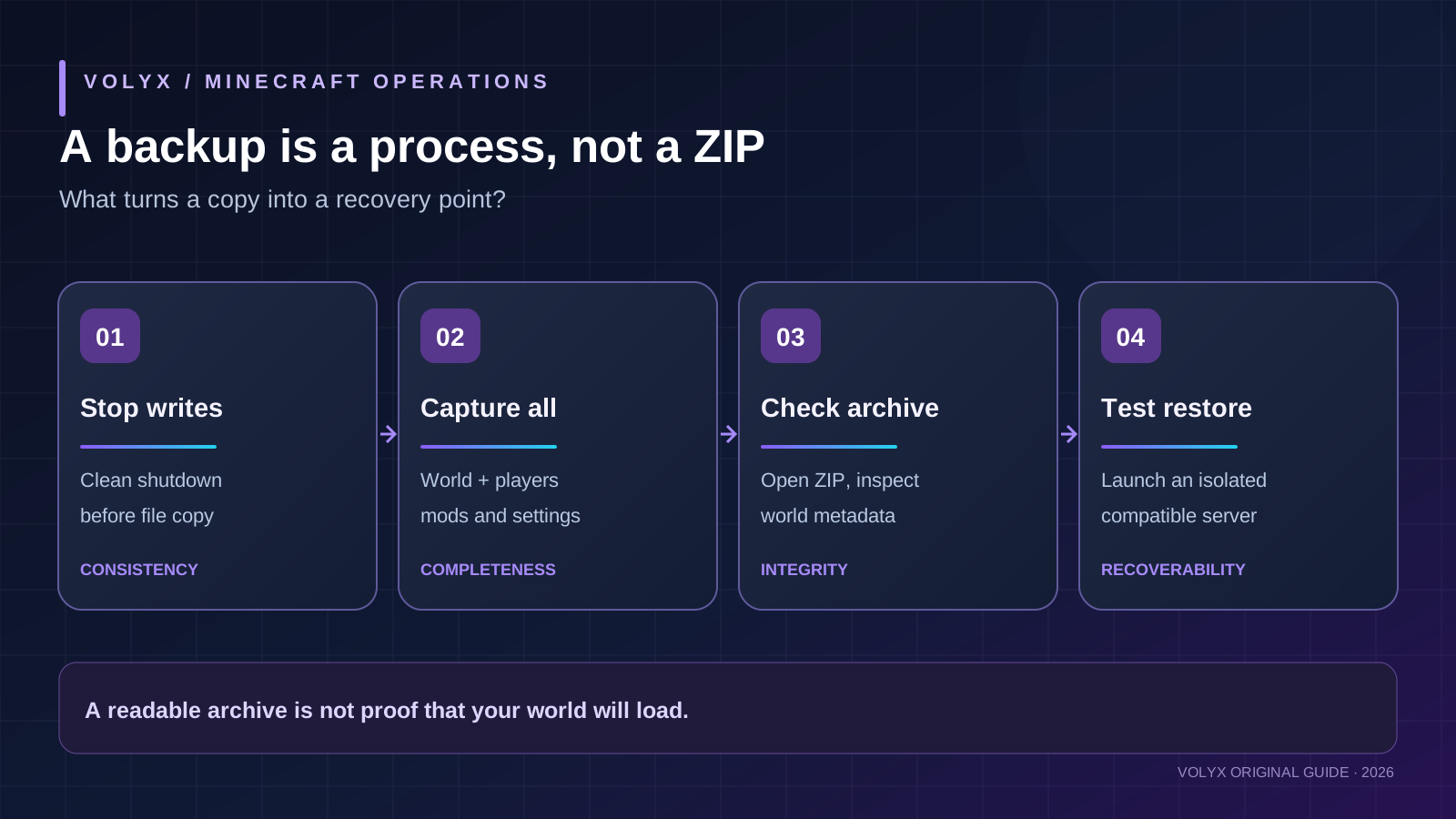
A backup becomes trustworthy when you can answer: What version is it? What world does it contain? Is it complete? Where is the independent copy? Has a recovery test passed?
Open your Volyx server’s Files section, or the file manager supplied by your hosting provider. Find server.properties and note its level-name setting. For a typical Java server:
# Illustrative example; your actual world name may differ
level-name=world
This tells you the main world name. It does not guarantee that every dimension or plugin database is located within that one folder. Also locate the server JAR or mod loader setup, your plugins/ or mods/ directory, and configuration files needed to replay a restore. Do not rename anything yet.
On many Vanilla Java servers, the Overworld directory contains region/, entities/, poi/, playerdata/, and dimension subdirectories such as DIM-1/ or DIM1/. Paper/Purpur-style setups frequently use folders like world/, world_nether/, and world_the_end/. Multiworld plugins can add more worlds whose names have nothing to do with level-name.
For Bedrock Dedicated Server, Microsoft’s documentation describes world folders under worlds/, with the active folder selected by level-name in server.properties. Shared behavior_packs/ and resource_packs/ may also matter. See the official Bedrock Dedicated Server guide.
Volyx check: If your project is running in a Pterodactyl-based environment, inspect its actual server Files rather than guessing operating-system paths such as
/home/minecraftor/var/lib/pterodactyl/volumes. Those locations may not be accessible to a normal server owner, and Volyx allocations may expose a different set of controls.
A world-only archive is lighter and can be useful when moving a simple Vanilla map between compatible servers. A full-server backup is generally safer before upgrades, large plugin changes, or migrations, because it retains the environment that made the world work.
| Decision | World-only copy | Full-server copy |
|---|---|---|
| Restores terrain and most native world data | Yes, if all world/dimension folders are included | Yes, if archive is complete |
| Restores plugin-created inventories, claims, ranks | Not necessarily | Usually if stored in server files; external databases still separate |
| Reconstructs mod loader and compatible config | No | Often, but verify versions and external dependencies |
| Saves space and transfer time | Generally smaller | Generally larger |
| Best before a software upgrade | Limited | Recommended, plus external database backups |
For small survival worlds, keep both when possible: one full snapshot before risky changes, and a clearly labeled world export for more frequent recovery points. The key is having an independently downloadable copy, not a large number of archives on the same drive.
Tell players when the server will go offline. Ask them not to build or transfer items during the maintenance window. If you use proxies or multiple linked servers, plan how to stop the correct backend and prevent players from reconnecting while it is being copied.
From the server Console, use your panel’s normal Stop control and wait until it confirms that the process has exited. Do not click Kill or force terminate unless the server is genuinely unresponsive and you understand the recovery risk. A console command such as save-all flush can request an immediate save on supported Java versions, but it is not a substitute for stopping the process before manually copying the world. Avoid disabling world saves and forgetting to re-enable them.
For a server with several services, stop writes to external databases or use their own consistent backup mechanism. A Minecraft ZIP does not guarantee a transactionally consistent dump of a database running on another machine. If you do not control the database, request the supported export procedure from your provider.
Pre-backup checklist: server stopped; correct world folder identified; important mod/plugin config included; enough storage; no old ZIP about to be overwritten; and a separate destination available for an off-server copy.
If your Volyx allocation provides the Backups tab, open it and check whether the server has available backup slots. Choose Create Backup, use an informative name, and wait for completion. Panel names and available controls vary by version and account; a missing or disabled backup button does not mean you should circumvent the server’s permissions.
A useful name includes the date, edition, game version, and reason:
survival-java-1.21.x-before-mod-update-2026-10-20Examine the completed backup entry. Check the success/completion status, reported size and any excluded files. Do not accept a zero-byte backup without investigating. The Pterodactyl 1.x API documentation treats creating and restoring as separate operations; importantly, its restore action may overwrite existing files. See the backup creation reference and restore reference.
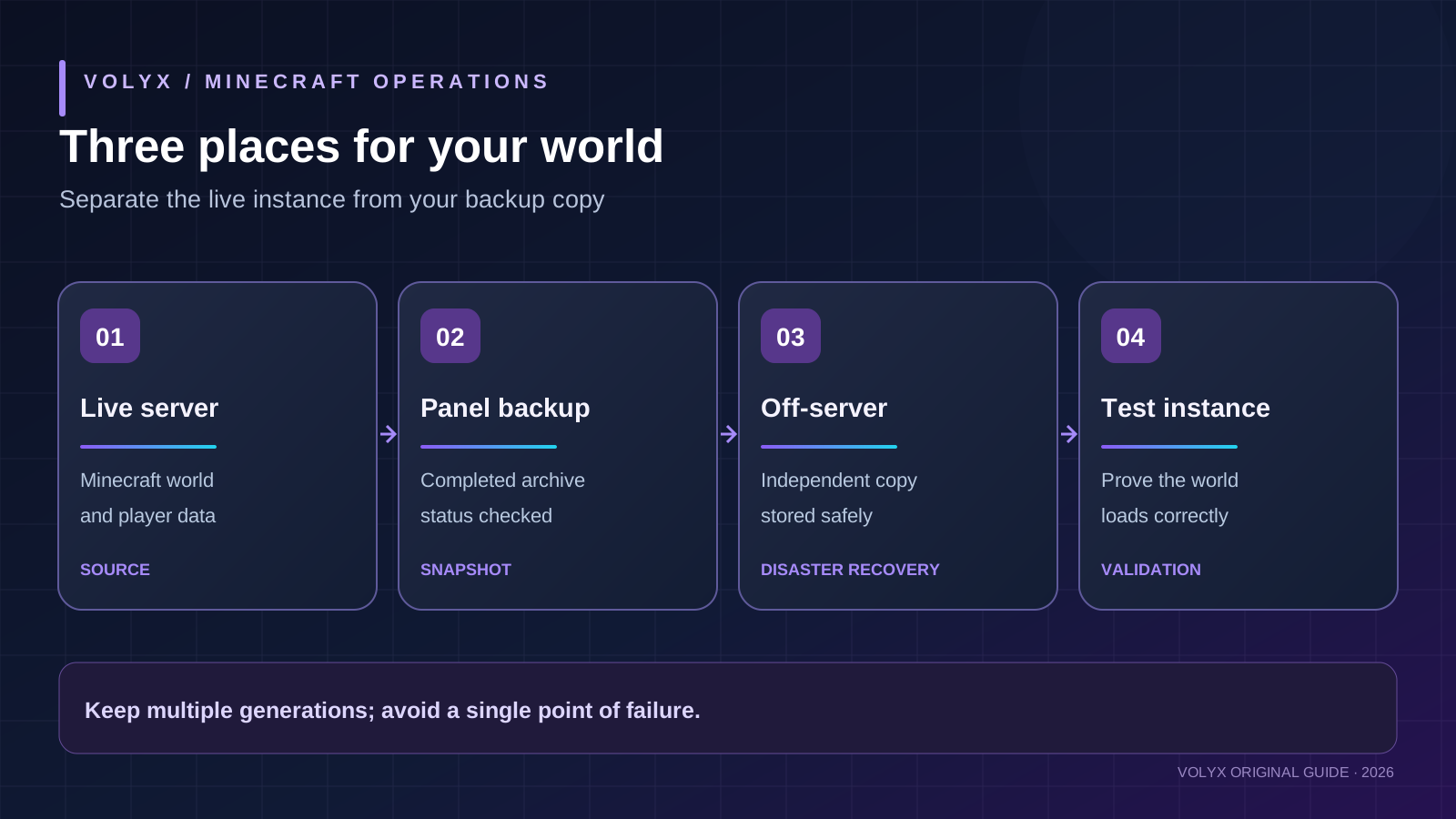
After the backup reports success, download it through the authorized panel control and save it outside the server. If your allocation uses a backup quota or the panel cannot download the file, do not delete earlier backups just to proceed; confirm a safe export route first. Pterodactyl’s backup storage can be local to Wings or configured for remote object storage—do not assume the physical location of your archive. Pterodactyl backup configuration.
If no panel backup slot is available, use a supported file-manager Archive function if present, or download the necessary folders with SFTP and create a ZIP locally on your computer. The server must remain stopped until the files have finished copying. Avoid using a browser-based file manager to download thousands of files individually if SFTP or an archive option exists.
For an illustrative Java folder named world, a local machine can create a ZIP after downloading the stopped-server files. Example command, only if you already have the zip utility installed on your own computer:
# Run on a local copy of a stopped server, not on a live world
zip -r survival-world-2026-10-20.zip world world_nether world_the_end
This is an example, not a universal command. If your installation uses Vanilla dimension folders inside world/, there may be no world_nether or world_the_end. If plugins create extra worlds, include them explicitly. Never copy the example blindly over a differently structured server.
On Windows, you can instead select your downloaded world folders in File Explorer and create a compressed ZIP. A successful compression operation does not imply that you included every necessary world or plugin file—inspect the contents next.
For a Bedrock server, include the actual worlds/<level-name>/ directory, the relevant pack folders, and server.properties. Do not take an ordinary file-by-file copy of its active LevelDB world while Bedrock is writing to it.
A restore crisis is the worst moment to discover that the backup was empty. Verification should be part of the normal backup routine, not an optional extra.
Inspect your archive with the panel’s file list, an archive manager, or the following read-only command on a trusted computer that has Python 3. It displays the world-related files found in a local ZIP and checks its CRCs without extracting anything:
from pathlib import Path
from zipfile import ZipFile

archive = Path("survival-world-2026-10-20.zip")
with ZipFile(archive, "r") as z:
    names = z.namelist()
    important = [n for n in names if n.endswith("level.dat")]
    print("Entries:", len(names))
    print("World metadata files:", important)
    print("Archive CRC check:", z.testzip() or "PASS")
If the script cannot open the archive, its CRC check reports a bad member, or it lacks expected world files, stop and investigate. A passed CRC means the ZIP can be read—it does not prove the world starts correctly. For Bedrock LevelDB worlds, file names and contents differ; check the actual db/ folder and validate by starting a restore test.
For repeatable tracking, keep a checksum of the complete archive on your own machine:
# On Linux/macOS with sha256sum available
sha256sum survival-world-2026-10-20.zip
A matching SHA-256 hash after transferring a file confirms byte-for-byte equality with the reference copy. It does not certify that the archive was made at a safe time. Write the checksum in a separate inventory file alongside the date, game version, archive source, and test result.
Create a disposable test server running a compatible Minecraft version, with a separate storage allocation and no important existing world. This is the only reliable way to catch errors such as missing mods, incompatible datapacks, changed player UUID handling, or database dependencies before the live server breaks.
Follow this controlled sequence:
server.properties and level-name, then start the test instance.Test on a private port and avoid making a second publicly accessible copy of private world data. Never run production and test servers against the same writable plugin database. A test should be isolated, not a second process editing your actual world.
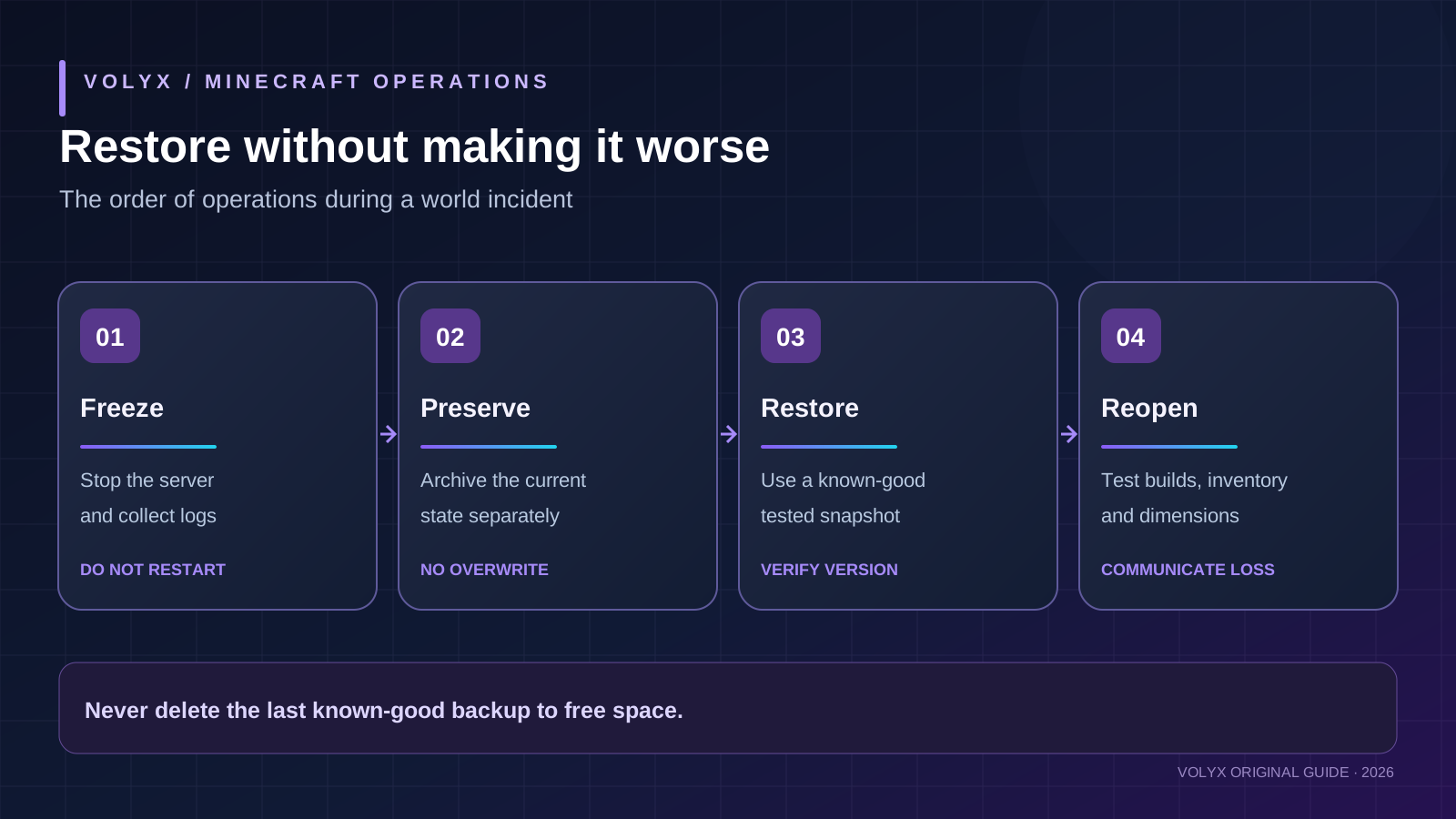
Suppose your server fails after a plugin update. Do not immediately delete world/. First stop the server, record error messages, and create a forensic copy of the current broken state if storage permits. It may hold valuable player changes even if it cannot boot. Name it differently from the known-good archive.
Next, compare the restore time with the last successful world save. You are selecting a recovery point: any builds or items after that point may be lost. Tell staff and players what to expect.
Open Backups (if present), identify the known-good backup by name, date, size and completion status, then choose Restore. Carefully read any option that deletes current files. Pterodactyl’s restore API includes a truncate option that controls whether existing server files are removed first; user-facing controls may differ by panel customization. A wrong choice can destroy plugin data not contained in the archive. Do not assume the restore is non-destructive. Official restore reference.
Wait until the restore is complete before starting the server. Reconfirm version compatibility and inspect the Files view. If the backup was world-only rather than full-server, make sure all additional dependencies have been restored separately.
Only after the server has stopped, compare the archived directory structure to the current directory structure. Upload the correct world folder(s), preserving their real names and dimensions. Confirm that level-name selects the intended directory. Do not upload a directory as world/world/ by mistake; this commonly causes the server to generate an apparently fresh world while your recovered files sit one directory too deep.
Do not delete unrelated plugin state, permissions.yml, authentication settings, or external database records to “clean things up”. If restoring an entire installation is necessary, prefer doing it first on a test server. Start the production server only after you have verified the restored contents.
Bedrock uses a different storage format and directory layout from Java Edition. The dedicated-server documentation identifies a worlds/ directory with named subfolders and optional behavior/resource packs. Do not rename a Bedrock world folder to a Java world folder and expect the formats to convert. Migration between editions requires a separate conversion process and introduces different compatibility risks.
A conservative Bedrock recovery workflow is straightforward: stop the Bedrock process, copy the active worlds/<level-name>/ folder and required packs, verify the backup, then restore it to an offline test instance using a compatible Bedrock Dedicated Server version. Check that server.properties points to the restored folder before starting. Be particularly careful with the world db/ files; their LevelDB state should come from one consistent copy.
If you use a Bedrock add-on or third-party server implementation, include its configuration and extension data too. Names and commands in Java server tutorials are not automatically valid on Bedrock. For authoritative folder structure, see Microsoft Learn.
When the first join reveals a blank landscape, do not continue playing. Stop the server. Check these items before restoring again:
| Symptom | Likely explanation | Safe check |
|---|---|---|
| Fresh spawn, old folders still present | Wrong level-name or nested path | Compare server.properties against the restored folder name |
| Overworld correct, Nether reset | Dimension directory absent or misplaced | Inspect DIM-1 / world_nether and software-specific layout |
| Buildings appear but inventory missing | Player data excluded or UUID mode changed | Check playerdata/ and online-mode/proxy history without casually changing identity settings |
| Claim or economy data vanished | Plugin data or external DB not restored | Check plugin configuration and database export; avoid writing new data |
| Console reports newer world version | Running incompatible older game software | Use compatible version from backup; avoid forced downgrade |
| World fails to load | Truncated region/LevelDB files or mod mismatch | Check archive integrity, logs, dependencies, and another recovery point |
| Restore action completes but a plugin errors | Plugin configuration/version not aligned | Compare JARs, mods/plugins and original settings |
| Backup cannot be downloaded | Quota, permissions, expired link, storage outage | Retry within supported panel flow; contact host without exposing secrets |
PaperMC warns against trying to force an incompatible newer world into older server software: its troubleshooting reference calls out a force-load flag as potentially corrupting the world permanently. Treat version downgrades as a separate migration project, not as a routine restoration trick. PaperMC troubleshooting.
There is no single winner because different approaches solve different problems. A Pterodactyl backup may be convenient for a quick rollback, but an offline copy helps if the host itself becomes unavailable. SFTP exports allow close control over which files you keep, but a manual copy while the server runs can be inconsistent.
| Method | Ideal use | Main limitation | Best practice |
|---|---|---|---|
| Volyx/Pterodactyl Backups (when enabled) | Fast, panel-managed restore point | Quotas, exclusions and location depend on host configuration | Check successful completion; download a separate copy |
| Stopped-server manual ZIP | Inspectable pre-update snapshot | Human error and large file transfers | Include all relevant worlds/config; test extraction |
| SFTP download | Independent copy on your computer | Large multi-file copy can be slow | Stop server first; verify transferred files |
| Separate cloud/object storage | Off-server disaster recovery | Credentials, access control and storage cost | Encrypt sensitive data; periodically test restore |
| Automated schedule | Regular recovery points | Schedule failure or silent job errors | Monitor job outcomes; retain multiple generations |
A useful policy for a growing community: aim for three copies of important data, on at least two storage locations/types, with one copy independent of the live host. Adapt the exact number of generations and backup frequency to how much progress your players can tolerate losing, and your storage budget. This is a risk-management recommendation—not a statement that Volyx automatically provides all three.
Volyx provides a Pterodactyl-based management experience with controls such as Schedules and Backups on supported server setups. Whether a specific account can schedule backup creation, how many backups it can store, and whether the server pauses world writes depends on the current allocation and panel permissions. Check the options visible to your account. Do not assume a schedule labeled “Backup” performs an external export.
If automation is available, consider a quiet period, a warning to players, and post-job verification. Keep at least one earlier generation in case the most recent backup already contains an error. Avoid scheduling a heavy archive and a major modpack update at exactly the same time on a resource-limited instance.
For more detailed advice on diagnosing a server before major changes, see Minecraft TPS, MSPT, CPU and RAM troubleshooting. If the world is at risk during network incidents, see Minecraft DDoS and bot-spam protection. Both topics are related to operational resilience, but neither protection nor extra RAM can replace a tested recovery copy.
Imagine a 12-player survival server called Oakvale. On Friday, its operator downloads a stopped-server backup named oakvale-java-before-upgrade.zip. Saturday morning they update the game version and a custom-items plugin. The server boots, but several player inventories look wrong. Rather than experimenting on live files, the operator stops writes and saves the post-upgrade state as a second archive.
They then restore Friday’s complete backup to a test instance with matching software. A known storage room, the Nether portal network, and a staff inventory are correct. The operator confirms the Friday archive is a usable recovery point and explains to players that Saturday morning progress could be lost if they choose to roll back. Only after staff approve does the operator restore the production server.
This story is an illustrative scenario, not a claim that these events occurred on Volyx. It illustrates why the restore drill and communication are as important as the ZIP file.
Yes, manual backups can be made without buying special backup software if you have authorized file access and a place to store the files. Panel-managed backups may be limited by account quota or plan. “Free hosting” does not automatically mean unlimited backup storage.
It can include server files, but you must check the actual archive’s contents and ignored-file settings. A world stored outside the normal server directory or a separate database may not be included. A completed job is not the same as verifying every dependency.
For an ordinary manual filesystem copy, yes. Stopping the game cleanly avoids files changing midway through transfer. Specialized snapshot tools may offer a more advanced procedure, but do not assume your panel provides that guarantee.
Often, yes—if the backup contains the relevant player data, the server uses compatible software and authentication/UUID settings, and the archive is internally consistent. If inventories are stored in a plugin database, that database needs its own matching backup.
Inspect the actual world structure. Vanilla Java may store dimensions under the main world directory; Paper-family setups may have separate world-named folders. Include every active dimension rather than assuming world/ alone is sufficient.
Not directly. The world formats differ. A conversion tool or service is a separate process that should be tested on disposable copies and may lose or alter features. This guide covers restoring compatible backups, not cross-edition conversion.
It can. Any world changes after the snapshot’s recovery point may be replaced. Keep a separate archive of the present state before restoring and tell players which date and time you are returning to.
Compression varies, so size alone is not a verdict. Inspect world folders and required configuration, verify archive integrity, and compare against earlier backups. An empty or implausibly tiny backup deserves investigation before a restore attempt.
Stop the server. Verify level-name, folder spelling and nesting, and correct edition. The old world might be present but not selected, or an expected dimension folder might be missing. Do not keep playing and overwriting files while diagnosing.
No, not for full disaster recovery. Local backups are valuable for quick rollbacks but share the risk of host storage loss. Keep at least one independent, protected copy off the live server.
If the world depends on them, usually yes. The same game version, plugin/mod builds, config files, datapacks and any external databases may be required. Restore to an isolated test instance before changing a production world.
save-all flush replace a backup?No. A save command is a request to commit game state, not an independent archive. The world still needs to be copied consistently and stored somewhere separate.
Possibly. Check the schedules and backup features that your server account actually exposes. Monitor whether jobs complete and keep several verified copies; an automated job that fails silently is not a recovery strategy.
Do not assume that a world opened in a newer Minecraft version can safely load in an older one. Version downgrades can corrupt data. Prefer the software version matching the backup and test any migration outside production.
Before pressing any restore button, confirm (1) the server is stopped, (2) you identified the correct archive, (3) the archive contains the world and player data, (4) the current state is preserved separately, (5) software and plugins are compatible, (6) you understand any overwrite/delete options, (7) a test restore passed, and (8) players know what recovery point will be used.
A reliable backup routine is not glamorous, but it protects the work people care about most: the things they built together. On Volyx, use the Files, Console and Backups tools available to your server, verify the archive, and keep an independent copy. If you do not have an enabled backup slot, use a supported stopped-server export method rather than guessing how to access the host filesystem.
Ready to manage a Minecraft server? Explore Volyx hosting and its Minecraft guides. Choose a hosting allocation that actually supports the world size, management controls, and storage plan you need.
Explore more in-depth articles with code, visuals, and practical walkthroughs.
Browse all articles ↗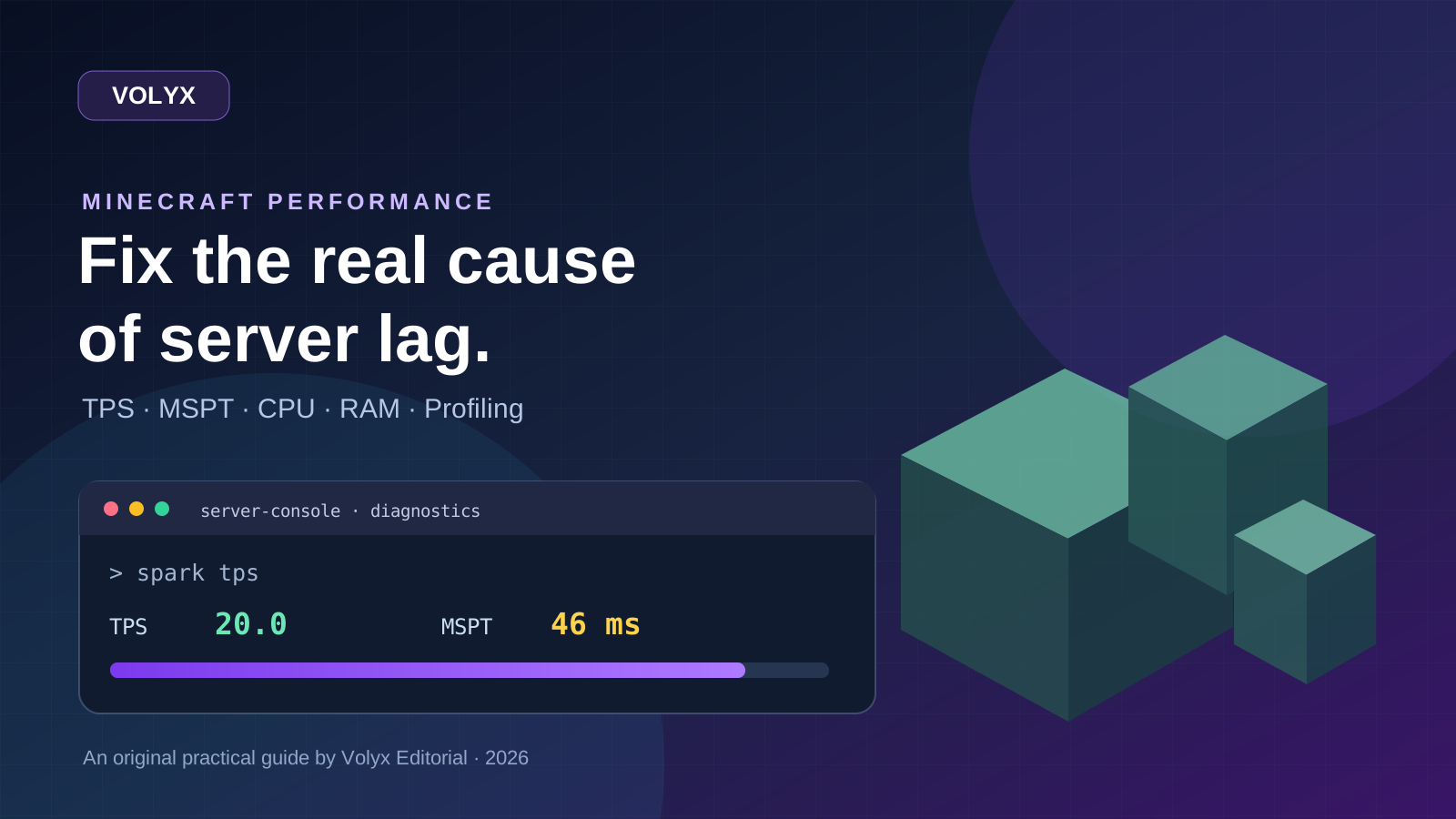
A practical, evidence-first guide to fixing Minecraft Java server lag: read TPS and MSPT, profile with spark, tune chunks, and diagnose CPU, memory and plugins.
Read article ↗
Learn the difference between DDoS floods and Minecraft bot raids, secure a Paper or Velocity server, compare TCPShield and Cloudflare, and respond safely using Volyx.
Read article ↗
Compare five real MIT-licensed JavaScript, TypeScript, and Python Discord bot starters, then learn how to deploy one safely on Volyx.
Read article ↗