A player breaks a block and waits for it to drop. Another person walks through a doorway and suddenly snaps backward. Someone else complains that Minecraft is running at 35 FPS. The complaints sound similar, but they may have three different causes. Throwing more RAM at all three problems will not solve them.
This guide shows you how to find the actual bottleneck on a Minecraft Java server. We will measure TPS and MSPT, use the spark profiler, distinguish server lag from client FPS drops and network latency, and make controlled changes you can reverse. The workflow works with a Volyx-hosted Minecraft instance if the relevant server software, commands and file permissions are available; it also applies to many other Paper and compatible Java servers.
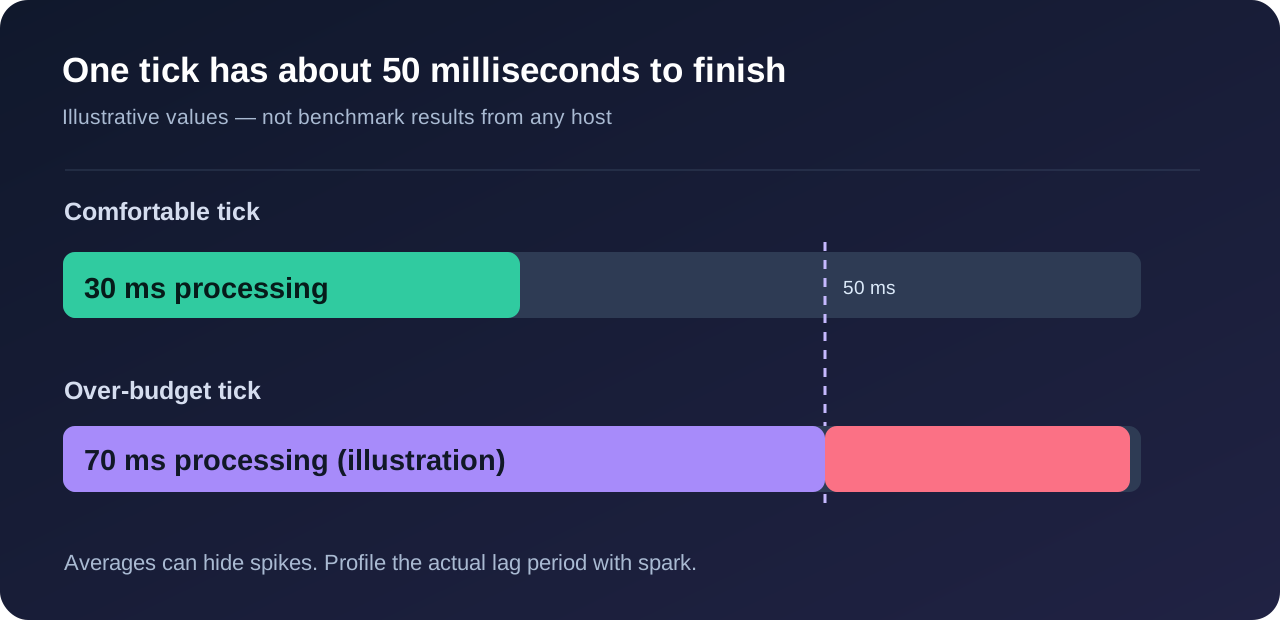
The short answer: a healthy Minecraft Java server aims for 20 TPS. To sustain that rate, the game loop needs to complete ticks within an average budget of roughly 50 milliseconds. Measure first, then optimize the expensive work—not the number that looks most alarming in a dashboard.
Safety first: Back up the world and configuration before changing server software, plugin sets, or world-related settings. If you use Volyx, check your server’s available Coins, resource limits and renewal conditions separately. This guide does not assume that every account has the same CPU, RAM, storage or uptime guarantees.
Quick diagnosis: which kind of lag is it?
Use this table before touching the server settings. A lag report is useful only when you can reproduce what the players experienced.
| What players notice | Most likely area to investigate | Best first check |
|---|
| Mobs stop moving, block breaks are delayed, redstone is slow | Server tick performance | /spark tps and MSPT during the event |
| Teleporting or rubber-banding with otherwise normal ticks | Network, packet loss or location | Ping, route and whether others are affected |
| One player’s graphics stutter while everyone else is fine | Client FPS or client mods | F3 performance details and client settings |
| Lag appears when someone explores new terrain | Chunk generation and disk/CPU work | spark profile during exploration |
| Lag starts after installing a plugin | Plugin task or compatibility | Compare before/after and collect a spark profile |
| Lag begins after loading a large mob farm | Entity AI and ticking | Profile with players near the farm |
| Periodic freezes followed by normal play | Garbage collection, saves, backups or scheduled work | Profile the spikes and check console timestamps |
A three-minute checklist
- Ask when the lag happens, how many players are online, and whether everyone feels it.
- Check server console for crashes, excessive warnings, out-of-memory messages, or repeated save errors.
- If the server runs a compatible Paper version, execute
/spark tps in-game as an operator, or use the console form spark tps.
- Record TPS and MSPT while the server is actually lagging; an idle sample can hide the cause.
- Keep that measurement, change one thing, test again under similar conditions, and roll back if the result gets worse.
TPS versus MSPT: the two numbers that matter
TPS stands for ticks per second. Minecraft normally targets 20 simulation ticks each second. If work consistently takes longer than the tick budget, the server cannot maintain that pace. The result can be delayed entity movement, slow farms and interactions that appear to happen late.
MSPT means milliseconds per tick: roughly how much work the server spends processing an individual tick. Lower is generally better, although real servers have variation. A server might show 20 TPS while its MSPT climbs from 15 ms to 45 ms. Nothing may look broken yet, but there is less headroom for a raid, a new chunk, a backup, or several players entering busy areas.
| Illustrative measurement | What it suggests | Your next move |
|---|
| 20 TPS, 18 MSPT | Significant spare tick-time budget | Check network/client if players still complain |
| 20 TPS, 46 MSPT | Near the budget ceiling | Profile during busy moments; look for expensive tasks |
| 17 TPS, 62 MSPT | Server tick loop struggling | Run spark with the issue active; isolate the hot path |
| 20 TPS average, occasional 180 ms spike | Intermittent stutter despite a good average | Investigate spike events, GC, saves and generation |
These are teaching examples, not measurements taken from Volyx or any other provider. The official spark guide explains how to read TPS, MSPT, median and high-percentile tick timings: TPS and MSPT documentation.
Two servers can both report 20 TPS. One may use half its available tick budget; the other may already use almost all of it. Average TPS also disguises occasional expensive ticks. If players complain about a short freeze every two minutes, look for spikes, not only long-term averages. The profiler’s timings and sampling report provide much more context than a single green number.
TPS is not ping, and ping is not FPS
Ping measures network round-trip delay. A player far from the server can experience noticeable input delay even when the server runs at a steady 20 TPS. FPS is the rendering rate on that player’s computer. Resource packs, shaders, weak GPUs or client mods can reduce FPS without affecting server tick speed. Test each symptom separately before recommending a plan upgrade.
Step-by-step: diagnose Minecraft lag using Volyx
The following steps use the familiar Pterodactyl-style workflow in Volyx. Labels and access can change depending on your server type, runtime and account. If a command is unsupported, verify your Minecraft software and permissions before trying an alternative.
Step 1 — Open the server console and identify the workload
Sign in at Volyx, open your server through the panel and select Console. Write down the server software (Vanilla, Paper, Purpur or a modded loader), Minecraft version, Java runtime, configured memory allocation and current player count. You do not need to post tokens, IP allowlists or private file contents in a public support channel.
Look for clear warnings such as a server being behind schedule, a repeated plugin exception or a failure to save world data. One warning at startup is not automatically the source of lag: compare the timestamp with the actual event. If your server is suspended or expired, first resolve that condition; a suspended instance is not a performance symptom.
Save this baseline: server version, player count, approximate lag time, TPS/MSPT if supported, and the actions that reproduce the problem. Repeating a test in the same world area is more useful than making random adjustments.
Step 2 — Measure TPS and MSPT on Paper
For a recent compatible Paper server, run:
/spark tps
The command is provided by spark. Paper bundles spark starting with Paper 1.21, and Paper recommends spark over the older Timings workflow. On systems without bundled spark, you may need an appropriate separately installed spark build, subject to your server software’s compatibility and installation permissions.
If you enter the command in a Pterodactyl console, the same command may need to be entered without the leading /:
spark tps
Do not conclude that a server is healthy from a reading taken when nobody is online. Run the command again during normal use and during the problem.
Step 3 — Capture a profiler report while the problem occurs
When lag is active, capture a short sample:
/spark profiler start --timeout 300
This requests a five-minute profile. If you need to focus on stalls above approximately 100 milliseconds and your installed spark version supports it, Paper documents this example:
/spark profiler start --only-ticks-over 100 --timeout 300
Profiling has an overhead, so use a limited capture window rather than leaving diagnostic collection running indefinitely. The report URL can be sensitive: it may reveal server configuration, plugin names, versions and operational details. Share it only with trusted administrators or support staff who need it.
Step 4 — Read the profile instead of guessing
Look for the highest-cost areas during the lag window. Does the report point to a plugin event handler, excessive entities, new-chunk work, scheduled tasks, world saves or Java garbage collection? A large method or stack in the report is a clue, not proof that the entire plugin is broken. Compare multiple samples and match them to what players were doing.
If the profile indicates plugin work, test in a safe copy or maintenance period with one suspected plugin disabled at a time. If the expensive work occurs when entering unexplored terrain, test chunk generation separately. If most time is in entity ticking, inspect farms and mob concentrations before buying more RAM.
Step 5 — Make one reversible change
Use a short experiment: write down before → change → after. Example: measure 55–60 MSPT while four players explore; lower simulation distance from 10 to 6; restart as required; then retest with the same four players doing similar work. If the measurement improves but farms and gameplay become unacceptable, restore the previous setting. Performance is a trade-off, not just a leaderboard of low numbers.
Step 6 — Confirm the fix across different sessions
Check the result once under a normal player load and again during the activity that triggered the issue. Look for fewer spikes and sustained TPS, but also confirm there are no new side effects: farms still work, mobs behave as expected, chunks load acceptably and backups still complete. A change that produces great MSPT by disabling useful mechanics may not be an improvement for your community.
CPU, RAM, storage and network: which resource is actually limiting you?
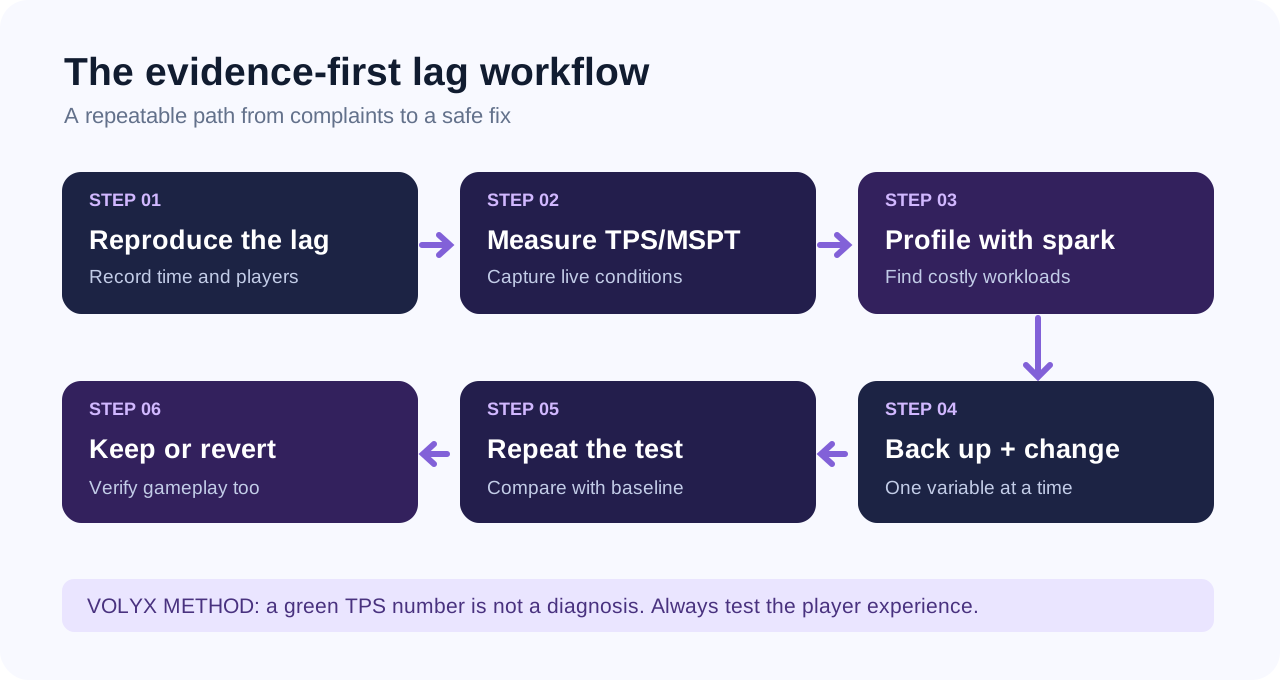
Minecraft Java’s primary server tick work can be sensitive to single-thread performance, even though the Java process and some surrounding work use other threads. A large CPU percentage across all cores does not describe which thread is saturated. The opposite is also true: a single busy game thread can cause lag while the machine’s total CPU usage looks moderate.
RAM holds the live world state, loaded chunks, entity data and Java heap. Too little memory can cause allocation pressure or crashes. Allocating excessive heap is not a universal cure: it can reduce memory available to the container and operating system, and may change garbage collection behavior. Never set Java heap sizes above your panel’s actual memory allowance. If your hosting plan manages launch flags automatically, avoid overriding them without understanding the configuration.
Storage matters during world loads, saves, logging and backups. Full or slow storage can create stalls; enough available space is necessary for safe backups and routine writes. Check the server’s allocated disk space rather than assuming the VPS host’s global free space is available to your instance.
Network is especially relevant when one region or player reports problems. High packet loss, unstable Wi-Fi or geographical distance can produce rubber-banding with healthy TPS. Testing another player, another connection and the same time window helps distinguish causes.
| Resource | Typical clue | Better action than guessing |
|---|
| CPU / tick thread | MSPT rises with mobs, redstone, plugins or generation | Profile the hot workload and reduce its cost |
| Memory | Out-of-memory logs, repeated GC pressure, crash near allocation limit | Review heap allocation and actual process usage |
| Storage | Stalls during saves, full quota, slow backups | Check free space, save frequency and I/O activity |
| Network | Regional rubber-banding with stable 20 TPS | Compare latency and packet loss among players |
| Client graphics | Low FPS affecting one client only | Check shaders, drivers, render distance and client mods |
Why adding 2 GB RAM might change nothing
Imagine a server with spare heap memory and a plugin spending too much time scanning entities every tick. Doubling its memory does not remove that per-tick computation. A profiler would show where the time is spent; the correct fix might be a plugin update, configuration change, or redesign of a costly task. Conversely, if the heap is too small and garbage collection is frequent, a carefully sized allocation could help. The evidence determines the recommendation.
Tune view distance and simulation distance carefully
The two settings are related but serve different purposes. View distance controls the chunk radius sent to clients. Simulation distance controls how far many gameplay systems—including mob behavior and block ticking—stay active around players. Larger values can increase server work, especially with several players spread across different parts of the world.
Find server.properties in your Volyx server’s Files page, download a backup copy, and locate the keys below. These are example starting values for a controlled test, not global recommendations:
view-distance=8
simulation-distance=6
If your server currently uses 10 for both, a moderate reduction can be worth testing. The exact impact depends on the Minecraft version, software, world design, number of players and mechanics your community relies on. Read the impact before applying the change: lowering simulation distance may affect where farms run and how far mobs remain active. Save the file and perform a normal restart if your server software requires it.
Avoid the extreme approach: setting simulation distance to the minimum just to produce a green graph can break gameplay expectations. Begin with a modest adjustment, profile again, and document any trade-offs.
Chunks and exploration: why new terrain can cause spikes
A peaceful spawn area may run smoothly, while flying rapidly into unexplored terrain produces stalls. Generating new chunks involves terrain generation, structures, entities, lighting and writes. Multiply that by several players moving in different directions and the load changes dramatically.
If profiling associates the spike with generation, consider lowering the rate at which players explore, reducing world/view distances, or preparing new world areas before a busy event using software-compatible pregeneration tools. Pregeneration itself consumes substantial resources; schedule it during quiet periods, respect disk limits, and keep a world backup. Never run an arbitrary world conversion or pregeneration script against production without testing it first.
Do not delete world region files in an attempt to fix lag. They contain player-built terrain and structures. If you need to remove or regenerate chunks, that is a separate, backup-first maintenance project.
Entity farms, hoppers and redstone: the expensive neighborhoods
Some performance problems are geographically concentrated. One collection of villagers, item entities and hoppers may account for a disproportionate amount of tick work when a player stands nearby. Inspect those locations while profiling; then review whether the design can be simplified without changing the experience everyone expects.
- Entities: check oversized animal or villager collections, item accumulation and constantly running mob grinders.
- Hoppers: evaluate large hopper networks and repeated item movement, especially around farms and sorting rooms.
- Redstone: identify high-frequency clocks and contraptions that run continuously without serving active gameplay.
- Worlds and dimensions: reproduce lag separately in the Overworld, Nether and End; one dimension may be responsible for most expensive work.
- Player-created mechanisms: discuss adjustments with owners before removing farms or limiting mechanics unilaterally.
A single screenshot of a crowded farm is not proof. Use measurements, timestamps and a repeatable test. Sometimes a creative build is perfectly fine, and an unrelated plugin is causing the trouble.
Plugins and mods: choose the right troubleshooting path
Paper is a plugin-oriented Minecraft Java server implementation, with an ecosystem compatible with many Bukkit/Spigot-style plugins. Purpur builds on the Paper family with additional customization. Fabric is a mod loader that targets a different ecosystem. Vanilla preserves Mojang’s base dedicated-server behavior without a third-party plugin stack.
They are not interchangeable packages. A Fabric mod cannot simply be dropped into a Paper plugins folder, and a Paper plugin cannot be assumed to work in a Fabric mods directory. Your software choice should follow the features your community needs, not a blanket claim that one is always faster.
| Server type | Best fit | Performance investigation |
|---|
| Vanilla | Mostly unmodified Java survival and controlled behavior | Use available built-in measurements and compatible tooling |
| Paper | Plugin-based Java servers seeking a mature diagnostic ecosystem | Use bundled spark on supported releases; audit plugins |
| Purpur | Paper-style server with more gameplay configuration choices | Profile first; inspect custom settings and plugin compatibility |
| Fabric | Modded or lightweight mod-loader setups | Use a spark build compatible with the loader/version and profile mods |
A controlled plugin isolation test can help when a crash or lag started right after an update. Keep an inventory of installed versions, review their release notes, and temporarily disable only the suspected component on a backup or staging copy when feasible. Do not delete plugin data folders as a debugging shortcut; they may contain the configuration and player information you need to restore.
A practical before-and-after record
Suppose a new minigame plugin appears to coincide with tick spikes. Record the player count, reproduce the minigame activity, collect a spark sample, and note what code dominates it. Update or reconfigure the plugin in a controlled test. Re-run the same event. If a reduction in expensive work appears in the report and players no longer experience stalls, you have a stronger explanation than “the RAM upgrade fixed it.”
Should you change Java flags or the server jar?
A popular optimization video may suggest ten JVM flags, a custom garbage collector, a huge heap and a server jar change simultaneously. That makes it nearly impossible to identify which change helped or hurt. Start with a supported Java version for your specific Minecraft/server release, the host’s recommended startup settings, and a backup. If a Paper version needs a particular Java runtime, follow its current installation documentation rather than copying a command for an unrelated Minecraft release.
Changes to JVM flags can alter garbage collection, memory usage and diagnostics. Paper’s own documentation cautions that startup properties and flags have side effects. For a small server, identifying a runaway plugin often delivers more value than an exotic JVM configuration. Consider jar migrations separately because they can affect plugins, configuration keys and gameplay behavior.
What to check in Volyx before increasing resources
Volyx uses a free-hosting model supported by Coins and provides a Pterodactyl-based panel for file, console and server management. That makes it practical to inspect the actual instance rather than relying on general hosting claims. The resource allocation shown in your own panel—not a marketing example from another provider—is the correct starting point.
In Console: look for tick warnings, crashes and recurring errors. In Files: review server.properties, plugin configuration, log files and the world backup plan. In Startup: verify the Java runtime and launch arguments available to your server type. In Backups: check whether the available backup feature and quota cover the size of your world. In your account: check available Coins, renewal requirements, the server’s current status and any limits that might affect operation.
No article can truthfully promise the same RAM, CPU allocation, storage or 24/7 availability for every Volyx account without verifying the actual plan and current conditions. If profiling genuinely shows a resource bottleneck, consult the available options in your dashboard. If the issue is a specific farm or plugin, more resources may only postpone the problem.
A reusable diagnostic note for support
When asking for help, include a short report with these fields (remove sensitive values before sharing):
Software: Paper / Purpur / Fabric / Vanilla
Minecraft version:
Java version:
Player count when lagging:
TPS and MSPT during the incident:
When the issue began:
What reproduces it:
Recent updates or plugins:
Spark report: private link shared only with trusted support
Changes tested and measured:
This saves time and makes it possible to compare your current server with yesterday’s behavior. Avoid sending tokens, database credentials, session cookies or unredacted private logs.
Common fixes that do not work—and why
| Popular shortcut | Why it can disappoint | What to do instead |
|---|
| “Add more RAM” | Tick time may be CPU/plugin-bound rather than heap-bound | Look at MSPT and profiling data |
| “Switch to the fastest jar” | Compatibility and actual workload matter more than branding | Test a compatible server build on a backup |
| “Set every distance to minimum” | Gameplay, mob behavior and farms can change | Reduce gradually and retest |
| “Disable every plugin at once” | Removes the ability to identify the culprit cleanly | Isolate changes one at a time in staging |
| “Clear all region files” | Risks destroying player worlds | Keep world files; diagnose generation separately |
| “Install five performance plugins” | Adds complexity and may introduce conflicts | Profile, choose one compatible solution, compare |
| “Ignore healthy TPS because someone has 30 FPS” | Client rendering and server ticks are different | Ask which player/client is affected |
“Use old /timings reports for everything” | Paper now recommends spark, and Timings is deprecated on current releases | Follow version-specific spark documentation |
A safe optimization plan for your first hour
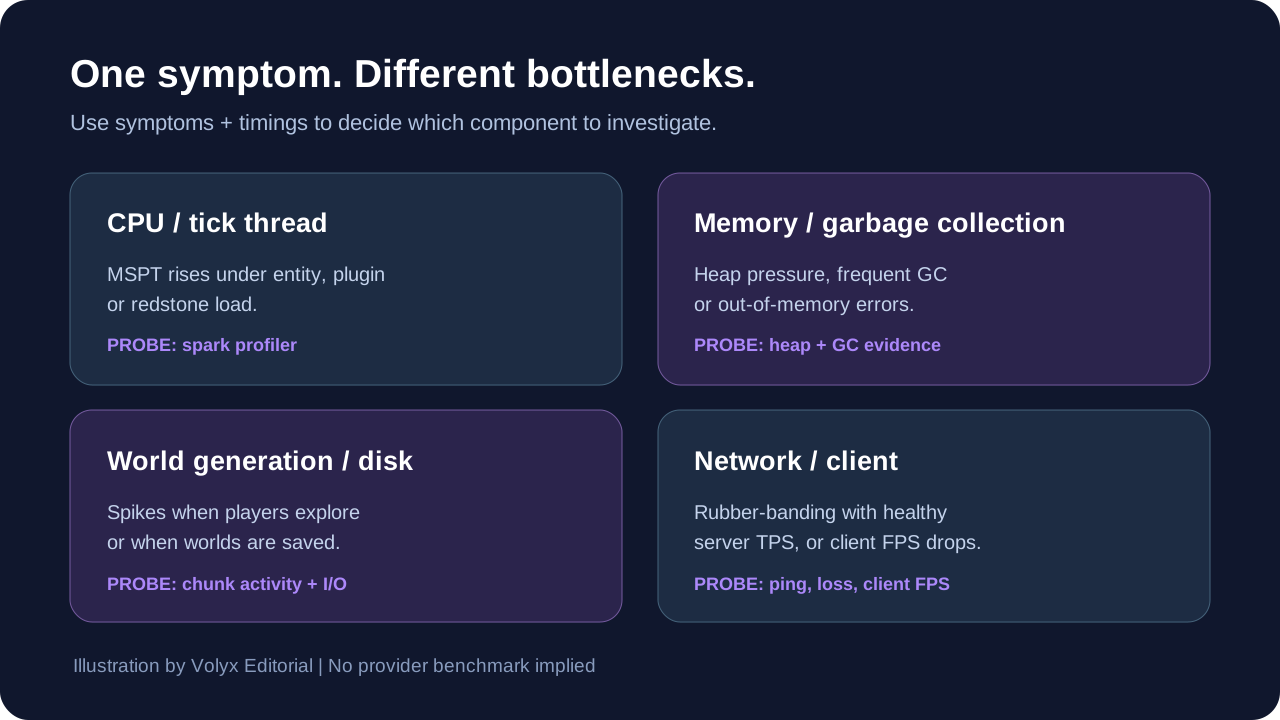
You do not need an afternoon of random file edits. Try this sequence:
Minutes 0–10 — Define the problem. Ask for player reports with timestamps, map locations and the kind of delay. Separate low FPS from actual tick lag. Capture an initial TPS/MSPT reading if available.
Minutes 10–25 — Profile the workload. Use spark during the lag, and identify whether plugin work, entity ticking, world generation or periodic tasks dominate. Avoid the temptation to tune everything at once.
Minutes 25–35 — Back up and adjust one variable. This might be one plugin setting, one distance value, or a controlled change to a farm. Write down the original value and verify that your world backup is usable.
Minutes 35–50 — Retest realistically. Use comparable player counts and activities, and check both average MSPT and slow ticks. Recheck user experience, not just dashboards.
Minutes 50–60 — Decide. Keep the change only if it consistently helped without unacceptable side effects. Otherwise restore the original value and test the next most plausible cause.
If you cannot access the needed profiling tools under your server type or permissions, document the symptoms and request support rather than attempting unsafe workarounds.
Frequently asked questions
What is a good TPS for a Minecraft Java server?
The usual target is 20 TPS. A healthy number during idle time does not guarantee the server stays responsive during exploration, a large raid or a crowded farm. Track the number when players experience lag and examine MSPT for how much spare capacity exists.
Is 50 MSPT bad?
Roughly 50 milliseconds is the tick-time budget at 20 TPS. Consistently spending more than that means the server can struggle to keep up. Occasional spikes require context: look at how frequent they are, whether players notice them and what the profiler records.
Can a server have 20 TPS and still lag?
Yes. Players may have network latency or low client FPS. The server may also maintain 20 TPS on average while delivering occasional expensive ticks that cause stutter. Look at timing distributions and reproduce the symptom.
Does more RAM increase Minecraft TPS?
Only when memory pressure contributes to the problem. If a plugin or entity workload exhausts tick time, allocating additional RAM will not remove the underlying computation. Check memory usage, garbage collection behavior and spark samples first.
Should I lower view distance or simulation distance first?
Both can affect load. Simulation distance influences how far gameplay mechanics remain active; view distance influences which chunks are sent to players. Make a modest change to one setting, document the impact, and check gameplay side effects before changing the other.
Is Paper faster than Vanilla for every server?
No universal performance claim fits every world and configuration. Paper offers tools and optimization choices that are useful for many plugin servers, but mod compatibility, version, world design and player behavior influence actual results. Test under your own workload.
Does Volyx guarantee 24/7 Minecraft hosting for free?
Do not assume that. Volyx’s hosting and Coins model is subject to the resources and renewal rules shown in your account. Check the current server status, resource allocation, Coins balance and applicable terms for your instance.
Why does my server lag when players explore?
Unexplored terrain can require new chunk generation, lighting and saving. If a spark report shows generation work rising during exploration, lower unnecessary chunk load or consider safe, version-compatible pregeneration during a quiet period with backups.
What is spark, and do I need to install it?
spark is a performance profiler. Paper bundles it starting with version 1.21. Other server types or older versions may need a compatible standalone plugin or mod. Check the software and the profiler documentation before adding files.
Can plugins cause lag even when memory usage is low?
Yes. A costly repeating task, entity scan, database interaction or event handler can consume tick time without filling the heap. Profile the problematic period and confirm with a controlled change or test copy.
What if only one Minecraft player experiences lag?
Compare that player’s FPS, ping, packet loss, distance to the hosting region and installed client mods. If server TPS/MSPT is healthy and everyone else is fine, a client or network issue becomes more likely—but still verify rather than assuming.
Should I remove world files to fix lag?
No. Removing world region data can destroy builds and player progress. Keep recoverable backups and diagnose disk, chunk-generation or world corruption problems independently before performing any potentially destructive maintenance.
Conclusion: measure first, optimize second
A server with lag is not automatically an underpowered server. TPS tells you whether the game loop keeps pace. MSPT tells you how much work ticks require. A profiler helps reveal which code or game activity spends that time. With those three pieces of information, you can make changes that are explainable, testable and reversible.
If your Minecraft world runs on Volyx, start with your server console and actual allocated resources. Back up the world, record the baseline, test one fix, and verify it under the same conditions. That is a better long-term habit than changing ten settings and hoping the lag disappears.
Ready to check your server? Open the Volyx dashboard to inspect your instance, or read the Volyx Minecraft lag guide for additional platform context. Also see the Pterodactyl beginner’s guide for core panel concepts.
Technical sources and further reading
Editorial note: this guide covers Minecraft Java Edition. The exact commands and server behavior can differ across server software and Minecraft versions. Sample values illustrate a method, not measured Volyx benchmarks.
Keep learning.
Explore more in-depth articles with code, visuals, and practical walkthroughs.
Browse all articles ↗