
How to Host a Discord Bot for Free in 2026 (A Practical Volyx Guide)
Build a working Discord slash-command bot, deploy it on Volyx with Coins-based hosting, secure its token, troubleshoot crashes, and compare free hosting alternatives.
Running a Discord bot on your own computer is simple until someone needs it while your computer is asleep. A bot needs a running process, working credentials, access to Discord’s API, and enough resources to keep handling events. Paying for a large server before your first useful command is rarely necessary.
This guide builds a small working /ping bot and walks through deploying it with Volyx, a platform that offers Discord bot hosting through a Coins-based free-hosting model. You’ll also learn how to choose a compatible Node.js version, protect your token, read startup logs, and decide whether Volyx or a general-purpose cloud platform makes sense for your project. No fabricated benchmark numbers or blanket uptime promises are involved.
Quick answer: Yes, you can host a Discord bot using Volyx’s free Coins model, subject to its current resource allocations, account rules, and available hosting time. “Free” should not be interpreted as unlimited RAM, guaranteed uninterrupted operation, or unlimited lifetime hosting.
What you’ll build in this tutorial
By the end, you should have a bot that responds to /ping in a test Discord server, a reproducible project with a declared start command, and a checklist for diagnosing failures without exposing your token. The example uses slash commands, not a prefix command that reads members’ message content. That keeps the sample focused and avoids requesting the privileged Message Content intent just to test a connection.
Discover more from Volyx
- Volyx Documentation — platform setup and troubleshooting instructions.
- Create a hosting server — opens the authenticated workspace; sign-in may be required.
- Volyx Blog — additional hosting and development guides as they are published.
What do you need before you start?
You do not need a dedicated IP address or a public website for a basic Discord gateway bot. You do need an account, a valid application, the right runtime, and a way to see error messages.
| Requirement | Why it matters | What to prepare |
|---|---|---|
| Discord application | Identifies the bot you control | Create one in the Developer Portal. |
| Bot token | Authenticates the running program | Keep it private and out of screenshots. |
| Application ID | Identifies which app owns the slash command | Copy from General Information. |
| Test-server ID | Registers /ping in a specific server | Enable Discord Developer Mode and copy the server ID. |
| Node.js runtime | Runs the JavaScript example | Check the current discord.js minimum Node version. |
| Hosting allocation | Supplies compute time and memory | Verify available Volyx Coins, runtime, and allocation in your dashboard. |
Runtime detail that can save an hour: At the time of writing, the current discord.js documentation requires Node.js 24.17.0 or newer. Choosing a runtime labeled “Node.js 24” without checking its patch version might still produce an engine-compatibility error. Use a supported version displayed in your Volyx setup, or deliberately choose a compatible library version after reviewing its requirements. See the official discord.js installation page.
Is Discord bot hosting on Volyx actually free?
According to the public Volyx homepage, the platform offers free hosting through a Coins-based system and supports Discord bots. That is a meaningful difference from a conventional trial that expires after a fixed credit. It is not the same as an unconditional promise of 24/7 service.
Volyx’s workspace provides a server console, file management, supported runtimes, a secrets manager, monitoring, and other tools that may vary with your environment and allocation. Before deploying, check the current Coins cost, renewal rules, available memory, storage, CPU, and whether an inactive or expired service can be suspended. Those are account-specific conditions, not universal specifications to invent in an article.
What we deliberately do not claim: a fixed 4 GB RAM allocation for everyone, 200% CPU, unlimited servers, guaranteed 24/7 uptime, unlimited free storage, or daily backups on every plan. None of those figures should appear as a promise without verified plan documentation.
Check your Volyx allocation and start with a tiny `/ping` command before uploading a large bot project.
Create a Bot Server →Step-by-step: create a Discord bot and deploy it on Volyx
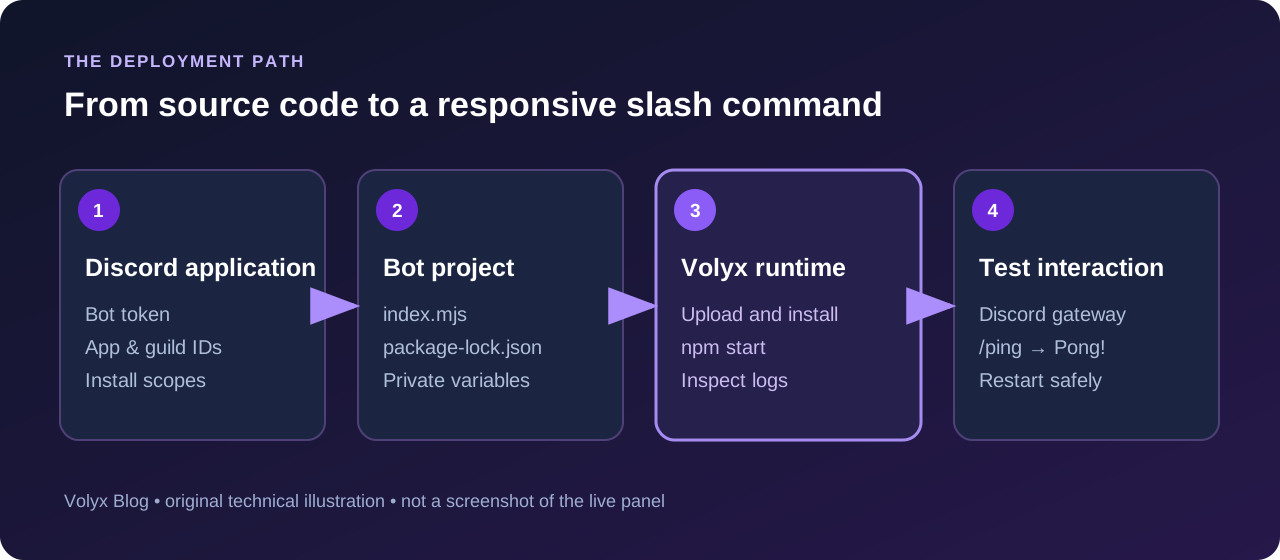
Step 1: Create the Discord application
Open the Discord Developer Portal, create an application, and choose a clear name. Open the Bot area to configure its bot user. Find your Application ID under General Information and obtain the bot token using the available token controls. Store both outside your public source repository.
In the application’s installation or OAuth2 settings, configure a Guild Install flow with the bot and applications.commands scopes when appropriate. Request only the permissions the bot needs. For this simple slash-command demo, avoid selecting Administrator permission. Install the app into a server you manage.
A bot invited successfully but shown offline is not necessarily broken: it may simply not have a running program connected yet.
Step 2: Create a reproducible Node.js project
Create a directory on your computer named volyx-ping-bot. Inside it, make package.json:
{
  "name": "volyx-ping-bot",
  "version": "1.0.0",
  "private": true,
  "type": "module",
  "scripts": {
    "start": "node index.mjs"
  }
}
Install dependencies using a Node version supported by the current discord.js release:
npm install discord.js dotenvCommit package.json and package-lock.json with your project. Do not upload node_modules from Windows when the hosting environment will install its own Linux dependencies.
Create a .gitignore file:
node_modules/
.env
*.log
For local testing only, create .env with placeholder values. Never paste real token values into a tutorial, ticket, repository, or public file:
DISCORD_TOKEN=replace_with_your_private_bot_token
CLIENT_ID=replace_with_your_application_id
GUILD_ID=replace_with_your_test_server_id
Step 3: Add a real /ping command
Save this as index.mjs. This is a deliberately small example: it registers a guild slash command, starts a gateway connection, and answers an interaction. It does not need Message Content intent.
import 'dotenv/config';
import {
  Client,
  Events,
  GatewayIntentBits,
  REST,
  Routes,
  SlashCommandBuilder
} from 'discord.js';

const { DISCORD_TOKEN, CLIENT_ID, GUILD_ID } = process.env;

if (!DISCORD_TOKEN || !CLIENT_ID || !GUILD_ID) {
  throw new Error('Missing DISCORD_TOKEN, CLIENT_ID or GUILD_ID');
}

const commands = [
  new SlashCommandBuilder()
    .setName('ping')
    .setDescription('Check whether the hosted bot responds')
    .toJSON()
];

const rest = new REST({ version: '10' }).setToken(DISCORD_TOKEN);
await rest.put(
  Routes.applicationGuildCommands(CLIENT_ID, GUILD_ID),
  { body: commands }
);
console.log('Test-server commands registered.');

const client = new Client({
  intents: [GatewayIntentBits.Guilds]
});

client.once(Events.ClientReady, readyClient => {
  console.log(`Ready as ${readyClient.user.tag}`);
});

client.on(Events.InteractionCreate, async interaction => {
  if (!interaction.isChatInputCommand()) return;
  if (interaction.commandName !== 'ping') return;

  try {
    await interaction.reply('Pong! The bot is responding.');
  } catch (error) {
    console.error('Reply failed:', error);
  }
});

client.on('error', error => console.error('Discord client error:', error));
await client.login(DISCORD_TOKEN);
This example registers the guild command on startup for simplicity. In a larger bot, move command registration into a separate deployment task so restarts do not update your command list unnecessarily. Guild-specific commands are useful for testing because changes generally appear sooner than global commands.
Step 4: Test locally before using hosting time
Run:
npm startLook for Test-server commands registered. followed by Ready as .... Open your test server, type /ping, and check the response. If the command never appears, verify that the app is installed in the correct server, your IDs are correct, and the app has the appropriate application-command installation scope.
Testing locally separates coding problems from hosting problems. If the same error exists before deployment, changing hosting companies probably will not solve it.
Step 5: Create the hosting server in Volyx
Sign in at Volyx, open the workspace, and go to the server creation flow. Choose a Node.js configuration suitable for your dependencies. Confirm that the runtime available to the server satisfies the minimum version required by your selected package release. Review the Coins price and resources shown in the creation interface before confirming.
If the creation interface changes, use the official Volyx documentation and the actual labels in your dashboard rather than following outdated screenshots. Keep enough Coins for the hosting duration you intend to use. A suspended or expired hosting allocation can take your bot offline even if the JavaScript is correct.
Step 6: Upload your project and install dependencies
Use the Volyx file manager or supported workspace tools to upload index.mjs, package.json, and package-lock.json. Keep your bot token out of uploaded code. If your server configuration requires a working directory, make sure the main file and package manifest are located where the start command expects them.
Install the packages on the hosting environment if they were not installed by the deployment process:
npm cinpm ci uses your lockfile for reproducible installs. If you changed dependencies but forgot to update the lockfile, run npm install in your development environment and upload the revised lockfile. Avoid silently changing package versions every time the bot starts.
Step 7: Configure the three required secrets
Open the appropriate Secrets / environment variables configuration in your Volyx workspace. Make sure these exact names are available to the bot process:
| Variable | Value | Safe to publish? |
|---|---|---|
DISCORD_TOKEN | Your Discord bot token | No |
CLIENT_ID | Discord Application ID | Generally public, but keep configuration consistent |
GUILD_ID | Your test server ID | Usually not secret |
The Secrets Manager is useful because configuration values can be managed separately from source files. Verify that your chosen Volyx runtime injects those variables into process.env. If it does not, use the runtime’s documented variable mechanism. Never place a token in a public GitHub repository or directly into a screenshot.
Step 8: Set the startup command and start the process
Use the server’s Startup settings to select the main file or command supported by its runtime. For the sample project, the intended command is:
npm startFor a server that launches a main JavaScript file directly, the equivalent is node index.mjs. Do not assume every Volyx egg accepts arbitrary multi-command startup strings; use the actual startup configuration supported by that server. Start the server, then examine the console. The goal is a logged-in client, not merely a control-panel status that says “running.”
Step 9: Prove the deployment works
Run /ping in the same test Discord server used during registration. Confirm that Discord receives Pong! The bot is responding. Stop the process once and restart it to verify your uploaded files, variables, and dependencies survive a normal restart.
Finally, check your current Coins balance and expiration status. These checks cover application health and hosting availability, which are different things. A good bot can still go offline when its hosting allocation ends.
Which start command should you use?
Use a command that matches the runtime and the files you actually uploaded. For a Node.js bot with the sample manifest, npm start runs node index.mjs. A Python bot typically uses python main.py and dependencies installed from requirements.txt. A TypeScript bot requires a decision: compile .ts to JavaScript first, or select a hosting runtime explicitly designed to execute TypeScript.
| Project type | Typical entry point | Typical launch approach | Important check |
|---|---|---|---|
| Node.js (ES modules) | index.mjs | npm start | Runtime meets current package engine requirements |
| Node.js (CommonJS) | index.js | node index.js | require and package module type agree |
| Python | main.py | python main.py | Dependencies and Python version are compatible |
| TypeScript | src/index.ts | Runtime-specific or build-then-run | Do not assume plain Node executes your .ts setup |
A bot-only gateway connection does not ordinarily need to bind an HTTP listening port. If you also built a website or dashboard, that additional component may require a network port and a separate web-service configuration.
What you can manage from the Volyx workspace
The published Volyx feature overview describes a file manager, console, resource monitoring, supported runtime choices, Secrets Manager, scheduling, and backup tools. Here is how to use those capabilities responsibly:
- Console: Check connection messages, errors, and exit codes before changing settings at random.
- File manager: Keep your project manifest, source files, and startup entry point organized.
- Secrets: Keep tokens and API keys separate from public code whenever the runtime supports injection.
- Resource monitoring: Check actual CPU and memory behavior as features are added.
- Schedules and restarts: Use them for maintenance, not as substitutes for fixing recurring crashes.
- Backups: Verify the available backup settings and retention for your allocation instead of assuming automatic daily copies.
A small bot that responds to slash commands may have modest resource needs, but music playback, audio processing, database-heavy workloads, and large guild caches change the picture. Measure your own project instead of borrowing marketing numbers from unrelated game-hosting articles.
Volyx vs Railway, Render, and Koyeb: what is actually different?
These platforms use different economic and technical models, so comparing a theoretical maximum RAM number would be misleading. The useful question is: Can a continuously connected bot process run on the particular free allocation you have?
| Platform | Free offering described in official docs | Important limitation for a Discord gateway bot | Practical fit |
|---|---|---|---|
| Volyx | Discord bot hosting through a Coins-based model | Hosting duration and resources depend on your current Coins/allocation rules; no blanket uptime guarantee | Direct bot-server management with console and files |
| Railway | $5 one-time trial credit for up to 30 days; Free plan advertises $1 monthly usage credit | Usage draws down credit; check the current sleeping and networking settings | General-purpose deployments when you want detailed usage controls |
| Render | Free web-service instances | Free web services spin down after 15 minutes without inbound activity; free background workers are not the web-service free offering | Web apps, demos, or event-driven tests rather than assuming an always-connected gateway bot |
| Koyeb | One free web-service instance with 512 MB RAM, 0.1 vCPU, and 2 GB SSD | Free instance scales to zero after one hour without traffic and is not a Worker Service | Lightweight web services and platform experiments |
A Discord bot typically opens an outbound gateway connection to Discord. That does not automatically satisfy a host’s requirement for inbound traffic to your web service. Artificial HTTP pings or similar workarounds may violate a platform’s intended free-tier use or still fail to provide reliable availability; choose an appropriate runtime or paid tier instead.
Sources for the comparison: Volyx platform, Railway pricing, Railway free-trial rules, Render free service limitations, and Koyeb free instance reference. Provider terms change: recheck these pages before making a purchase or promising uptime to your community. This is a feature and policy comparison, not a benchmark or proof that one host is always faster.
Troubleshooting: diagnose the signal, not the symptom
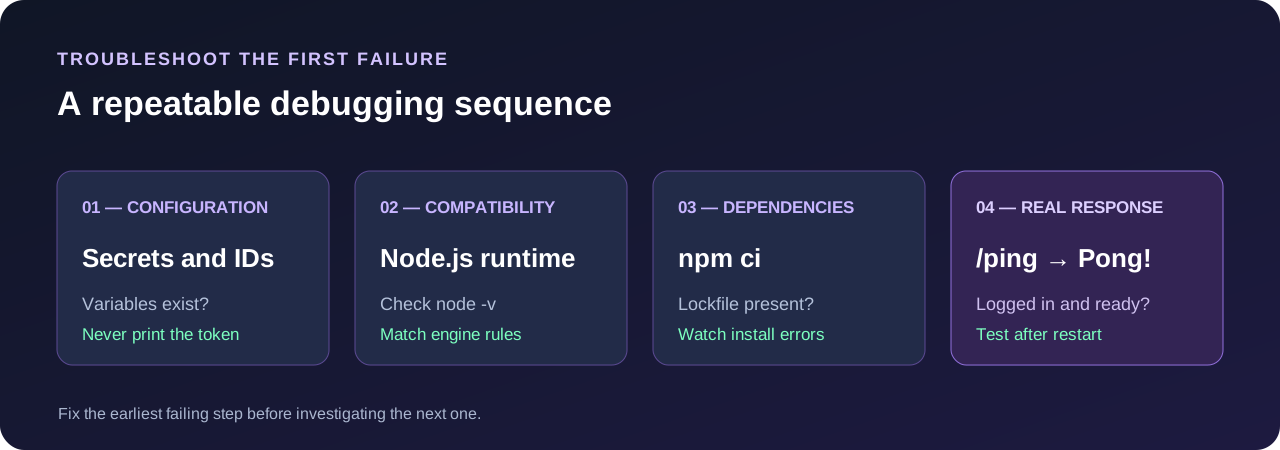
“Bot offline” is a symptom. The useful information is usually in the few console lines immediately before the process stopped. Use the following decision table instead of endlessly restarting a broken project.
| What you see | Likely cause | First useful action |
|---|---|---|
Missing DISCORD_TOKEN... | Variable not available to the process | Check exact variable names and secret injection |
Invalid token / login failure | Wrong or rotated bot token | Reset the token and update the private variable |
Cannot find package 'discord.js' | Dependencies not installed in runtime | Run npm ci, check install logs and the lockfile |
Unsupported engine / syntax error | Node version and package requirements differ | Compare node -v with the installed library’s required version |
| Slash command does not appear | Wrong app/server IDs or installation scopes | Verify CLIENT_ID, GUILD_ID, and app installation |
| Process runs but bot is offline | Connection failed, credentials wrong, or process exited | Look for client-ready output and exit status |
| Works until hosting expires | Coins or allocation period has ended | Check the actual hosting status and renewal terms |
| Bot connects but replies fail | Missing permission or an expired interaction | Read the API error and confirm bot/channel permissions |
A useful console debugging routine
First, determine whether npm start launches the correct file. Next, check whether your variables exist without printing their values. Then test the smallest slash command before enabling database connections, scheduled jobs, or additional packages. When you make one change at a time, the difference between a code regression and a hosting configuration problem becomes much clearer.
Avoid publishing a full console screenshot until you have removed tokens, database URLs, personal identifiers, and private server information.
How to keep a Discord bot reliable on free hosting
A restart loop is not a reliability plan. Separate code reliability from hosting availability: one is controlled by how the application behaves; the other depends on available compute, connection health, allocation expiration, and platform policies.
- Make startups repeatable. Use a lockfile, an explicit start script, and a compatible runtime.
- Keep the smallest necessary gateway intents. Do not request Message Content just to run slash commands. Discord documents special access rules for privileged intents.
- Handle errors deliberately. Log failures with useful context while redacting secrets; do not swallow every exception and assume the bot is healthy.
- Store persistent state outside memory. If your bot has user settings or points, plan suitable database storage and backups.
- Monitor the real bot interaction. A “running” process is not proof that
/pingor your commands respond. - Know the hosting expiration rules. Keep enough Coins or other plan entitlement to cover the period you expect your bot to be available.
If your bot becomes an important moderation service for a large community, evaluate paid hosting, recovery procedures, backups, and operational monitoring. An unsupported 24/7 promise in a beginner guide does not help anyone whose bot stops unexpectedly.
Frequently asked questions
Can I really host a Discord bot for free in 2026?
Yes. Volyx publicly offers Discord bot hosting through a Coins-based system, and some general cloud providers offer small free allocations or credits. You still need to check resource limits, eligibility, expiration rules, and whether a free service is designed for a persistent bot process.
Does Volyx guarantee 24/7 uptime for every free Discord bot?
Do not assume that. Running time depends on your current allocation, Coins, platform conditions, and application health. Check the terms shown for your server rather than relying on a generic marketing statement.
Do I need to keep my own computer on?
Not while your bot is hosted on an active remote server. Your computer can shut down, but the bot will only remain available while the hosting process and its allocation continue to run.
Do I need a credit card to create a Discord bot?
Creating a Discord application does not require paying for a hosting server. Payment or verification requirements are separate and depend on the hosting provider and account. Review the current Volyx signup process and the policy of any alternative host you consider.
Why does /ping work locally but not on Volyx?
The usual causes are a different Node.js version, missing installed dependencies, incorrect startup paths, or variables not exposed to the hosted process. Compare the local and hosted environment, then inspect the first meaningful console error.
Do Discord slash commands require Message Content intent?
No, not for the basic slash-command interaction used here. Discord’s privileged-intents policy still matters for other features, such as processing ordinary message content. Request only what your application actually needs.
Which Node.js version should I choose for discord.js?
Check the current installation documentation for your installed release. At the time this guide was prepared, the current discord.js documentation stated Node.js 24.17.0 or later; simply choosing any older Node 24 image is not enough. Existing projects pinned to earlier library releases may have different requirements.
Can I use Python instead of JavaScript?
Yes, if you create the bot using a Python library and choose a compatible Python hosting runtime. You will need a Python entry file and requirements.txt; do not expect the JavaScript sample to run unchanged under Python.
What happens if my Volyx hosting period expires?
The availability of your process may be affected by the server’s expiration or suspension policy. Inspect your dashboard for the exact current status, renewal options, and Coins required before assuming the bot will continue running.
Can I host a bot that has a website or dashboard too?
Possibly, but a separate web dashboard may require an HTTP listener, an available port, and appropriate domain or network settings. A minimal slash-command bot usually does not need to expose a public web port by itself.
Is Volyx always better than Railway, Render, or Koyeb?
No platform wins every workload. Volyx’s bot-focused workflow may be convenient for a beginner; Railway offers credit-based general deployment; Render and Koyeb have useful web-service free tiers with idle policies. Compare requirements, constraints, support, and real uptime for your application rather than copying a colorful “best host” ranking.
Final deployment checklist
Before calling the project finished, confirm that the bot is installed in your test server, the /ping slash command appears, the token is stored privately, the selected runtime matches your dependencies, the console shows a successful login, and a restart does not break the project. Then look at the current hosting and Coins status so you know how long the process can run.
Start with one working slash command, confirm the runtime, and grow only after you can measure and troubleshoot your bot.
Open the Volyx Server Creator →Technical sources and verification notes
The deployment example is independently written for this guide. Hosting-provider figures and policies were checked against official sources available on October 19, 2026: Volyx, Discord slash commands, Discord privileged intents, discord.js requirements, Railway, Render, and Koyeb. No independent performance benchmark or Volyx-specific uptime test was performed for this article. Recheck provider policies before publishing updates.
Keep learning.
Explore more in-depth articles with code, visuals, and practical walkthroughs.
Browse all articles ↗