
Minecraft Server Lag in 2026: Diagnose TPS, MSPT, CPU and RAM
A practical, evidence-first guide to fixing Minecraft Java server lag: read TPS and MSPT, profile with spark, tune chunks, and diagnose CPU, memory and plugins.
Read article ↗Diagnose 12 real Discord bot startup and command failures, read Node.js and Python logs, fix intents and tokens, and recover your bot on Volyx.
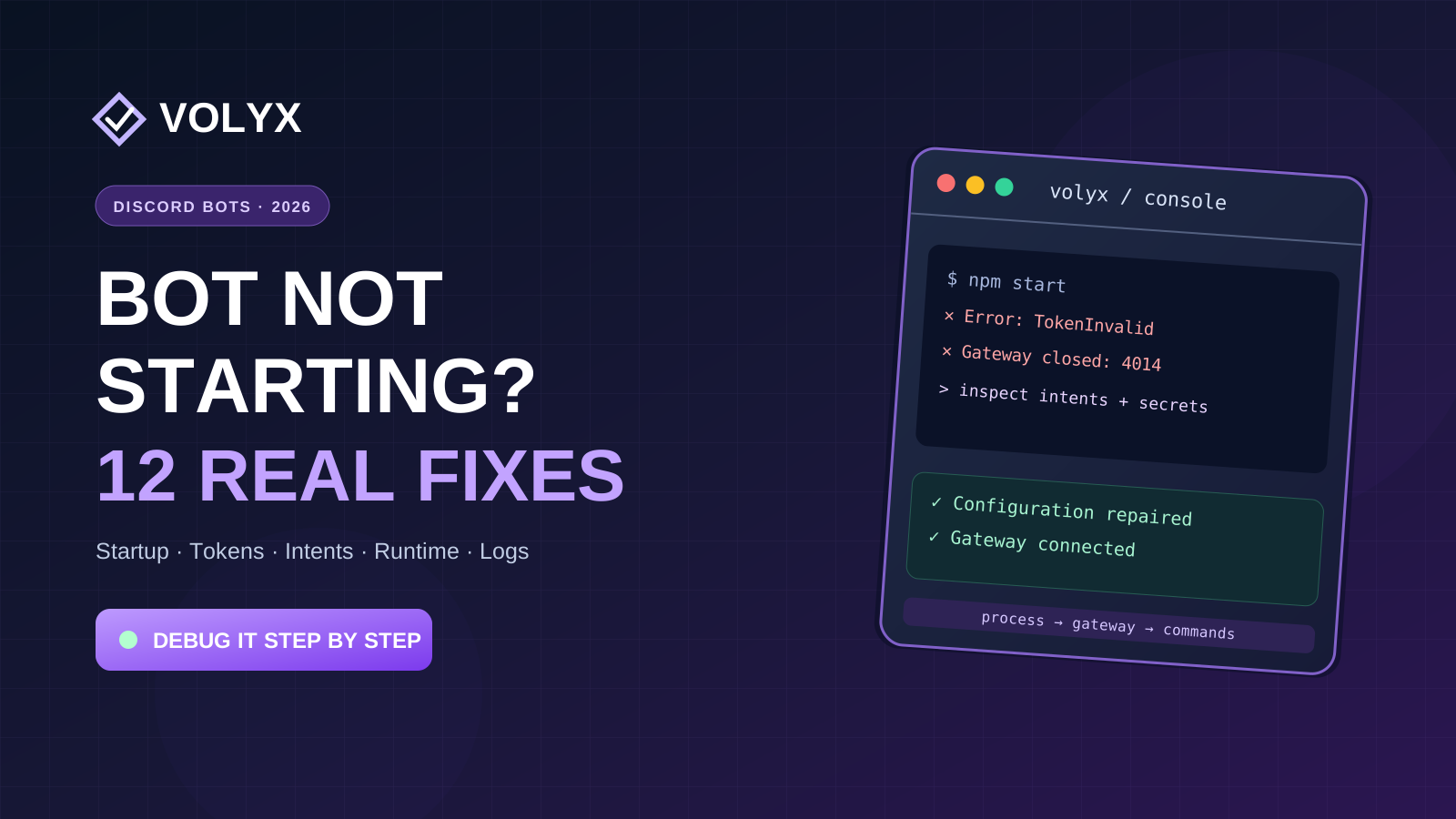
Your Discord bot worked on your computer. You uploaded it to a host, pressed Start, and now the console shows a red error, the process exits immediately, or Discord still says the bot is offline. The fastest repair is usually not reinstalling everything: it is identifying which stage failed and fixing that stage first.
This guide walks through 12 distinct hosting and Discord API failures using real error names, safe diagnostic commands, and examples you can adapt to a Node.js, TypeScript, or Python bot. The hands-on workflow uses Volyx, which offers Discord bot hosting through its Coins system and a web-based server console. Most of the underlying fixes also apply to other Linux-based hosts.
Quick diagnosis: A bot that never starts is different from one that connects but cannot respond to /ping. Read the first meaningful error in the console, not just the final “server stopped” line. If the error mentions a token, fix credentials; if it mentions Cannot find module, fix dependencies or paths; if it mentions Gateway code 4014, inspect privileged intents. See the Discord Gateway close codes for the authoritative code meanings.
A note on accuracy: Screenshots and diagrams in this guide are original illustrations, not proof that a particular Volyx account has a specific RAM allocation. Volyx resources, Coins requirements, renewal conditions, runtime choices, and availability must be checked in your own panel. We do not promise fixed free RAM, unlimited CPU, or uninterrupted 24/7 uptime.
When a bot stops at startup, the last line may read exit code: 1 or Process exited. That describes the outcome, not the cause. Use this order in the Volyx panel:
node --version or python --version.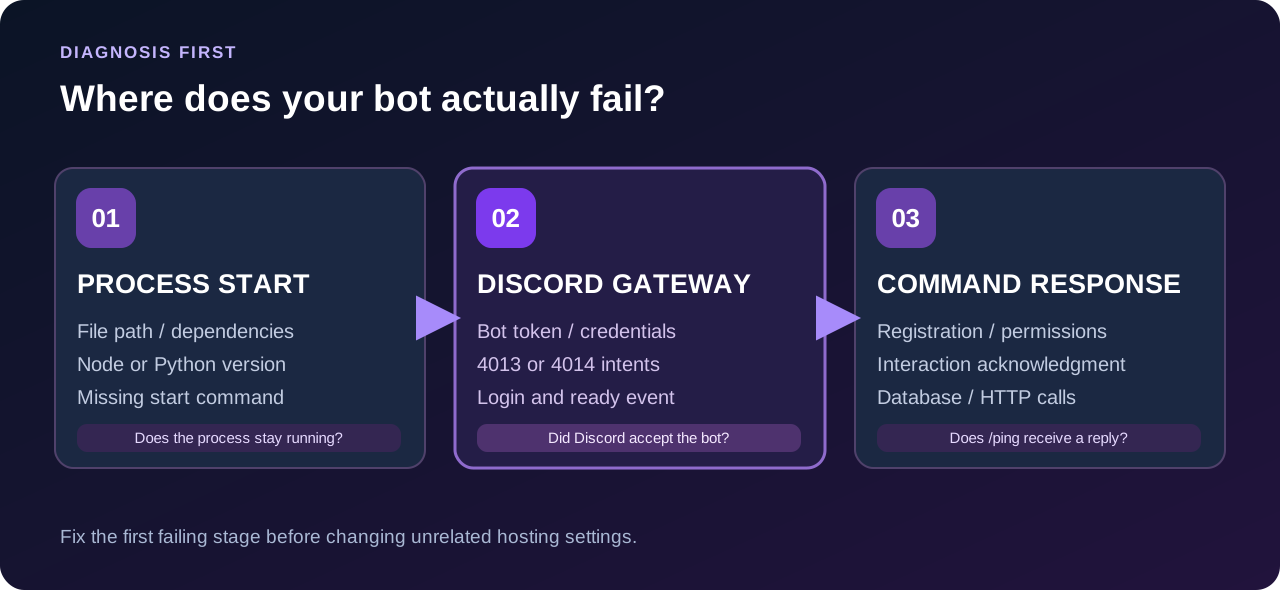
| What you see | Most likely area | First check |
|---|---|---|
| Process immediately exits and names a missing file | Startup path | Compare configured entry point with Files |
Cannot find module or ModuleNotFoundError | Dependencies | Check package.json / requirements.txt |
EBADENGINE, unsupported syntax, or engine requirement | Runtime | Compare node --version with library requirements |
TokenInvalid, LoginFailure, Gateway 4004 | Authentication | Check private token value and rotation history |
Gateway 4013 or 4014 | Intents | Check bit flags, portal toggles, and approval |
Bot shows online, but /ping is absent | Command registration | Check app ID, guild ID and installation scopes |
| Bot responds with “interaction failed” | Acknowledgment | Respond/defer promptly and inspect handler exceptions |
| Process stops after a while | Runtime stability / resources | Review exit signal, memory, Coins and application logs |
Error: Cannot find module '/home/container/index.js'What it means: The process is trying to run a file that does not exist at that path. A common deployment mistake is uploading src/bot.js while the Startup setting still points to index.js. Linux paths are case-sensitive: Bot.js is not bot.js.
How to fix it on Volyx: Open Files, locate the real entry point, and compare its spelling and directory against the Startup configuration. A Node.js app whose actual file is src/index.mjs might use this start script:
{
  "name": "discord-service",
  "private": true,
  "type": "module",
  "scripts": {
    "start": "node src/index.mjs"
  }
}
When your setup supports npm start, the script above keeps the entry point in one place. If Volyx offers a configurable main-file field instead, make it match the entry point without changing unrelated runtime settings.
Verification: Start the bot again. If the missing-file message disappears but another exception appears, you fixed the first problem and can continue to the next one.
Cannot find package 'discord.js' or Python ModuleNotFoundErrorWhat it means: The bot’s runtime cannot resolve an imported dependency. The library may be absent, installed into a different directory, or omitted from the project’s dependency manifest. The same symptom can arise when you upload node_modules from Windows and attempt to use it on Linux.
Node.js fix: Check that discord.js appears under dependencies in package.json, and that the lockfile matches. With a valid package-lock.json, use:
npm ci
npm start
npm ci needs an existing, matching lockfile and replaces the local node_modules tree. It is not appropriate when the project has no lockfile. In that case, run npm install while preparing the project and keep the resulting lockfile for deployment. See the npm ci documentation.
Python fix: Use a requirements.txt that lists your bot library, then install it using the Python interpreter that will actually start the bot:
python -m pip install -r requirements.txt
python main.py
Where the hosting image does not permit packages to be installed from the console, use its supported dependency or install workflow rather than trying to bypass its restrictions. Avoid using two unrelated Python environments, such as installing with one interpreter and running with another.
npm error Missing script: "start"What it means: You launched npm start, but the uploaded package.json lacks a usable scripts.start entry. Sometimes the wrong working directory contains a different package.json.
Add a start script that points to your real file:
{
  "scripts": {
    "start": "node bot.js"
  }
}
Check the script safely with:
npm runThis lists available scripts. Do not solve the error by replacing the entire package manifest with an example from the internet; preserve your existing project name, dependencies and other commands. For Python bots, npm start is usually the wrong runtime choice altogether.
EBADENGINE, Unsupported engine, or a Node.js syntax failureA server can have “Node.js” installed and still be running an incompatible major or patch version. Modern dependencies may use syntax or runtime APIs missing from older Node releases.
node --version
npm --version
npm ls discord.js --depth=0
At the time of this guide, the current discord.js documentation specifies Node.js 24.17.0 or newer for the documented version. That minimum can change with future releases. A container labeled Node.js 24 does not by itself establish that the installed patch version satisfies 24.17.0.
Volyx-specific check: Pick a supported Node runtime in your server’s startup/runtime options and check the version printed inside that running container. If the required patch is unavailable, use a deliberately compatible dependency release after reviewing its changelog, or select a newer supported runtime. Do not silently force an engine-incompatible install with --force and assume the bot will work.
Example: A bot that was written against an older library may need migration changes as well as a newer Node version. Treat upgrades as code changes: back up the project and test /ping after the update.
require is not defined in ES module scope / Cannot use import statement outside a moduleThese are module-format mismatches. JavaScript supports both ECMAScript modules (ESM) and CommonJS, but require() is not a global function in a native ESM file.
| Project style | File / package convention | Matching import style |
|---|---|---|
| ESM | .mjs, or .js with "type": "module" | import { Client } from 'discord.js' |
| CommonJS | .cjs, or .js with "type": "commonjs" | const { Client } = require('discord.js') |
Fix: Decide which module system your bot uses, then make the manifest, file extensions and imports consistent. Rename a CommonJS entry point to .cjs only when it really is CommonJS; renaming does not convert incompatible library code. Node.js documents these rules in its module-system reference.
Test: Run the exact entry-point command from the working directory your host uses. If the parser now loads your code and reaches bot login, the module mismatch is resolved.
Missing DISCORD_TOKEN / TypeError caused by an undefined environment variableThe process may start correctly yet fail because it cannot read a required variable. process.env.DISCORD_TOKEN is undefined if the variable is missing, spelled differently, or was stored somewhere the runtime does not expose it. In Python, similar code may throw KeyError: 'DISCORD_TOKEN'.
Never debug by printing the token. Test whether a value exists instead:
const token = process.env.DISCORD_TOKEN;
if (!token || token.trim() === '') {
  throw new Error('DISCORD_TOKEN is not configured');
}
console.log('Token present: yes'); // Presence only, never its value.
In Volyx, review your private variables through the Startup/Secrets configuration available to that server. Do not assume that an uploaded .env.example file automatically becomes a live environment variable. If using dotenv for local testing, load it before reading process.env and confirm that the production secret mechanism takes precedence.
Verification: Restart the process after updating the variable, then check whether it advances to authentication. If your token was ever pasted into public logs or a Git repository, rotate it in the Discord Developer Portal before continuing.
TokenInvalid, LoginFailure, or Gateway close code 4004An empty token and an invalid token are different errors. 4004 means Gateway authentication failed; Python libraries may report discord.errors.LoginFailure, while JavaScript libraries can use a token-specific exception. Discord’s official status-code reference describes 4004 as authentication failure.
Follow this order:
Security check: Reset or rotate a token if it has been exposed. Do not post it in a support ticket even when someone asks for a “quick test.”
4013 or 4014: invalid or disallowed intentsDiscord assigns these codes different meanings: 4013 indicates invalid intent bits, while 4014 indicates a disallowed intent (for example, requesting a privileged intent that isn’t enabled or approved). They are not interchangeable. Discord’s Gateway documentation describes the requirements for privileged intents.
Minimal JavaScript connection: A slash-command-only bot can typically start with the Guilds intent:
import { Client, GatewayIntentBits } from 'discord.js';

const client = new Client({
  intents: [GatewayIntentBits.Guilds]
});
What to inspect: In the Discord Developer Portal, open the application and its Bot settings. Enable privileged intents only when the bot genuinely requires them. For qualifying verified applications, access may require approval; toggling a switch alone is not always sufficient. Then make sure the requested intents in code match what the application is allowed to use.
The privileged intents are Guild Members, Guild Presences, and Message Content. A basic slash command does not need the last one just to respond to a user’s interaction. If you’re migrating a prefix-command bot, remember that an intent can be correctly enabled in the portal but missing in code—or present in code but disallowed in the portal.
This is often a registration or installation problem, not a hosting crash. A green online indicator tells you a Gateway connection may be active; it does not mean that /ping has been registered for the server where you are testing.
Check the application/client ID, test-server (guild) ID, the command registration response, and the application’s installation scopes. During development, a guild command is convenient for focused testing:
import { REST, Routes, SlashCommandBuilder } from 'discord.js';

const { DISCORD_TOKEN, CLIENT_ID, GUILD_ID } = process.env;
if (!DISCORD_TOKEN || !CLIENT_ID || !GUILD_ID) {
  throw new Error('Command registration IDs/token missing');
}

const command = new SlashCommandBuilder()
  .setName('ping')
  .setDescription('Check bot response')
  .toJSON();

const rest = new REST({ version: '10' }).setToken(DISCORD_TOKEN);
await rest.put(
  Routes.applicationGuildCommands(CLIENT_ID, GUILD_ID),
  { body: [command] }
);
console.log('Registered /ping in test guild.');
Do not run this registration request in an uncontrolled loop. Repeatedly replacing all guild commands can overwrite registrations created by another part of your application. Check the target application and server carefully before using the example in an existing project.
Verification: Reopen the command picker in the intended test server, verify the correct bot is installed, then execute /ping. If it appears but fails when invoked, continue to Error 10.
Unknown interaction (10062)Discord interactions have an initial acknowledgment deadline. If a handler does slow database work, installs packages, or makes external requests before replying, the interaction may time out. A late response can produce Unknown interaction.
Fix: Acknowledge or defer promptly; then edit the deferred reply after the slow task. Here’s a focused JavaScript handler:
import { Events, MessageFlags } from 'discord.js';

client.on(Events.InteractionCreate, async interaction => {
  if (!interaction.isChatInputCommand()) return;
  if (interaction.commandName !== 'ping') return;

  try {
    await interaction.deferReply({ flags: MessageFlags.Ephemeral });
    const latency = Math.max(0, Date.now() - interaction.createdTimestamp);
    await interaction.editReply(`Pong! Handler latency: ${latency} ms`);
  } catch (error) {
    console.error('Interaction handler failed:', error);
  }
});
That latency is not a measured network benchmark; it is an illustrative timing from the interaction timestamp to handler execution. Keep expensive operations out of the critical acknowledgment path. Check whether the command’s process throws before sending any reply.
Missing Permissions (50013) / Missing Access (50001)The Discord API distinguishes a lack of permission from a lack of access. The error may appear only when the bot tries to send a message, manage a role, delete a message, or access a channel—not necessarily at login. See Discord’s official error-code list.
Inspect these separately:
Do not grant Administrator just to silence the error. Start with the specific required permissions. A bot handling slash commands can be properly connected while lacking permission to post messages in one particular channel.
137, memory pressure, crashes, or expired hostingA bot that runs for several seconds or minutes and then exits needs different investigation from a wrong entry-point path. Exit code 137 commonly indicates the process was terminated with SIGKILL (128 + signal 9), but the code alone does not prove an out-of-memory kill. Container limits, an administrator action, or another forced termination can produce the same result.
Check, in order:
A useful test: Run the smallest possible bot that connects and answers /ping. If it remains healthy while the full bot fails after loading thousands of objects, investigate the application’s work and memory profile before upgrading resources.
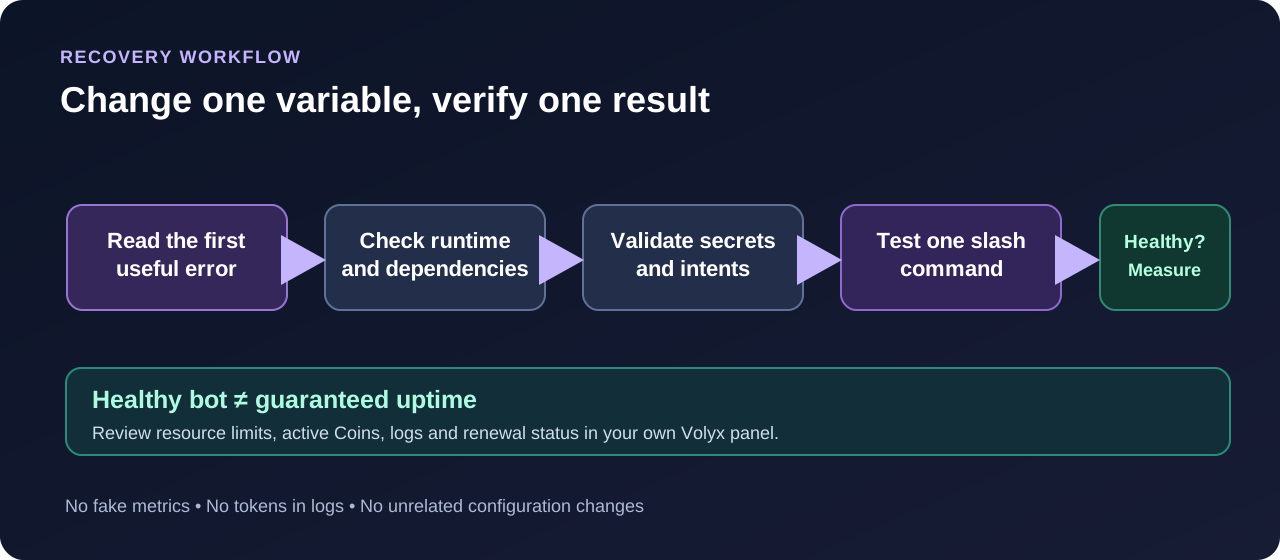
The same panel can host multiple languages, but the startup command is not interchangeable. In Volyx, choose a runtime compatible with your project and the server’s available images. The table is a starting point, not a command to paste blindly into a production server.
| Bot stack | Typical files | Install step | Start example |
|---|---|---|---|
| Node.js | package.json, package-lock.json, index.mjs | npm ci when lockfile exists | npm start |
| Python | requirements.txt, main.py | python -m pip install -r requirements.txt | python main.py |
| TypeScript | package.json, tsconfig.json, src/index.ts | Project-defined install/build | npm run build && npm start (compiled setup) |
For TypeScript: Node’s built-in type stripping does not implement every TypeScript feature and does not transform TypeScript paths aliases for you. A project using decorators, build-time aliases, or features requiring transformation may need tsc, tsx, or another correctly configured tool. Consult the Node.js TypeScript documentation before deciding that node src/index.ts will work everywhere.
For Python: A minimal diagnostic can avoid printing a token:
import os
import sys

print('Python:', sys.version.split()[0])
print('Token configured:', bool(os.getenv('DISCORD_TOKEN')))

if not os.getenv('DISCORD_TOKEN'):
    raise RuntimeError('DISCORD_TOKEN is missing')
This prints only the token’s presence, not the token itself.
| Symptom | Application issue | Discord-side issue | Hosting / configuration issue |
|---|---|---|---|
| Entry file cannot be found | Wrong path in code/config | Unlikely | Startup field points elsewhere |
| Package import fails | Manifest incomplete | Unlikely | Install command did not run |
| Login rejected | Stale token loaded by code | Token reset or invalid | Secret field missing/outdated |
/ping absent | Command not registered | App not installed with needed scopes | Usually not related to RAM |
| “Application did not respond” | Handler throws or responds late | Interaction token expires | High latency may contribute; measure it |
| Process killed after startup | Memory leak or heavy task | Unlikely | Allocation limits or suspension may apply |
This distinction matters. More RAM does not fix a wrong token; enabling Message Content does not fix an incorrect index.js path; reinstalling every dependency does not grant Discord channel permissions.
Some logs mention ECONNRESET, ETIMEDOUT, EAI_AGAIN, or HTTP 429. These can involve DNS resolution, transient network problems, API rate limits, or an overloaded dependency. Check Discord’s official status information when many unrelated bots fail simultaneously. Follow library retry guidance and Retry-After for rate limits; do not flood Discord with manual retries. Validate outbound network access through approved host tools instead of guessing that every timeout is “Discord being down.”
If your bot uses PostgreSQL or another database, a connection failure can be independent of Discord login. Test the configuration with non-secret diagnostics and check allowlists, TLS requirements and service status. Never paste a full database connection string into public troubleshooting screenshots.
Use this checklist to create a useful ticket instead of “my bot is offline”:
When contacting Volyx support, include the server ID that the support system requests, runtime type, whether the process ever showed Ready, an approximate timestamp, and a redacted error excerpt. Do not attach tokens or private credential files.
Local and hosted environments can use different Node/Python versions, working directories, case-sensitive paths and environment variables. Begin with the exact error shown after starting on Volyx. A missing dependency or mismatched startup path is usually more actionable than the general fact that the bot works on your PC.
Yes. The Gateway connection may succeed while command registration, channel permissions, database access or interaction handling fails. Test a specific slash command and inspect its logs separately from the online indicator.
Not for a basic interaction-only slash command such as /ping. Message Content is a privileged intent relevant to many bots reading ordinary message content, and requesting it without authorization can prevent a Gateway connection. Request only the events your bot genuinely needs.
4013 means the identify payload requested invalid intent bits; 4014 means the requested intents are disallowed for the application. Check code and portal configuration accordingly. These meanings come from Discord’s official Gateway documentation, not a hosting provider’s interpretation.
No. It commonly indicates a SIGKILL, which can happen for several reasons, including memory limits. Verify container or system evidence before labeling a crash as out-of-memory.
npm install or npm ci on a hosted bot?Use npm ci for a clean, reproducible install when you have a compatible lockfile. Use npm install during setup when you need to resolve or update dependencies and produce that lockfile. Avoid casually rewriting the lockfile every time your bot restarts.
Its interaction handler might not have acknowledged the command in time, might have crashed, or might be attempting to reply twice. Log the handler error and defer promptly before slow work. A successful Gateway login is not the same as a successful interaction response.
Choose a supported release that meets the requirements of your installed Discord library and dependencies, not simply the newest-looking number. At writing, the documented discord.js release needs Node.js 24.17.0 or later. Check the library’s official installation page before deploying or upgrading.
Volyx has supported different bot runtimes, but available versions and startup workflows can change. Check the current choices in your server configuration. For Python, confirm python and pip refer to the same environment. For TypeScript, decide whether your project uses compilation, tsx, or Node’s restricted type-stripping support.
/ping missing after I restart the bot?Starting the process alone does not necessarily register application commands. Confirm commands were registered to the intended application and test guild, and check app installation scopes. Do not repeatedly re-register your entire command list inside a restart loop without understanding the consequences.
Look at the server’s status, Coins and renewal information in the Volyx panel, then read the application logs. A suspended or expired service calls for an account/allocation fix; a process exception calls for a code or configuration fix.
Share the redacted first exception, approximate incident time, runtime/version, startup entry-point name, and which step failed. Never share bot tokens, database passwords, .env contents, or private invite links. Rotate any secret that has already leaked.
Start by reducing the problem to one reproducible step. If the process will not load, fix the file, dependency or runtime first. If it connects but will not respond, inspect intents, command registration and interaction handlers. If it runs and then stops, investigate actual crash evidence and your hosting allocation.
Volyx can provide a practical place to observe logs, manage files, configure supported runtimes and run a bot using Coins-based hosting, provided the bot fits your account’s current resources and rules. You do not need an unverified promise about unlimited resources to learn how to debug it properly.
Open your Volyx servers → · Read the Volyx documentation → · Browse more hosting guides →
Explore more in-depth articles with code, visuals, and practical walkthroughs.
Browse all articles ↗
A practical, evidence-first guide to fixing Minecraft Java server lag: read TPS and MSPT, profile with spark, tune chunks, and diagnose CPU, memory and plugins.
Read article ↗
Learn the difference between DDoS floods and Minecraft bot raids, secure a Paper or Velocity server, compare TCPShield and Cloudflare, and respond safely using Volyx.
Read article ↗
Build a working Discord slash-command bot, deploy it on Volyx with Coins-based hosting, secure its token, troubleshoot crashes, and compare free hosting alternatives.
Read article ↗