Minecraft Server Lag in 2026: Diagnose TPS, MSPT, CPU and RAM
A practical, evidence-first guide to fixing Minecraft Java server lag: read TPS and MSPT, profile with spark, tune chunks, and diagnose CPU, memory and plugins.
Read article ↗Set up real Minecraft Java and Bedrock crossplay with GeyserMC and Floodgate in 2026. Learn Paper installation, Volyx ports, the NetherNet transition, Bedrock logins, and troubleshooting.

Your friend builds on a Windows PC using Minecraft: Java Edition. Another friend plays Bedrock on a phone. A third owns a console. Everyone wants to explore the same survival world, but their clients cannot normally join the same type of dedicated server. This is where GeyserMC and Floodgate help—and where an apparently simple plugin installation can become confusing if the host gives you only one port or the game updates its network protocol.
This independent, hands-on guide explains how to host a Java server that accepts Bedrock players, what Geyser actually translates, why Floodgate is a separate authentication choice, how to configure a Volyx-hosted Paper or Purpur server, and how to diagnose the most common crossplay failures without placing your world or player accounts at unnecessary risk. It also covers an important October 2026 NetherNet migration that makes several older “open UDP 19132” tutorials incomplete.
By Volyx Editorial · Updated October 20, 2026 · Approximately 24-minute read.
October 2026 compatibility alert: On October 8, GeyserMC announced that Minecraft Bedrock 26.60 is planned for October 27, 2026 and will stop using RakNet for connections. Operators should update Geyser and configure NetherNet, which uses TCP signaling plus UDP gameplay, or an officially supported external signaling arrangement. As of this article’s publication date, that future release date is a plan, not a claim that the update has already shipped. Read the Geyser team’s October 8 announcement before changing ports or transport settings.
Quick links: How crossplay works · Compatibility checklist · Volyx installation · NetherNet ports · Troubleshooting · FAQ.
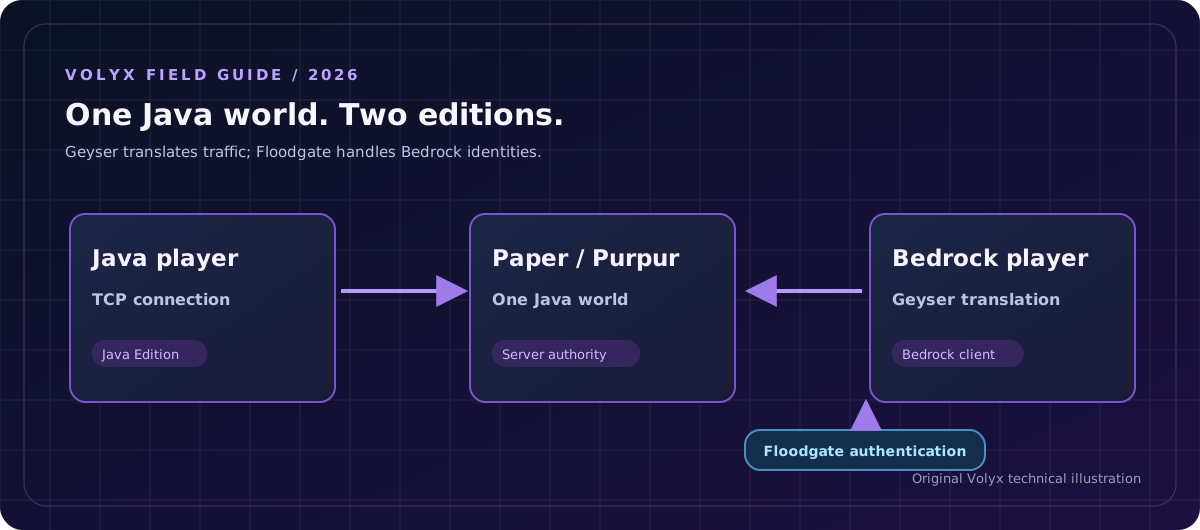
GeyserMC is a protocol translator. It takes packets sent by a Bedrock client, interprets them, and connects to a Java Edition server on that player’s behalf. The authoritative game world remains the Java world: its dimensions, inventories, plugins, game rules and world saves belong to the Java server. You are not converting a Java world into a separate Bedrock world.
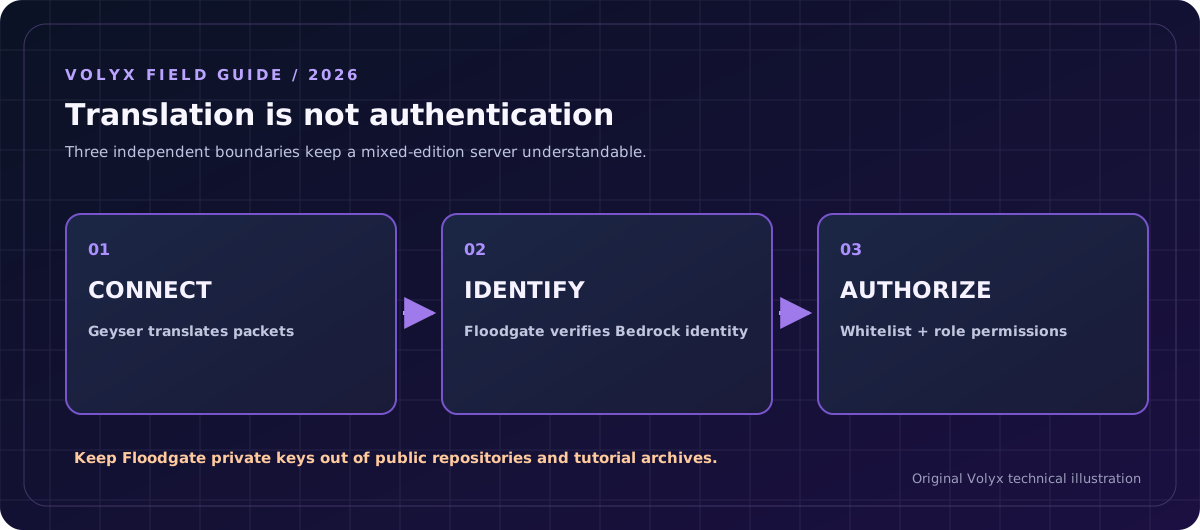
Floodgate is an optional but valuable authentication companion. It lets someone with a Bedrock account join a properly configured Java server without also owning a paid Java Edition account. Floodgate does not replace Geyser’s translation layer. Nor does Floodgate itself open ports, improve your VPS network connection or install plugins automatically.
If you skip Floodgate, Geyser can be configured for Java account authentication, but Bedrock players may need to authenticate with a Java Edition account depending on your setup. If you install Floodgate correctly, it handles the Bedrock identity path on the server. This makes crossplay friendlier while keeping the important distinction between Java and Bedrock account identities.
| Component | Responsibility | What it does not do |
|---|---|---|
| Minecraft Java server, e.g. Paper | Hosts the world and Java gameplay | Accept Bedrock traffic directly by default |
| GeyserMC | Translates compatible Bedrock traffic into Java gameplay | Give players a Java account or fix unavailable network ports |
| Floodgate | Authenticates Bedrock identities into supported Java servers | Replace Geyser or act as DDoS protection |
| ViaVersion, when needed | Helps older Java server versions accept a newer emulated client version | Guarantee every old plugin, mod or mechanic will work |
| Volyx or another host | Provides server process, files, console, allocations and networking | Automatically guarantee the additional connectivity required by every Geyser mode |
The quickest rule: If your players are on Java only, you do not need crossplay. If they are on Java and Bedrock, you generally need Geyser; add Floodgate when you want Bedrock-account login without separate Java accounts.
Start with your exact server version, not a video made for an older release. Geyser’s supported versions page changes as Mojang updates Minecraft. On October 20, 2026, its published guidance references Bedrock 26.30–26.52 and a Java client emulation version of 26.3. If the Java server itself is older, Geyser’s guidance may require ViaVersion, depending on the platform and version. Do not assume an older server can accept the newest emulated client without compatibility software.
For a straightforward survival community, choose a compatible Paper or Purpur server. Both offer a plugin folder, making a Geyser-Spigot plus Floodgate-Spigot deployment relatively simple. Avoid swapping server software blindly on a live world: check your plugin list and take a world backup first. You can review the safer upgrade workflow in Volyx’s server backup guide.
Checklist before you start:
A Vanilla Java server has no Paper-compatible plugin folder. You cannot install Geyser-Spigot.jar merely by placing it in the root directory. You need a supported plugin/mod platform or a separate Geyser instance. Fabric and some other mod environments have platform-specific Geyser builds; consult the exact supported-version page and do not expect Bedrock clients to load mods that require a Java client installation.
A Velocity or BungeeCord network should normally run Geyser at the proxy layer. Installing it on every backend introduces avoidable complexity and conflicting public endpoints. Floodgate can be deployed on the proxy and, where needed for integrations, on backends by following official forwarding and key-handling instructions. For a single Paper server, the basic Paper method below is simpler.
These steps use Volyx’s Pterodactyl-style Console, Files, Network, and Backups pages as the workflow. Menu names and the availability of individual allocations can vary. Nothing in this article guarantees an extra UDP port or automatic Geyser compatibility in every Volyx account.
Open your Volyx server and inspect the console. Confirm that a Paper/Purpur server completes its startup without errors and that Java players can already join. Write down your current Minecraft version, Java runtime, main TCP allocation, world folder, and any plugins or proxies already in use.
A clean Java-only baseline matters: Geyser cannot reliably bridge players into a server that crashes during startup. If startup is already broken, fix it before introducing a second network path. Read the Volyx Minecraft server troubleshooting guide if the console reports a missing JAR, incompatible runtime or other startup error.
Do not delete your world or change online-mode to false to “make Bedrock work.” Keeping normal Java authentication on a directly exposed server is the safer starting point. Floodgate supplies its own supported Bedrock identity mechanism; switching off Java authentication is not the intended substitute.
Before uploading a single plugin, open Backups and create a backup if available under your server limits. Wait until the task is finished; a started backup is not necessarily a complete backup. If possible, download a copy outside the server. Keep a snapshot of server.properties, plugins/ and any existing proxy configuration.
If you have no managed backup slot, follow a supported manual file backup method while the world is in a safe, consistent state. For a sensitive world, stopping the server before copying is a simple way to avoid moving live, inconsistent files. Never overwrite the only working world with a newly extracted archive.
Use the official GeyserMC downloads page and obtain the builds appropriate for your actual server:
Never download a random JAR from an ad, repost, shortened link or unknown plugin collection. Compare the project’s official release instructions with your server version. The 2026 NetherNet transition specifically makes a current Geyser build important.
Stop the server. In Volyx Files, open the server root’s plugins/ directory and upload the two plugin JARs. They belong in plugins/, not the root, world/, .minecraft/, or an unrelated web directory. Do not rename an unknown old JAR and leave multiple competing copies loaded; record existing filenames and follow upgrade instructions.
Your simplified folder tree should look like this:
server-root/
├── plugins/
│   ├── Geyser-Spigot.jar       # downloaded official file; actual name can vary
│   └── floodgate-spigot.jar    # downloaded official file; actual name can vary
├── server.properties
├── world/
└── ...
Start the server, watch console warnings, and confirm both plugins have loaded. Some hosts show a live plugins/Geyser-Spigot/config.yml and plugins/floodgate/config.yml after the first successful launch. Follow the actual directory names created by your installed builds instead of inventing a path. If the config is not generated, fix the load error first.
A common network layout looks like this:
| Purpose | Example address | Protocol | Important note |
|---|---|---|---|
| Java Edition gameplay | play.example.net:25565 | TCP | Your existing Java server allocation |
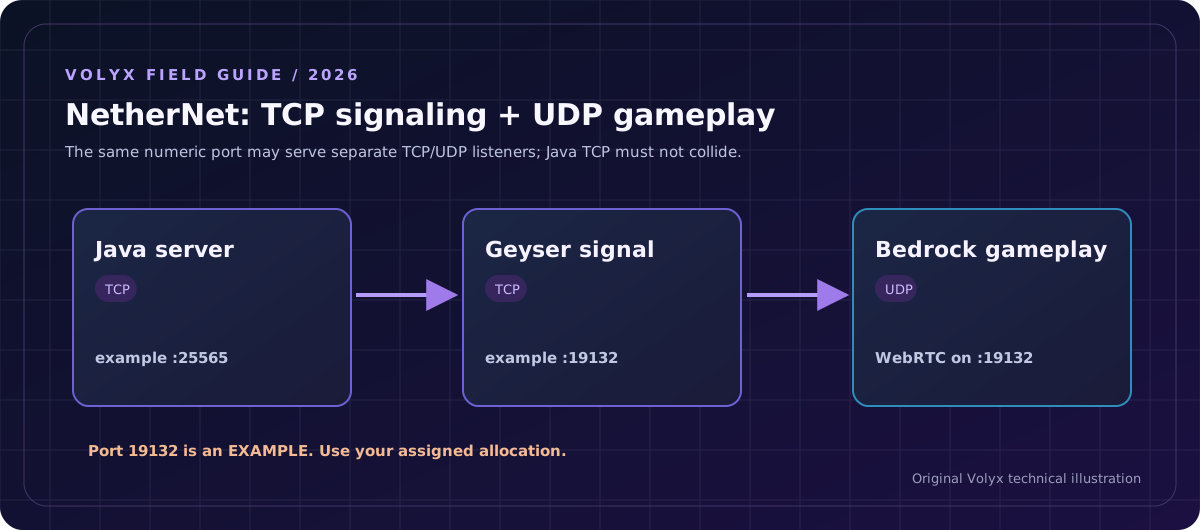
| Geyser NetherNet signaling | bedrock.example.net:19132 | TCP | Needed for Geyser built-in signaling unless using supported external signaling |
| Geyser NetherNet gameplay | bedrock.example.net:19132 | UDP | WebRTC gameplay uses UDP; can share the numeric port with signaling because protocols differ |
| Legacy RakNet compatibility, if configured | Separate Geyser UDP allocation | UDP | Only for deliberate dual-transport configuration; not the same UDP port as NetherNet |
These are examples, not addresses Volyx gives to every user. A numeric port that is allocated to the Java server for TCP is not automatically a port reachable through UDP. Likewise, having permission to edit config.yml does not give you permission to open a firewall or create a new Docker allocation.
On Volyx, inspect Network. If you see only one allocation and cannot verify the protocol support, do not assume that Bedrock traffic is reachable. Ask support whether the allocation maps both TCP and UDP to your instance, whether an additional port can be assigned, and whether the 2026 external-signaling option is available for Geyser.
Once the server is running a Geyser build that supports NetherNet and you have the required TCP and UDP reachability, open its config.yml. For a simple dedicated Bedrock endpoint, the current Geyser setup guide illustrates:
bedrock:
  port: 19132
  transport: nethernet
Replace 19132 with your actually assigned and reachable Bedrock allocation, if different. Do not paste this snippet over the whole config file or delete settings generated by Geyser. If Geyser already uses other keys under bedrock:, edit only the relevant fields, preserving YAML indentation. Its port cannot be in use by another service on the same protocol.
Restart and inspect the logs for transport, binding and signaling messages. Share the address Geyser reports, not simply the Java address you assume works. If players see a trust prompt while using built-in HTTP signaling, the Geyser team recommends HTTPS for signaling; follow their dedicated NetherNet HTTPS guide only if you manage the TLS endpoint.
Hosted-account warning: A customer who cannot create TCP listeners, map both protocols or configure TLS should not edit system-wide Nginx or firewall rules on a shared hosting node. Obtain a supported allocation or external signaling arrangement through the hosting platform.
Some hosts place a Java server and Geyser behind the same publicly advertised numeric port by using clone-remote-port. With the newer built-in NetherNet signaling server, this can conflict with the Java TCP listener on that port. Geyser’s October 2026 guidance documents external signaling, including the Warden service, for hosts unable to provide a separate TCP signaling port.
A host using external signaling may advertise a different Bedrock address and port in the Geyser console, rather than reusing the Java address. Use the official hosting-provider “Not listed” setup instructions and the actual server logs. Do not invent a Warden address, force the Java TCP listener to share its bind port, or assume that a DNS A record alone provides signaling.
If the provider cannot support built-in or external signaling, crossplay might not be possible on that allocation. A valid answer is to ask for a suitable allocation or supported gateway, rather than weaken authentication, open broad firewall rules or advertise an unreachable address.
This deserves its own section because it changes the instructions people have repeated for years. GeyserMC’s October 8, 2026 announcement explains that Bedrock 26.60, scheduled for October 27, is expected to stop connecting through RakNet. In the older model, most beginner tutorials treated Bedrock as “UDP port 19132 and done.” In the new model, the client first obtains connection information using signaling over TCP, then exchanges gameplay over UDP/WebRTC.
There are three reasonable deployment modes:
| Mode | When to choose it | Networking requirement | Pitfall |
|---|---|---|---|
| NetherNet only | Current clients and simplest forward-looking setup | Built-in TCP signaling + UDP gameplay, or supported external signaling | Old Bedrock versions may not have the same server-list compatibility |
| NetherNet + RakNet | Transitional compatibility while supporting older clients | A separate UDP port for NetherNet gameplay, plus the relevant signaling path | Reusing the same UDP port for both transports fails |
| External signaling | Host cannot provide a distinct built-in TCP signaling port | Supported signaling provider plus reachable gameplay transport | Public Bedrock address may differ from Java host and must come from Geyser logs |
For a temporary dual-transport configuration, Geyser documents a structure like this, but only after a second UDP allocation has been confirmed:
bedrock:
  port: 19132
  webrtc-port: 19133
  transport: both
Here 19133 is illustrative. Never configure a port outside the allocations you actually control. Do not choose transport: both just because it sounds better: you are adding another public endpoint to maintain. When all required players use NetherNet, a single-transport setup is simpler.
The official guide also notes that clone-remote-port with built-in signaling is problematic when Java already occupies the TCP port; this is not fixed by turning Java authentication off. If your host doesn’t document NetherNet yet, send them Geyser’s migration announcement and request a supported configuration.
Once Geyser itself starts, enable Floodgate if you want Bedrock-account login without purchasing a Java account. For the single Paper server case:
floodgate-spigot loaded without errors from the official build.auth-type: floodgate where the current Geyser build expects it, per the official Floodgate setup guide.# Illustrative setting only: locate the real key in your generated config.
auth-type: floodgateOlder Geyser versions and different distributions place the key in different sections. Do not move it to a made-up location just to match a screenshot. Check the generated file and official guide for your exact release.
Keep Java player authentication enabled. Floodgate is built to handle Bedrock accounts through a verified pathway. Disabling the whole server’s Java authentication to avoid a Floodgate configuration issue creates an unnecessary impersonation risk. On a proxy network, the security model also depends on correct modern forwarding configuration and restricted backend access.
Bedrock players are not automatically the same identity as a Java player who happens to use the same visible name. Floodgate commonly uses a username prefix to avoid collisions. Do not remove it casually. The Floodgate FAQ warns that duplicate names can cause confusing behaviour.
For a whitelisted Java server, Floodgate provides an fwhitelist command for Floodgate players, such as the following console commands, where ExamplePlayer is a placeholder:
fwhitelist add ExamplePlayer
fwhitelist remove ExamplePlayer
Verify that your installed Floodgate version supports the command, and test with one account before broad changes. Do not assume the standard Java whitelist add <name> accepts a Bedrock identity in the same format. Also, when installing permissions plugins, use the stable identity/UUID provided by the integration rather than a hand-typed display name wherever possible.
A working test needs at least two distinct real clients and a repeatable checklist. The server console should show the plugins starting cleanly, a Java player connecting through its existing address, and a Bedrock player entering through the address and port advertised for Geyser. Testing on the same machine or local network does not prove remote users can reach the endpoint.
Test in this order:
geyser connectiontest <public-host> <port> from the server console, replacing placeholders. Treat it as one diagnostic clue, not a guarantee that every client version can join.If you’re troubleshooting a phone on cellular data, note that mobile networks and Wi-Fi networks behave differently. A successful local connection may hide a blocked public port. Conversely, a TCP-only testing website may report a healthy signaling listener while UDP gameplay still fails.
Crossplay is not identical game parity. Java and Bedrock implement parts of movement, inventories, combat, commands and client UI differently. Geyser translates what it can, but custom Java mods requiring the player’s Java client cannot simply run on Bedrock. Server-side plugins might work with Bedrock players while still producing UI issues or assumptions about Java key bindings.
For a relatively vanilla Paper survival server, Geyser is attractive because the world remains one Java world. For a giant custom modpack requiring client-side content, Geyser is not a magical Bedrock port of that modpack. For a network of minigame servers, you may need proxy placement and plugin compatibility testing. Read Geyser’s current limitations before promising that every mechanic works perfectly.
| Experience | Can crossplay help? | What to check |
|---|---|---|
| Vanilla-style survival and building | Often yes | Server/client versions, Floodgate login and network reachability |
| Paper/Purpur plugins | Often, with testing | Plugin UI, inventory menus, Bedrock usernames and permissions |
| Java client-side modpack | Usually not without more work | Bedrock does not load required Java client mods |
| Custom resource packs | Partial/conditional | Whether the client understands the content and Geyser’s supported translation |
| Proxy network | Yes, with correct architecture | Geyser at proxy, forwarding and Floodgate key handling |
| Console edition joins | Possible with platform-specific workarounds | Supported server-list behaviour and console limitations |
Crossplay adds an extra public entry point, so treat it as a feature that needs maintenance rather than a one-time plugin install.
key.pem private; if it is exposed, follow official key-rotation and proxy-authentication recovery guidance. This is an authentication key, not an ordinary file that belongs in public docs.For broader threat-modeling, see Volyx’s game-server troubleshooting resources and the Pterodactyl beginners guide.
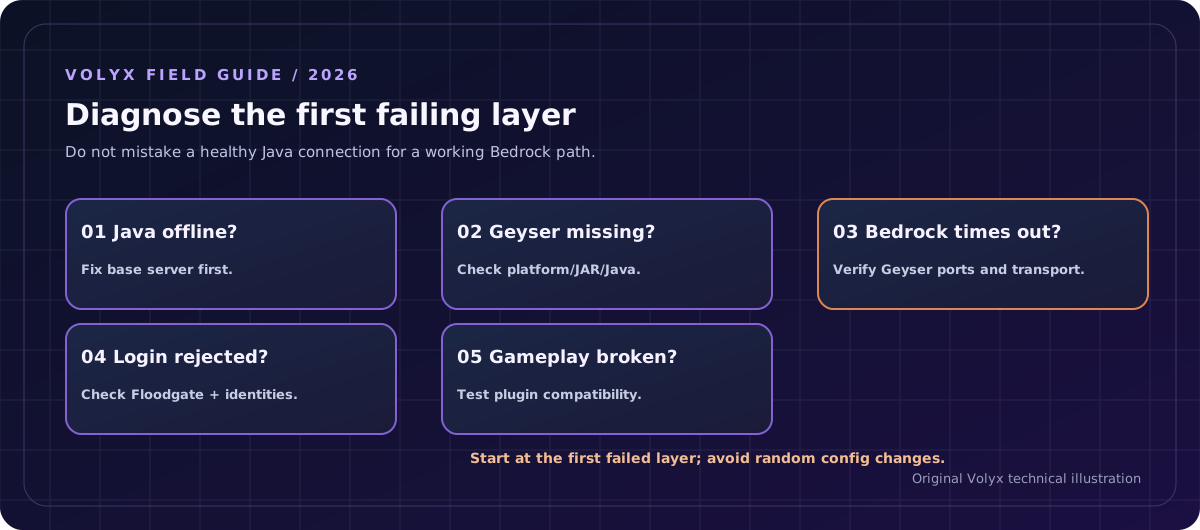
Use the first failure you can observe: plugin load, network reachability, authentication, world join, or gameplay. That order prevents random port or identity changes from making the problem harder to understand.
| Symptom | Likely cause | First safe action |
|---|---|---|
| Geyser never appears in console/plugin list | Wrong JAR, plugin placed in root or version mismatch | Check the downloaded platform build and startup error |
| Floodgate does not load | Wrong Floodgate build or missing dependency | Verify official distribution and server platform |
| “Address already in use” | Another service owns signaling or gameplay port | Inspect allocated ports; request a dedicated endpoint |
| Java connects but Bedrock times out | Bedrock endpoint unreachable or wrong advertised address | Compare Geyser logs with host allocations; test externally |
| Bedrock server appears but join fails | Signaling may work while UDP gameplay fails | Check both required protocol paths |
| Old tutorial says “UDP only” | NetherNet transition changes requirements | Read the October 2026 official migration instructions |
| Bedrock sees a trust prompt | Signaling uses plain HTTP | Consider supported HTTPS signaling or external provider |
| “RakNet and NetherNet each need their own UDP port” | both transport with reused UDP port | Assign a separate authorized webrtc-port or use only NetherNet |
| Java TCP port conflicts with Geyser TCP signaling | clone-remote-port shares the Java listener | Obtain a separate signaling endpoint or use external signaling |
| Bedrock login asks for Java credentials | Floodgate isn’t enabled or auth type is wrong | Check Floodgate load and generated Geyser auth setting |
| A whitelisted Bedrock player is rejected | Wrong identity format or wrong list | Check Floodgate fwhitelist and exact account identity |
| Bedrock user name collides with Java name | Username prefix removed or identity mapping changed | Restore safe prefix, verify UUIDs, review account data |
| Java plugin menus behave strangely | Plugin assumes Java-only client behaviours | Test the plugin or its Bedrock-compatible alternative |
| Bedrock joins but server disconnects after update | Version/protocol mismatch | Check supported versions, Geyser updates and ViaVersion |
If Java cannot join: stop here. Fix the server’s base startup, public Java TCP endpoint, version and authentication first.
If Java joins but Geyser does not load: check server platform, Java runtime and plugin error messages. Replacing a YAML value will not fix an incompatible JAR.
If both load but the Bedrock address is unreachable: confirm the address from Geyser’s console, the transport mode and the public allocations. Use a test from outside the host network. You cannot diagnose a UDP game path using only a TCP port scanner.
If connection reaches Geyser but login fails: inspect Floodgate authentication and player identity. Do not disable online-mode to make the problem disappear.
If the player joins and then features break: you have likely moved beyond networking into plugin compatibility, permissions or a Java–Bedrock behavioural difference. Test one plugin or setting at a time on a spare server.
Stop the server, save the current log and compare it against your last known working configuration. Restore only the previous Geyser/Floodgate settings from your verified backup; do not overwrite an entire world merely to undo one YAML change. If a plugin update introduced the issue, check the project’s published version requirements and migration notes before attempting any downgrade. Avoid repeatedly restoring different versions into the only live data directory.
| Setup | Advantages | Trade-offs | Best fit |
|---|---|---|---|
| Single Paper/Purpur server with Geyser + Floodgate | Simple shared Java world; easy to learn | Requires compatible network allocations and versions | Friends and small communities |
| Velocity proxy with Geyser + Floodgate | One ingress for multiple Java backends | Forwarding, auth, and plugin compatibility require extra care | Multi-server networks |
| Standalone Geyser beside an existing Java server | Translation can be separated from the game process | Extra service lifecycle, Java address and authentication config | Operators with sufficient VPS/process control |
Volyx users should start with the first option if they have a compatible Paper/Purpur server and the necessary ports. They should not deploy a separate proxy or background service inside a container that does not permit it merely because a screenshot shows that architecture. Infrastructure constraints matter more than which guide looks simplest.
Yes, a compatible Geyser setup lets Bedrock clients join a Java server’s world alongside Java clients. The world stays a Java world. Some Bedrock gameplay and interface differences remain; crossplay does not guarantee every mechanic or mod behaves identically.
Not when Floodgate is properly installed and configured to authenticate their legitimate Bedrock accounts on a supported server. Geyser without Floodgate may use a different Java-account authentication flow. Floodgate is the component that enables the Bedrock-only-account route.
You need Geyser for protocol translation. Floodgate is optional in the sense that a different supported authentication mode may be used, but it is usually the easiest choice when you want Bedrock players to join without separate Java Edition credentials.
Not as a Paper plugin. Vanilla has no compatible plugin loader. Use Paper/Purpur, a supported mod distribution, or a separately managed Geyser variant. Check current supported platforms and game versions first.
That depends on the host and mode. Built-in NetherNet signaling ordinarily needs a TCP listener separate from a Java TCP listener, plus a reachable UDP gameplay path. A supported external signaling setup can avoid a second dedicated TCP port but may advertise a different address. Volyx availability must be verified per allocation.
Not necessarily. The upcoming NetherNet migration changes the path: built-in signaling runs over TCP and gameplay uses UDP/WebRTC. Follow the October 2026 Geyser migration article, particularly before the planned Bedrock 26.60 change, rather than copying a RakNet-only tutorial.
NetherNet is Mojang’s newer Bedrock connection transport. It uses a signaling stage followed by WebRTC-based gameplay. Geyser’s maintainers say the planned Bedrock 26.60 release will stop using RakNet for Bedrock client connections. The exact rollout should be reconfirmed if reading this after October 2026.
Yes, on Geyser builds that support the dual mode, but Geyser requires separate UDP ports for their gameplay transports and a working signaling path. Use this during a deliberate transition only if the host actually provides the necessary allocations.
Java and Bedrock may use different public endpoints, protocols and authentication. Verify the address Geyser advertises, port mapping, transport, version support and Floodgate logs. A healthy Java TCP connection is not proof that the Bedrock UDP/WebRTC path works.
For Paper/Purpur, upload the matching official plugin JARs to the server’s plugins/ folder. For Velocity, install the proxy-specific builds on the proxy. Modded servers use platform-specific mod folders instead. You must also configure network reachability; uploading files alone does not provide ports.
Only in configurations where the Java server does not accept the client version Geyser emulates and ViaVersion is a supported solution. The requirement changes with Geyser and Minecraft releases; check Geyser’s current supported-version page rather than assuming every server needs it.
Floodgate 2.0 provides fwhitelist add <BedrockName> for supported setups. Use the current Floodgate documentation and verify identity formatting. Do not remove the Bedrock name prefix casually or treat Bedrock and Java visible names as interchangeable.
No. Bedrock cannot install a Java client modpack just because the Java server uses Geyser. Some server-side mods and Paper plugins work acceptably, but client-side code and some custom content require separate compatibility work or cannot be translated.
Sometimes, through console-specific community methods or supported server-list workarounds. Console platforms have connection UI restrictions, and these methods change. Consult the official Geyser console guide rather than guaranteeing a one-click join on every console.
Floodgate is intended to authenticate Bedrock identities through its supported server integration. Keep its private authentication keys secure and preserve your Java server’s proper authentication model. Turning off online-mode on a public Java server solely to bypass Floodgate setup is not a safe general fix.
Do not assume so. Review Network and ask Volyx support which TCP and UDP allocations, external signaling options, and additional-port policies are available for your account. A server having a Java address does not prove it has a reachable Bedrock endpoint.
Before advertising your crossplay server, make sure your Java world boots reliably, backups are verifiable, compatible Geyser and Floodgate builds load cleanly, and the Bedrock address is the one Geyser actually reports. Test from outside the server’s network using a real Bedrock client. Confirm your authentication, whitelist, operator permissions, and saved player data survive a restart. Repeat the check after protocol updates.
If you’re new to hosting, begin with Volyx’s Minecraft server setup guide, then review uploading files over SFTP and server backups. When your chosen Volyx service supports Geyser’s required ports, you can open the Volyx hosting dashboard and apply these steps to your own server.
Crossplay isn’t about tricking two Minecraft editions into being identical. It’s about building a reliable translation and identity path so friends can safely enjoy one shared world—and documenting its limits honestly.
fwhitelist command and Bedrock player features.Explore more in-depth articles with code, visuals, and practical walkthroughs.
Browse all articles ↗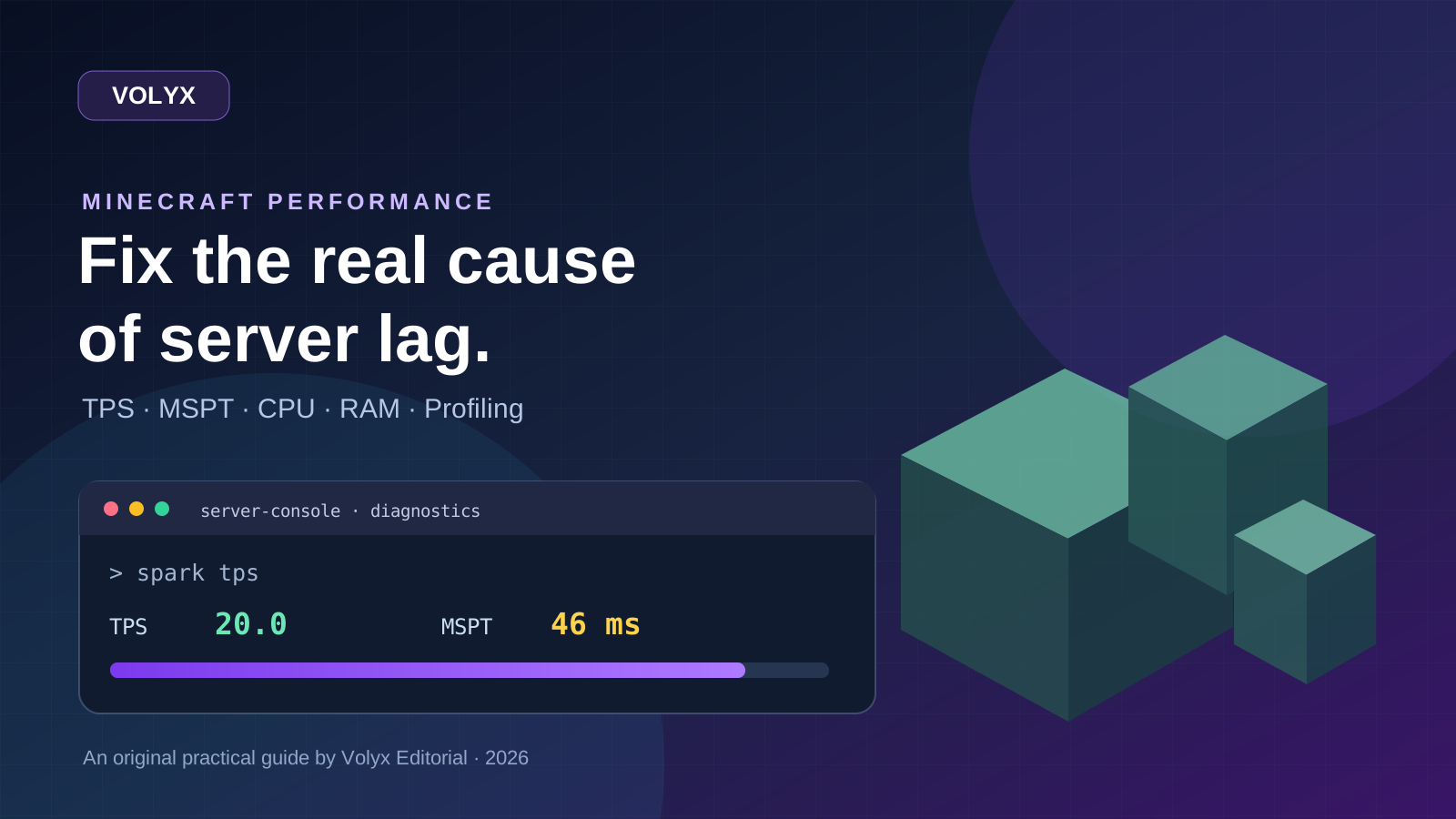
A practical, evidence-first guide to fixing Minecraft Java server lag: read TPS and MSPT, profile with spark, tune chunks, and diagnose CPU, memory and plugins.
Read article ↗
Learn the difference between DDoS floods and Minecraft bot raids, secure a Paper or Velocity server, compare TCPShield and Cloudflare, and respond safely using Volyx.
Read article ↗
Compare five real MIT-licensed JavaScript, TypeScript, and Python Discord bot starters, then learn how to deploy one safely on Volyx.
Read article ↗