
Minecraft Server Lag in 2026: Diagnose TPS, MSPT, CPU and RAM
A practical, evidence-first guide to fixing Minecraft Java server lag: read TPS and MSPT, profile with spark, tune chunks, and diagnose CPU, memory and plugins.
Read article ↗A practical guide to diagnosing Minecraft Java and Bedrock connection failures: timeouts, refused connections, invalid sessions, version mismatches, DNS, ports, and Volyx server checks.

A Minecraft server can be perfectly healthy for one player and impossible to join for another. A familiar red “Can’t connect to server” label might indicate a stopped process, but it can also come from a wrong port, a stale DNS record, the wrong Minecraft edition, a local network rule, or a login check that happens after the network connection succeeds.
That is why repeatedly restarting a server or reinstalling Minecraft is rarely a good first move. The efficient approach is to identify the layer that failed, collect one piece of evidence, and change only the relevant setting. This guide walks through that process using examples from Minecraft Java Edition, Minecraft Bedrock Edition, Paper-based servers, and the server Console and Network pages commonly available in Volyx’s Pterodactyl-based panel.
If you are deploying your first server, see the Volyx documentation before changing settings. If a world is valuable, make a recoverable backup first. Those steps matter much more than the speed of any troubleshooting trick.
Quick answer: For
Connection refused, first verify the server is running and listening on the actual assigned address and port. ForConnection timed out, verify the destination, network route, and firewall or hosting rules. ForFailed to connect, read the message after the colon—edition, version, login, whitelist, and mod-loader failures require different fixes.
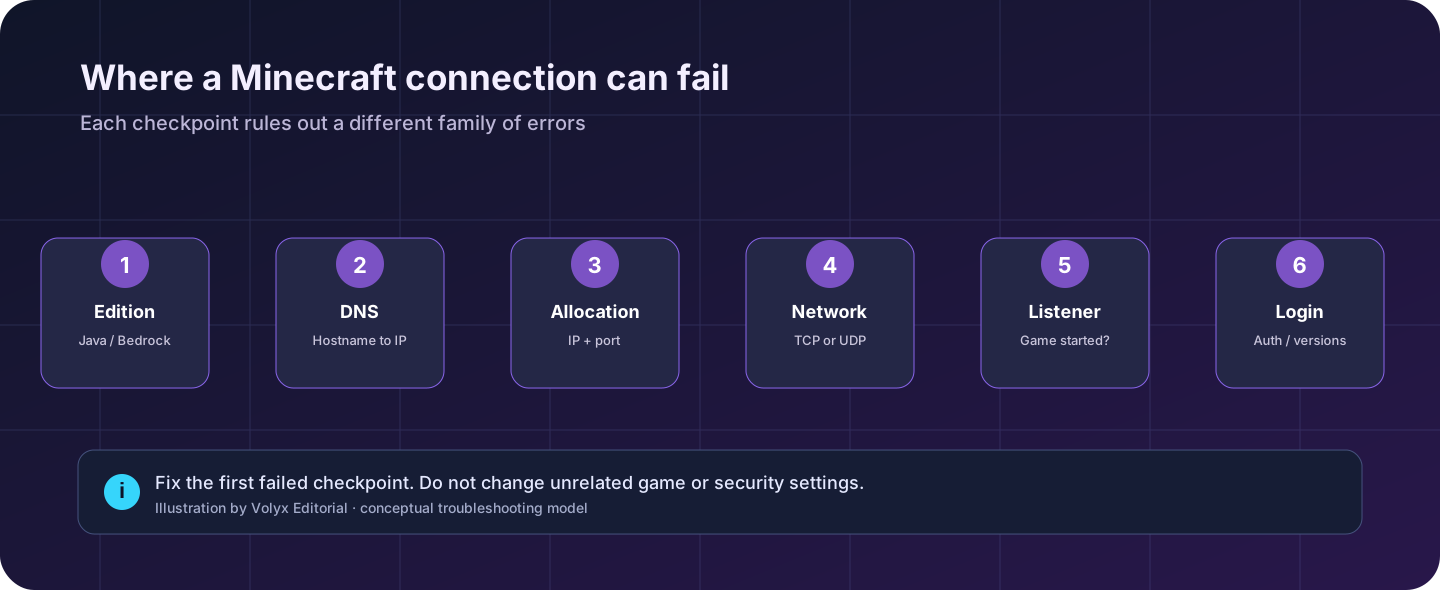
Joining a game is a sequence, not one action. The player chooses an edition and game version, the computer resolves the hostname, a connection travels to the assigned address and port, the game process accepts it, Minecraft performs its own handshake or login checks, and the world finally sends data. A problem at any stage can look like “the server is down” from the player’s side.
Here is a useful diagnostic map. Treat the message as a clue, not a guaranteed diagnosis: some launchers and network devices present different wording for the same underlying failure.
| What you see | Most useful first check | Common underlying causes |
|---|---|---|
Connection refused | Is the server actually listening on this port? | Process stopped, wrong port, rejected TCP connection |
Connection timed out | Are address, port and network path reachable? | Filtered traffic, unreachable endpoint, inactive allocation |
Unknown host or DNS lookup error | Does the hostname resolve to the intended address? | Typo, absent DNS record, stale record |
Failed to connect to the server | Read the detailed reason and console log | Broad symptom; could be transport or login |
Incompatible version | Compare the exact server and client versions | Version or protocol mismatch |
Invalid session / authentication error | Verify account login and online authentication | Expired login, authentication service problem |
You are not whitelisted | Check access list and account name | Player not allowed to join |
Internal Exception / packet error | Compare plugins, mods and packet-related logs | Incompatible extension, protocol or proxy configuration |
Bedrock Unable to connect to world | Verify Bedrock endpoint and permissions | Wrong edition, UDP path, account permission, unavailable host |
25565 is yours.A refused TCP connection usually means the destination replied that nothing is accepting that connection, or something along the route actively rejected it. On a Java server, the most useful first question is therefore: has Minecraft completed startup and bound the intended port?
In Volyx, open your Minecraft server, check Console, and wait for a successful startup indication. If it immediately exits, the connection error is a symptom of the crash. Read the first meaningful Java or Paper exception, not only the final shutdown message. Memory limits, an incompatible Java version, an invalid plugin, or a missing file can prevent startup.
Next, open Network and compare the displayed allocation with the address you typed in Minecraft. Some managed servers use a non-default port. A Java address might look like play.example.net:25578, where 25578 is an example—not the default for your Volyx account. If you copied the wrong port or used an old address after reallocating the server, a refusal is unsurprising.
If you control a standalone Linux VPS rather than a managed game container, ss -ltn can show listening TCP ports. Do not run it inside a managed game container expecting host-wide information: containers may not expose the host networking environment. For a Java client on Windows you can test the destination with:
Test-NetConnection -ComputerName play.example.net -Port 25578Replace both values with the real Java host and port. TcpTestSucceeded : True means the tested TCP connection completed; it does not prove the Minecraft login, whitelist, or mod handshake will succeed. False narrows the investigation but can reflect filtering or a different endpoint.
Avoid this shortcut: Do not turn off your firewall wholesale or switch online-mode=false to make an unrelated connection refusal disappear. That can create security problems without addressing the root cause.
A timeout is different from a refusal. The player attempted a connection but did not receive the needed response within a time limit. It does not tell you whether traffic was dropped by a firewall, lost on a broken route, sent to an offline address, or delayed by a severely overloaded server.
Start with the exact address. If the host is a domain, verify it resolves to the intended IP; if an old A or AAAA record still points elsewhere, players can reach different machines depending on network and DNS cache. Then check that your hosting allocation exists, the Minecraft process is accepting connections, and there is no active service interruption. Test from a different network if available—for example, a trusted player on a separate ISP.
For a Java server, the TCP test above is useful. For a Bedrock server, ordinary Java-style TCP connectivity tests are the wrong protocol test because typical Bedrock server traffic uses UDP. The default Bedrock UDP port is commonly 19132, but a managed allocation can differ. Test with a Bedrock-aware client or monitor and verify the provider permits the assigned UDP port. A successful or failed TCP probe to that same number says very little about Bedrock availability.
If you manage a VPS and suspect a firewall, inspect the effective network path carefully. Check cloud firewall rules, operating-system rules, proxy services, and the application listener; a single “allow” rule in one place does not override a block elsewhere. Change only the narrow rule you understand, and keep management access protected. On Volyx managed hosting, use the allocated port and contact support if the network path appears filtered—do not attempt to edit the provider’s host firewall from inside your server.
It can contribute to delayed handshakes or packet processing, but not every timeout is a performance problem. If all players report slow chunk loading while TPS collapses, inspect server performance. If no traffic reaches the endpoint, optimising entities or adding RAM will not fix a wrong DNS address. For metrics and profiling, use our Minecraft TPS and MSPT troubleshooting guide.
“Failed to connect to the server” may be a heading followed by the real cause: Connection refused, Timed out, Incompatible version, or an authentication error. Ask players to copy the complete message and, for managed servers, compare it with Console at the same timestamp. Avoid posting logs containing personal IP addresses or account information publicly without redaction.
A practical distinction is whether the console records an attempted join. If nothing appears, the request may not have reached the process, but silent logs alone are not definitive: some failures happen before a username is known. If the server logs an explicit kick with a reason, investigate login policy, versions, the player’s permissions, or plugin decisions rather than DNS first.
Do not delete the entire plugins directory or world folder as a first test. If extensions are suspected, back up the configuration and perform one controlled compatibility test on a separate environment or with an individual recently changed extension.
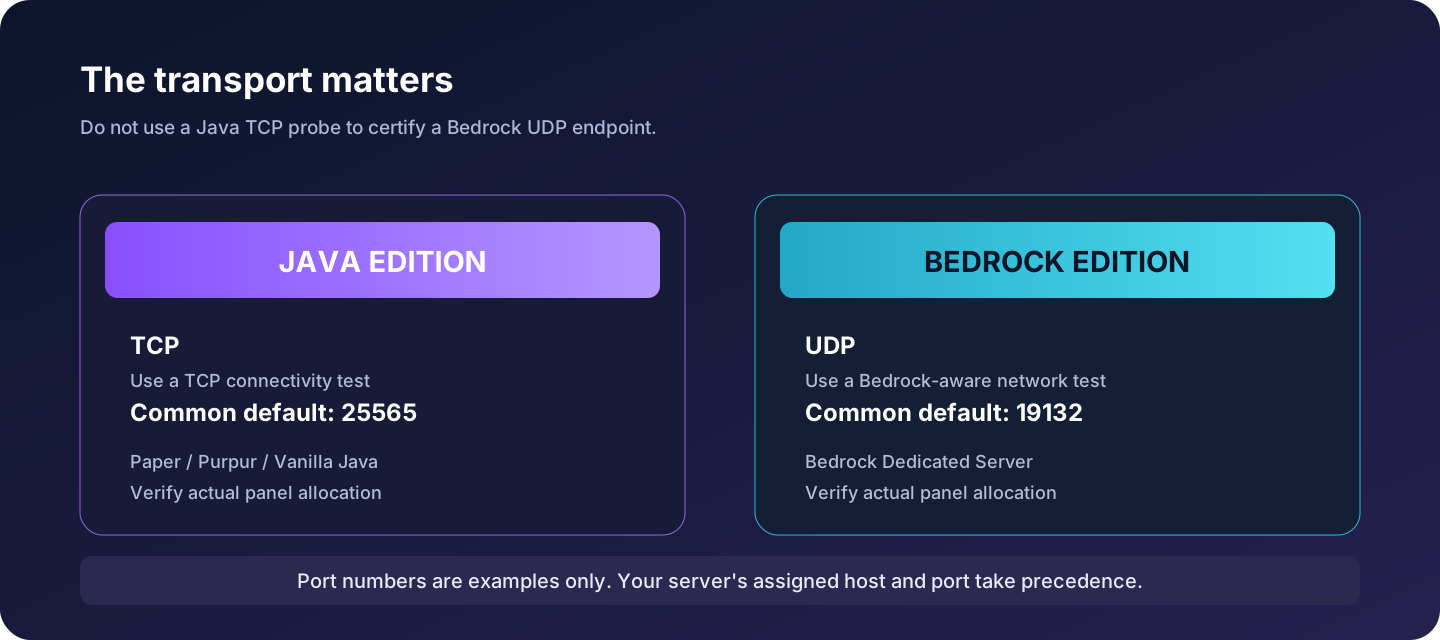
Minecraft Java Edition connects to Java-compatible servers; Bedrock Edition connects to Bedrock-compatible servers. Players cannot assume a phone Bedrock client will join an ordinary Paper Java server. Java-to-Bedrock gateways such as Geyser may bridge certain configurations, but they must be installed and configured correctly; merely pointing both editions at the same IP does not enable cross-play.
| Property | Java Edition | Bedrock Edition |
|---|---|---|
| Typical transport | TCP | UDP |
| Common default server port | 25565 | 19132 |
| Normal server choices | Vanilla Java, Paper, Purpur, Fabric, Forge | Bedrock Dedicated Server or compatible software |
| Common player clients | Java Edition desktop | Bedrock on supported devices |
| Appropriate initial network test | TCP connection to assigned port | Bedrock-compatible UDP/application check |
| Cross-play assumption | Not built into Paper alone | Not built into a vanilla Bedrock server |
These are defaults, not your assigned endpoint. If the hosting panel shows an allocation with a different port, follow that allocation. Also remember that console or mobile multiplayer permissions may be governed by Microsoft account and platform settings. Minecraft’s official multiplayer help lists edition compatibility, versions, account permissions, and network connectivity as separate requirements.
For Bedrock-specific messages—including named codes such as Kelp for a timeout—the official Minecraft Help Center is a better starting point than a random Java plugin tutorial.
A free hosting system with a resource or Coins model needs one more check: is this particular server still active and permitted to run? A hosting account can exist while an individual server is suspended, expired, queued, or awaiting renewal. In that situation an address remains familiar to players, but its application may not be reachable.
For a Volyx-managed Minecraft server, a useful sequence is:
server.properties only if the server software and problem actually require that change. Take a backup before configuration edits.Avoid inventing a universal RAM quota, promise of 24/7 operation, or port range; allocations and free-tier conditions can vary. The Volyx hosting website and documentation are the relevant sources for current product instructions. Also distinguish the panel domain and application login from the IP and port players use to join the game—they serve different purposes.
Before you submit a support ticket: Include Java/Bedrock edition, version, displayed allocation, whether Console says the server started, exact error, when the error occurred, and whether it reproduces from another network. Do not include your password, access token, or unredacted private player data.
server.properties safelyPaper and vanilla Java expose key network and authentication options through server.properties. They can help diagnose a broken deployment, but they are not a set of “make connections work” switches. Defaults can also vary across server versions and setups.
# Example values only. Respect the host allocation.
server-ip=
server-port=25565
online-mode=true
enable-status=true
white-list=false
The blank server-ip is commonly appropriate for binding to all available interfaces. Hardcoding an external IP inside a container can cause a bind failure if that IP is not assigned to the container. The server-port must agree with the actual deployed listener and the host allocation—do not blindly edit it to 25565 on a managed host. online-mode=true maintains online account authentication for a typical standalone public Java server; behind properly configured proxies, authentication must be handled according to that network’s specific trust model.
enable-status=false can make a Java server appear offline in the multiplayer server list even when players may still be able to connect, as Paper’s documentation explains. That is a useful clue when the server looks red but connections otherwise work. If the issue is a whitelist kick, manage the whitelist correctly rather than turning authentication off.
Before changing any file, save a copy and write down its original value. Restart only if the setting requires it, then examine the new startup lines. If Minecraft suddenly cannot bind to its port, undo that one change. Avoid restoring an unrelated old world or clearing player data to solve a listener issue.
A hostname such as play.example.net is easier to share than an IP and port, but it adds DNS as another potential failure point. An A record points to an IPv4 address; an AAAA record points to IPv6; and Java-specific SRV records may tell clients which host and port to use when the player enters just a domain. The exact setup depends on the edition and DNS provider.
On Windows, inspect a domain with:
Resolve-DnsName play.example.net -Type A
Resolve-DnsName play.example.net -Type AAAA
Resolve-DnsName _minecraft._tcp.play.example.net -Type SRV
An empty AAAA result is fine if you never configured IPv6. But an old AAAA record can be harmful if it points to an unreachable machine and some clients prefer that address. For Java’s default hostname behavior, an SRV record can be helpful when using a non-default game port, but it is not a universal fix for Bedrock. Test the hostname and direct IP-plus-port separately, then fix the record that is demonstrably wrong.
Do not assume that turning on a general web proxy will proxy Minecraft gameplay. Standard HTTP/CDN proxying is different from Minecraft’s game transport; a DNS provider may require DNS-only records or a specialised TCP/UDP proxy service. If you use any game proxy, follow the product’s exact installation and security requirements. Keep the backend protected rather than exposing both proxy and origin as equivalent public entry points.
When the server responds but refuses a particular client’s protocol version, the network is already working far enough to negotiate. First compare exact Minecraft versions (including previews, snapshots, and mod-loader requirements). Update the client or server only after checking mod and plugin compatibility. Some protocol translation plugins support additional client versions, but they are not a guarantee for every game release and cannot repair arbitrary incompatible mods.
For example, if your server is on a stable 1.x release and a player is using a snapshot, select the matching release in the launcher. If the user sees “Outdated server,” the server may be behind the player’s client; if it says “Outdated client,” the opposite may be true. These labels are guidance, not a replacement for the actual version numbers.
When updating a persistent server, back up the world and critical configuration first. Worlds may undergo irreversible format changes during upgrades. Validate a copy before making a version jump, particularly for modded environments or when considering a downgrade. For loader choices, our Paper vs Purpur vs Fabric vs Forge comparison explains which software families support plugins or mods.
A modded client may have the same base Minecraft version as the server and still be incompatible. Fabric and Forge-family servers expect loader and mod combinations appropriate to their ecosystem. Some mods are client-only, some are server-only, and some need compatible installation on both sides. Incompatible protocol extensions or custom network channels can produce handshake errors that resemble generic connection failures.
A practical method is to export a versioned mod list or modpack manifest, keep an identical copy for the server where required, and compare loader versions. If a new mod was introduced immediately before failures began, reproduce the issue on a test server or roll back that specific change from a verified backup. Do not advise every player to delete all mods and start over without first examining the server’s reported disconnect reason.
Resource packs are different from mods. A server can require a resource pack, and the resulting decline or download failure may interrupt entry even when the game server is reachable. Check resource-pack URLs and settings separately from the mod loader.
An Invalid Session error is usually not fixed by forwarding more ports. It occurs in or around account authentication, after the player has gotten far enough to contact Minecraft’s login process. The user should exit the game, sign out and back in through the official launcher/account flow as appropriate, and confirm relevant authentication services are operating. A retry may help with transient service issues; persistent server-side errors require log investigation.
For a typical standalone Java server, keep online-mode=true; setting it false changes the account-trust model, creates impersonation risks, and is not a safe general troubleshooting step. Networks behind Velocity or another proxy require a deliberately configured forwarding/authentication design. Changing the backend to offline mode without restricting backend access can be dangerous.
If the player is not whitelisted, add the correct authenticated account name through the normal whitelist administration flow after confirming permission to join. A Banned or permissions-related message is a separate access-control decision. Avoid disguising an intentional whitelist or ban as a “network issue.”
Minecraft Bedrock introduces account and platform permission checks that are different from Java server authorization. Official Microsoft/Minecraft Help describes multiplayer settings and, on supported consoles, platform subscription requirements. Those checks belong on the player side, not in server.properties for Paper.
A successful server-list ping or green status icon is useful, but it is not an end-to-end gameplay test. It can confirm a status endpoint responds while the login process, plugin stack, world loading, or individual player’s route still fails.
Examples include a proxy responding while its backend is offline, a Paper server responding before a plugin rejects the player, or a lagging server taking too long to move a player into a world. For proxy networks, verify each hop—public proxy, backend allocation, forwarding secret or configuration, and server logs—before blaming a client firewall.
Track whether failures happen before join, during joining terrain, or after 30–60 seconds in the world. Each phase narrows your search. A player who reaches the world but gets disconnected when chunks load needs a different investigation than a player who cannot open the initial TCP connection.
For recurring outages, external monitoring and an incident timeline are more useful than manual retries. Make sure the monitor probes the correct game transport, not just an unrelated HTTP page.
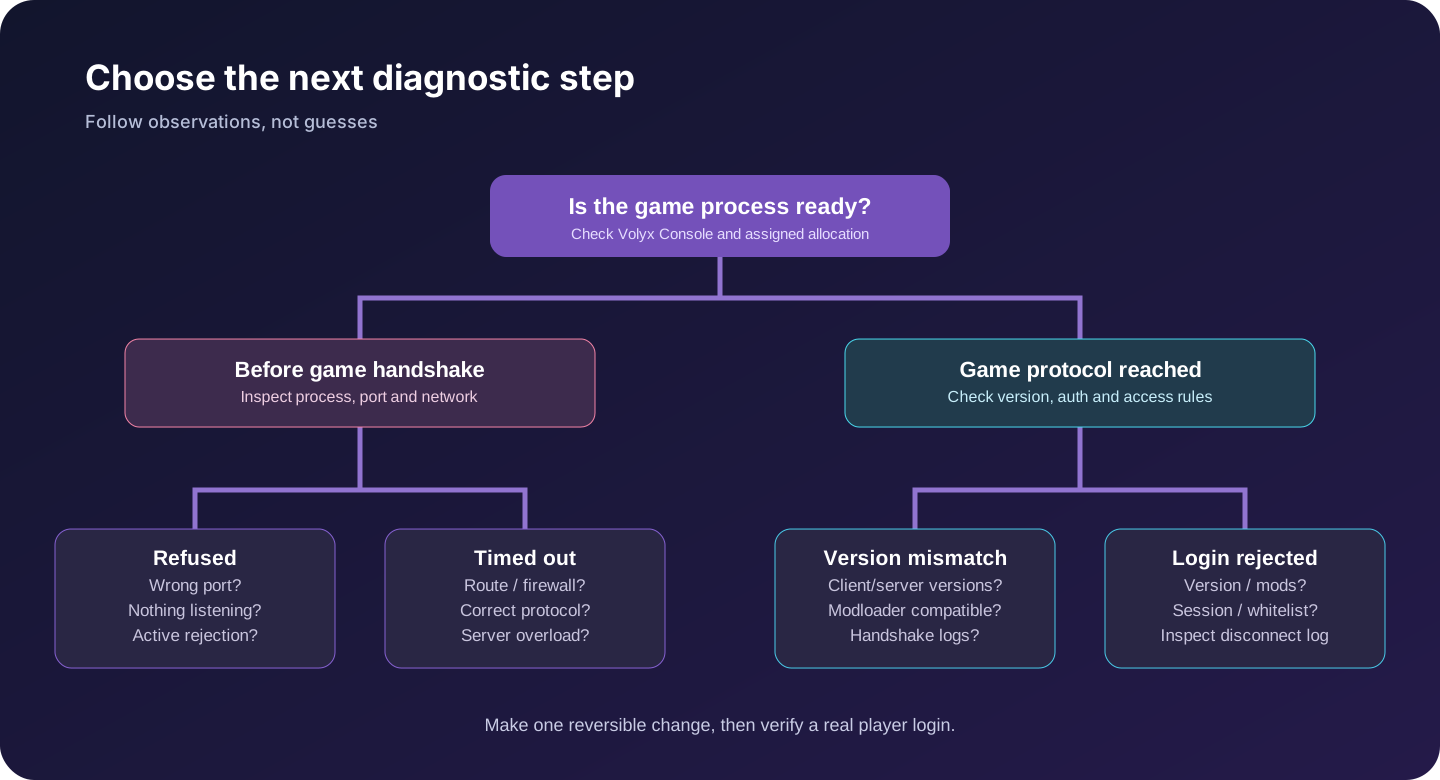
Use this table after your first six checks to avoid unnecessary changes.
| Observation | Next action | Do not do |
|---|---|---|
| The process never finishes starting | Read Console exception and startup exit reason | Keep changing client DNS |
| Console is healthy but TCP Java test refuses | Confirm assigned port and listener; inspect network allocation | Disable account authentication |
| Only one ISP cannot connect | Compare routes and DNS answer from another network | Wipe server files |
| Java works but Bedrock client fails | Confirm edition and configured Bedrock bridge/UDP endpoint | Assume Paper provides cross-play |
| Direct address works but hostname fails | Inspect A/AAAA/SRV records, propagation, and proxying | Change Minecraft world data |
| Versions differ | Align a tested client/server combination | Downgrade the world without backup |
| Join reaches whitelist kick | Correct access permissions for that account | Change firewall rules |
| Login succeeds but world stalls | Inspect plugins, world loading, and performance | Treat it as a DNS-only problem |
| Server is suspended or expired | Follow your hosting provider’s renewal policy | Try to bypass account restrictions |
| Many players fail after a recent change | Compare deployment and startup logs against previous working configuration | Make multiple simultaneous untracked changes |
Imagine a player’s old bookmark is mc.example.org:25565, but a replacement Volyx server has a different allocated Java port. Console reports a successful startup; the Minecraft client shows Connection refused. The player tries updating Java, restarting their PC, and increasing RAM, but nothing changes because those actions never address the destination.
The fix is to copy the newly assigned allocation, connect using the direct endpoint, and only then update the DNS/SRV record or player bookmark. A second player repeats the same test. This example illustrates the sequence of reasoning, not a claim that Volyx has changed anybody’s real port.
Suppose most players join normally, while one sees Invalid Session. This makes a server-wide firewall outage less likely. Ask the player to verify their account and launcher authentication, compare timestamps with server logs, and avoid publishing access tokens. If the server reports an authentication-service problem for everyone, look for wider service disruption rather than forcing insecure offline authentication.
The optional Python diagnostic bundled with this article resolves a hostname and attempts one TCP connection to a Java endpoint. It does not require Minecraft credentials, send chat messages, change firewall rules, or read server files. You can run it from your own computer, not from inside a game container, to test that computer’s network path.
python3 java_endpoint_check.py play.example.net 25565 --timeout 4The result tells you which addresses resolved and whether a TCP socket connected within the timeout. It cannot validate Bedrock UDP, Java login, Minecraft permissions, or whether a specific plugin accepts your account. Timeout and Refused are network observations, not definitive proof of which company or device caused the failure. The bundled script intentionally refuses malformed ports, hostnames with URLs, and loopback addresses unless a user explicitly supplies a local host for local testing.
For owners troubleshooting their own systems, repeat the Java test from two distinct networks to compare results. If only one path fails, retain those observations as evidence. Do not scan unrelated hosts or ports: test only your assigned game endpoint or infrastructure you are authorized to manage.
The most reliable prevention is small, repeatable operational discipline. Keep a written record of the assigned address and port, Java/Bedrock edition, game version, loader, recent configuration changes, and who can approve updates. Maintain an independent backup before world upgrades. Test restores periodically so that a “backup exists” label becomes evidence that recovery works.
Schedule updates for a time when you can inspect logs and have an immediate rollback option. Change one variable at a time and validate both startup and a real player join. Monitor for repeated crashes, high CPU, failed backups, and unexpected suspension or expiry. If a hosting allocation or domain changes, update bookmarks and DNS together rather than relying on old links.
For a Volyx server shared among friends, pin a simple connection card in Discord: edition, server version, current host:port, permitted mods, whitelist policy, and support contact. That often prevents more “server is broken” messages than any complicated monitoring tool.
The visible container or dashboard may be online while Minecraft is not listening at the address and port you entered. Verify the console completed startup, confirm the assigned allocation, and use a Java TCP test where appropriate. A plugin or proxy can also complicate what “online” means.
No. A refusal generally indicates an active rejection of the attempted TCP connection, whereas a timeout indicates the needed response did not arrive before the deadline. Either may involve the wrong destination, but the next diagnostic test differs. Error wording can vary between clients and networks.
The common Java default is TCP 25565. Your actual server may have an entirely different allocated port. Always use the allocation displayed by your provider rather than assuming the default.
A common Bedrock default is UDP 19132, but hosting allocations can differ. A Java TCP test to that number does not confirm the Bedrock server is offline; use the correct edition and protocol for testing.
Not by assuming both versions accept each other’s protocol. Cross-play needs a compatible, correctly configured bridge or platform-specific solution. Confirm the server’s setup and supported versions before advertising cross-play to players.
The ping/status response may be unavailable or disabled while the actual gameplay connection remains possible. For Paper, enable-status controls the server-list status listener independently of normal player connections. Also check DNS and server-list cache behavior.
No. First verify spelling and whether the domain has a valid record. If the record exists but points to the wrong machine, correct it at the authoritative DNS provider. Changing a personal DNS resolver cannot create a missing domain record or correct a bad hosting allocation.
Only if the underlying issue is a resource-driven stall or crash. Extra RAM will not repair wrong DNS, a blocked network route, or the wrong game port. Confirm the failure layer and inspect server health before changing memory limits.
Compare exact game and mod-loader versions and bring the client and server to a compatible tested combination. Back up the world before changing server versions, and check mod or plugin support. Do not downgrade a live world blindly.
That pattern makes a universal outage less likely. Compare your client edition, version, account permissions, DNS answers, network, launcher, and whitelist status against your friend’s working setup. Some causes remain server-side but specific to a player.
online-mode to fix login errors?Not as a general fix. Disabling authenticated player verification can enable impersonation and other risks. Investigate account sessions, authentication-service status, and any properly secured proxy forwarding first.
The network has progressed to an access-control decision. Ask the server owner to confirm the exact authenticated account and whitelist entry, or request access. Changing ports or firewall rules will not grant whitelist permission.
Ordinary HTTP reverse proxying is not an automatic Minecraft transport proxy. Depending on your configuration, you may need DNS-only resolution or a specialised TCP/UDP proxy product. Do not switch modes without checking your Minecraft provider and the proxy service’s instructions.
Read the status and renewal instructions in your Volyx panel. A suspended server may not accept connections even if its old address remains saved in Minecraft. Follow the provider’s Coins/renewal flow and contact support when the displayed state is unexpected.
Yes. A protocol mismatch, incompatible mod, broken plugin, or proxy forwarding problem can reject a player after the connection begins. Check logs, loader compatibility, recent changes, and the full disconnect reason; test changes on a backup copy.
Test the exact authorized endpoint from more than one network, compare DNS results, and review server startup status. One network failing while others succeed points toward a path-specific issue, but it does not conclusively identify which provider caused it. Give support the timestamps and test outputs.
If you only remember one workflow, use this one: identify edition → verify server state → copy allocation → capture complete error → test the right protocol → inspect login/version logs → make one reversible change → confirm a real join. This sequence is faster and safer than cycling through random Minecraft “fixes.”
For related Volyx guides, read Minecraft performance troubleshooting, Minecraft backup and restore, and server security practices. Where a linked guide is not yet published on your installation, check the blog index for the currently available articles.
If you want to launch a new server rather than repair an existing one, visit Volyx Hosting. Confirm the current hosting terms, edition support, and assigned resources in your account before deploying.
Editorial note: Error messages, ports and examples above are educational. No live Volyx customer’s server or game session was accessed or benchmarked to produce this guide. Configuration and product capabilities can change; confirm them against your actual account and software version.
Explore more in-depth articles with code, visuals, and practical walkthroughs.
Browse all articles ↗
A practical, evidence-first guide to fixing Minecraft Java server lag: read TPS and MSPT, profile with spark, tune chunks, and diagnose CPU, memory and plugins.
Read article ↗
Learn the difference between DDoS floods and Minecraft bot raids, secure a Paper or Velocity server, compare TCPShield and Cloudflare, and respond safely using Volyx.
Read article ↗
Compare five real MIT-licensed JavaScript, TypeScript, and Python Discord bot starters, then learn how to deploy one safely on Volyx.
Read article ↗