

Choosing a Database for a Discord Bot: SQLite, PostgreSQL, or Redis
Select storage based on data durability, concurrent writes, and operational limits.
Read article ↗Build a working discord.py slash-command bot with a virtual environment, safe token configuration, guild registration, error handling and deployment checks.
A Discord bot is a practical Python project because it teaches event handling, authentication, asynchronous code and operational debugging in a small application. This walkthrough builds a real slash-command bot with /ping and /roll. It uses discord.py 2.x, keeps the token outside the source code and registers commands in a test server first. At the end you will have a project you can run locally, verify with a second Discord account and deploy to a process-based host.
The instructions assume you control the test server and can create an application in the Discord Developer Portal. You do not need to enable Message Content intent for the slash commands used here. Do not copy a token into screenshots, logs, chat messages or Git commits.
You will create one Python program and one dependency file. The program will connect through the Discord gateway, register two application commands in your test guild and respond to interactions. The /ping command reports latency; /roll generates an integer within the range requested by the user. We also add basic input validation, safe error handling and console messages that distinguish normal startup from command failures.
Install Python 3.10 or newer, then check which interpreter your terminal will use. Discord library requirements change over time; verify compatibility against the version you install before upgrading an existing bot.
python3 --version
python3 -m pip --version
On Windows the Python launcher may be named py. The remaining Unix-style commands assume Linux or macOS; Windows PowerShell uses .venv\\Scripts\\Activate.ps1 to activate a virtual environment. A VPS may already have Python but lack the venv operating-system package, so resolve that through your system’s package manager rather than modifying the system-managed Python installation.
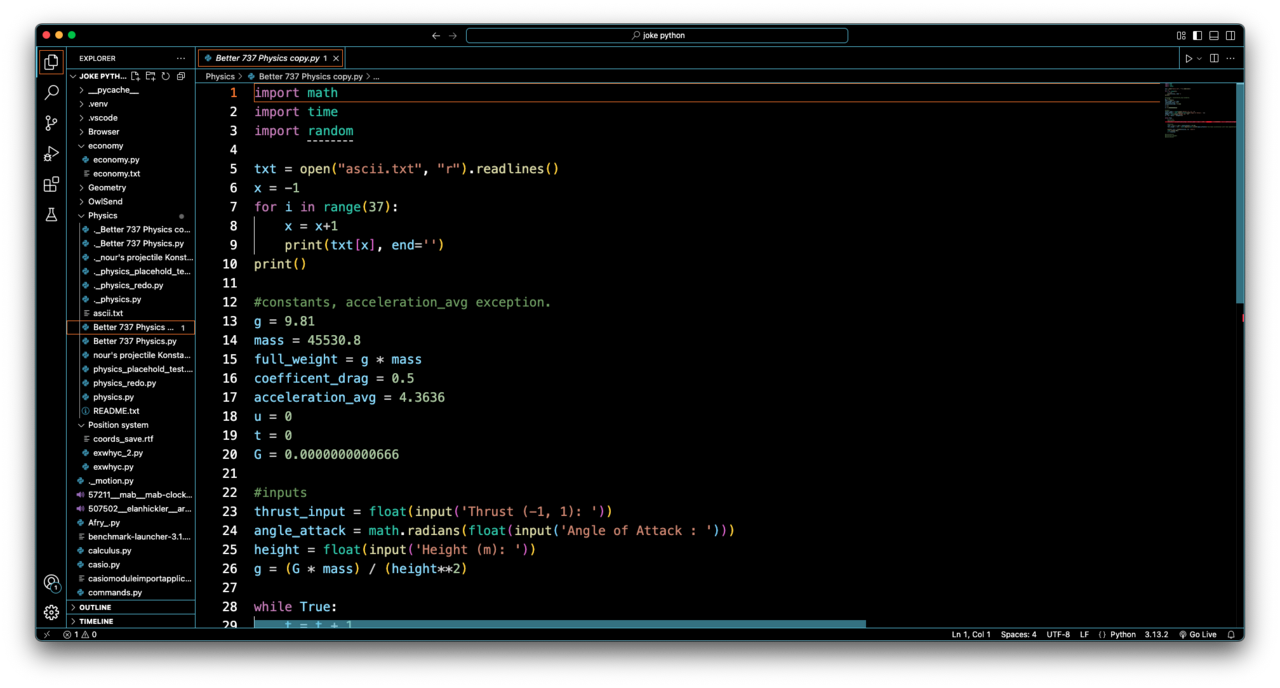
Image credit: Blocky Player — CC0. Visual Studio Code interface example; not the actual Volyx bot project.
Open the Discord Developer Portal, create an application and navigate to its Bot section. Create or reset the bot token only when necessary; treat it as a password. Copy the application ID from General Information and the numeric server ID of the private guild where you will test. Developer Mode in the Discord client makes the server ID available from its context menu.
Use the OAuth2 installation flow to invite the app to your own guild. Configure the bot and applications.commands scopes as needed for your setup, and grant only the permissions your bot actually requires. This example uses slash interactions and does not need administrator permission or access to read every message. Avoid enabling privileged intents merely because an unrelated tutorial suggests turning them all on.
Guild commands are convenient during development because their registration and visibility are scoped to a single server. Global commands are appropriate after a project is stable, but publishing them too early makes troubleshooting harder: users in other servers may see commands that are not finished. The examples below sync with a specific guild ID, so the bot’s behavior stays contained while you develop.
A virtual environment isolates this project’s packages from your system Python and from unrelated bots. Create the directory, activate its environment and install a compatible discord.py 2.x release:
mkdir python-discord-starter
cd python-discord-starter
python3 -m venv .venv
source .venv/bin/activate
python -m pip install 'discord.py>=2.4,<3'
python -m pip freeze > requirements.txt
Pinning the exact resolved versions with pip freeze helps you reproduce the same environment during a later deployment. It does not guarantee a package is secure forever; review dependency updates before changing your production environment. When you deploy, install from requirements.txt into another virtual environment instead of copying the local .venv directory across operating systems.
Keep the first version small enough to understand at a glance:
python-discord-starter/
  bot.py
  requirements.txt
  .gitignore
  .venv/                # local, do not commit
Add a .gitignore file containing .venv/, .env, __pycache__/, and *.pyc. This protects local clutter from accidental commits, but it does not erase a token already pushed to a repository. Rotate a leaked token immediately in the Developer Portal.
The application needs three values: the bot token, the application ID for verification, and the test guild’s ID. For a local Unix terminal session, load them as environment variables. Replace the placeholders with your own values without pasting the final commands or results into public chat:
export DISCORD_TOKEN='your_real_bot_token'
export DISCORD_APPLICATION_ID='your_application_id'
export DISCORD_GUILD_ID='your_test_server_id'
On a hosting platform, set these values using the provider’s environment or secret-variable interface. Do not commit a .env file containing real credentials. Use a password manager or another secure local method to keep the real values. A log line that confirms whether a variable is set is useful; one that prints the value is not.
Startup should fail clearly if the required configuration is absent. When a value must be numeric, reject unexpected text before making an API request. This avoids confusing authentication and registration errors caused by mistyped IDs.
Create bot.py with this code. It uses only the Guilds gateway intent, defines two slash commands, performs a guild-scoped sync during startup and responds to users without waiting for a message prefix. The code uses a current discord.py 2.x API; future major releases may change names or behavior.
import logging
import os
import random

import discord
from discord import app_commands
from discord.ext import commands

logging.basicConfig(
    level=logging.INFO,
    format="%(asctime)s %(levelname)s %(name)s: %(message)s",
)
logger = logging.getLogger("volyx.python_starter")


def require_env(name: str) -> str:
    value = os.environ.get(name, "").strip()
    if not value:
        raise RuntimeError(f"Missing required environment variable: {name}")
    return value


TOKEN = require_env("DISCORD_TOKEN")
APPLICATION_ID = int(require_env("DISCORD_APPLICATION_ID"))
GUILD_ID = int(require_env("DISCORD_GUILD_ID"))
TEST_GUILD = discord.Object(id=GUILD_ID)

intents = discord.Intents.default()
intents.message_content = False


class StarterBot(commands.Bot):
    async def setup_hook(self) -> None:
        self.tree.copy_global_to(guild=TEST_GUILD)
        commands_synced = await self.tree.sync(guild=TEST_GUILD)
        logger.info("Synced %d commands to test guild", len(commands_synced))


bot = StarterBot(command_prefix=commands.when_mentioned, intents=intents)


@bot.event
async def on_ready() -> None:
    logger.info("Ready as %s (ID: %s)", bot.user, bot.user.id if bot.user else "unknown")


@bot.tree.command(name="ping", description="Check whether the bot responds")
async def ping(interaction: discord.Interaction) -> None:
    latency_ms = round(bot.latency * 1000)
    await interaction.response.send_message(f"Pong! Gateway latency: {latency_ms} ms")


@bot.tree.command(name="roll", description="Roll a number between 1 and your upper bound")
@app_commands.describe(sides="Maximum roll value, between 2 and 100")
async def roll(interaction: discord.Interaction, sides: int) -> None:
    if not 2 <= sides <= 100:
        await interaction.response.send_message(
            "Choose a number between 2 and 100.", ephemeral=True
        )
        return
    await interaction.response.send_message(f"You rolled {random.randint(1, sides)}")


@bot.tree.error
async def command_error(interaction: discord.Interaction, error: app_commands.AppCommandError) -> None:
    logger.error("Slash command failed: %s", type(error).__name__)
    message = "The command failed. Please try again later."
    if interaction.response.is_done():
        await interaction.followup.send(message, ephemeral=True)
    else:
        await interaction.response.send_message(message, ephemeral=True)


if __name__ == "__main__":
    # Discord's client library owns reconnect logic; do not add a busy retry loop.
    bot.run(TOKEN, log_handler=None)
The setup_hook runs during login setup and registers the commands before normal event processing. copy_global_to copies the locally defined command set into the target guild for testing. This starter is not designed for multi-guild command deployment; when you support many communities, plan command scopes and registration separately.
discord.Intents.default() requests the ordinary gateway events needed for a simple bot. Because the commands are delivered as interactions, no message_content intent is required. commands.Bot manages the gateway session while bot.tree stores application commands. interaction.response.send_message sends the initial response to the user. Discord interactions have response deadlines; long-running database operations or API calls should usually acknowledge or defer the interaction and complete the work afterward.
bot.latency reflects the gateway connection’s heartbeat latency, not end-to-end latency for every command or service. Do not present it as an accurate measurement of all bot performance. For command timing, measure the actual work and collect samples instead of relying on a single ping result.
Before launching, use Python’s parser to catch basic syntax problems. Then run the process with your environment variables configured:
python -m py_compile bot.py
python bot.py
A healthy startup logs the number of commands synchronized to your test guild and then identifies the bot when it becomes ready. If the process exits with a missing-variable message, set that variable correctly. If Discord rejects the token, regenerate it only if needed and update the runtime configuration. Do not repeat login attempts rapidly with invalid credentials.
In your private Discord guild, type /ping and confirm the bot sends a reply. Then try /roll sides:6, followed by /roll sides:1. The normal case should return a random integer; the invalid case should provide a private validation message. Also test after stopping and restarting the process to verify commands remain registered and the bot returns online without manual intervention.
If commands do not appear, confirm the correct guild was invited, the correct guild ID is configured and the application-command installation scopes were granted. Check the first synchronization error in your logs. Commands registered in the wrong application or test guild will not appear where you expect them.
The runtime is using an invalid bot token, or the token is not being read correctly. Verify the variable name and whether whitespace or quotation characters were copied into the value. Do not log the token while investigating. If it was exposed anywhere, reset it and remove the old value from active use.
Your process is using a Python interpreter that does not have discord.py installed. Check which python (or the corresponding Windows command), activate the virtual environment and run python -m pip show discord.py. Install dependencies using the same interpreter that launches the bot. Running pip and python from different environments causes this error surprisingly often.
Confirm that the application was installed in the guild with the necessary scopes, that DISCORD_GUILD_ID points to the correct server, and that setup_hook completed without an error. Repeatedly restarting the bot will not fix an invalid guild ID. Inspect the exact logged exception before attempting another sync.
An online presence proves only that the gateway session exists. A command may time out when the handler blocks the event loop or fails before it acknowledges an interaction. Avoid synchronous network requests or long sleeps in async handlers. Use an async HTTP client, defer long-running interactions and return a friendly error rather than leaving users waiting.
A compatible Python hosting environment must provide the selected interpreter, allow your program to maintain a Discord gateway connection and supply environment variables. Upload bot.py and requirements.txt. Create a fresh virtual environment in the deployment environment when appropriate, install dependencies and configure the startup command for that provider. Typical shell commands for a normal Unix host are:
python3 -m venv .venv
.venv/bin/python -m pip install -r requirements.txt
.venv/bin/python bot.py
Some hosting panels manage the virtual environment and startup command for you. Follow the host’s documented process instead of forcing the shell pattern above into a platform that uses a different runtime. Keep the process logs available and test both slash commands after deployment. A free plan may have resource limits, idle suspension or time limits; check actual platform conditions rather than promising permanent 24/7 uptime.
For a bot that serves real users, monitor process exits, authentication failures and command errors. Avoid logging tokens, full incoming messages or sensitive personal data. Back up persistent configuration or databases if you add them later; this tutorial itself stores no persistent user data. Install dependency updates first in a test environment, because API behavior and runtime compatibility can change between releases.
If you need to change permissions, review each scope and privilege explicitly. A bot that only responds to slash commands generally does not need broad moderation powers. Treat reliability and least privilege as ongoing maintenance practices rather than a one-time setup step.
No, not for the two slash commands in this tutorial. Bots that parse the content of ordinary messages may need additional gateway configuration, depending on their design and Discord’s current privileged-intent requirements. Avoid requesting more intent access than your functionality requires.
Yes, if the host supports the required Python version, outgoing Discord connectivity, environment variables and a sufficiently long-lived process for your intended use. Free hosting may have quotas or suspension policies. Always confirm those conditions with your specific provider.
You can use a secret manager or a local configuration mechanism when appropriate, but never commit a real token or embed it in tutorial screenshots. An environment variable is a straightforward baseline for this example. Rotating a token is required if it is exposed, even when the repository is later made private.
Use the discord.py documentation for the current API and Discord’s official Developer documentation for application permissions, scopes and interactions. Treat code examples as a foundation to test in your own guild, not as evidence that external credentials or permissions have been verified here.
Once this first bot is working, consider separating commands into modules, adding tests for pure functions and documenting deployment steps specific to your host. Keep the project small until you can reliably build, run and diagnose its entire lifecycle.
Explore more in-depth articles with code, visuals, and practical walkthroughs.
Browse all articles ↗
Select storage based on data durability, concurrent writes, and operational limits.
Read article ↗
Read specific failures rather than repeatedly resetting your bot.
Read article ↗
Verify signatures, protect endpoints, and handle interaction timing correctly.
Read article ↗